HRWorks
This guide walks you through connecting your HRWorks instance to Bindbee.
Before you begin
You need an HRworks account with API administrator privileges.
Generating your HRworks API key pair
Step 1: Log in to HRworks and click Admin in the left navigation pane.
Step 2: Navigate to Basics.
Step 3: Go to Integrations.
Step 4: Find and click the HRworks-API card.
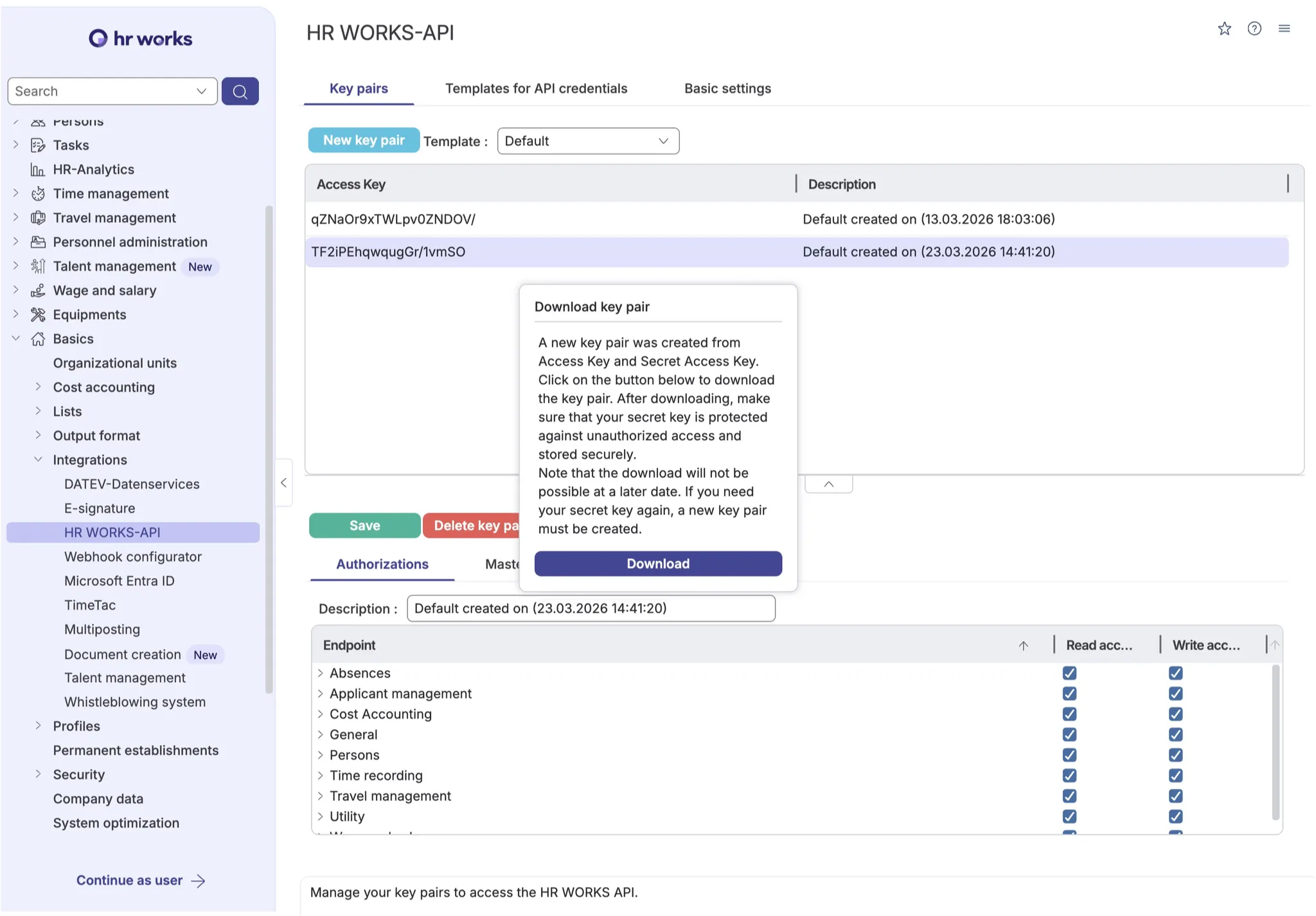
Step 5: Click the New Key Pair button.
Step 6: Leave the template set to Default, then confirm.
Step 7: A popup appears offering the credentials file. Click Download and save the text file somewhere secure before closing the popup.
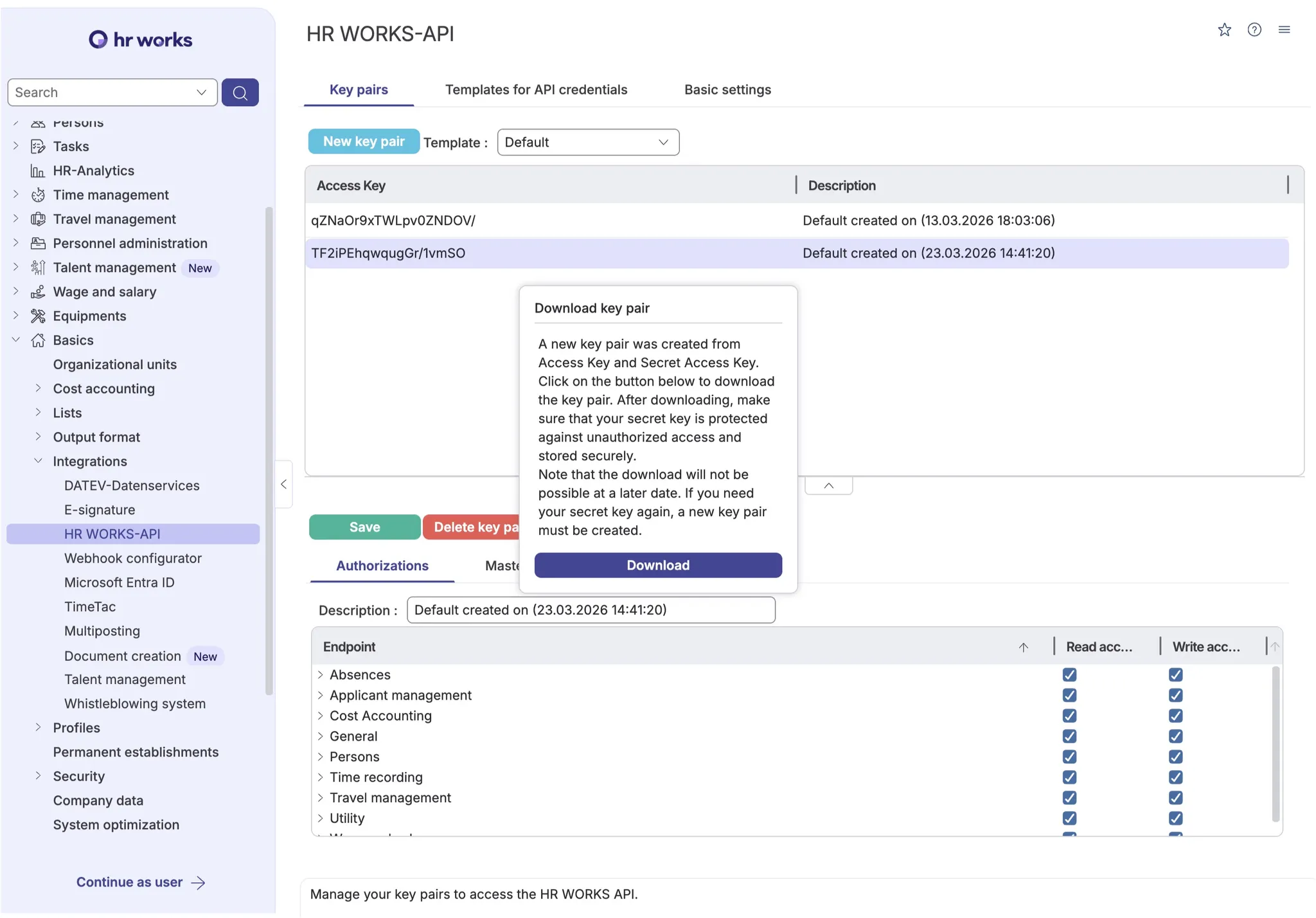
Step 8: Open the downloaded text file. It contains two values:
- Access Key
- Secret Access Key
Step 9: Copy both into the corresponding fields in the Bindbee prompt and submit.
Step 10: Scroll to Authorizations and enable the necessary permissions.
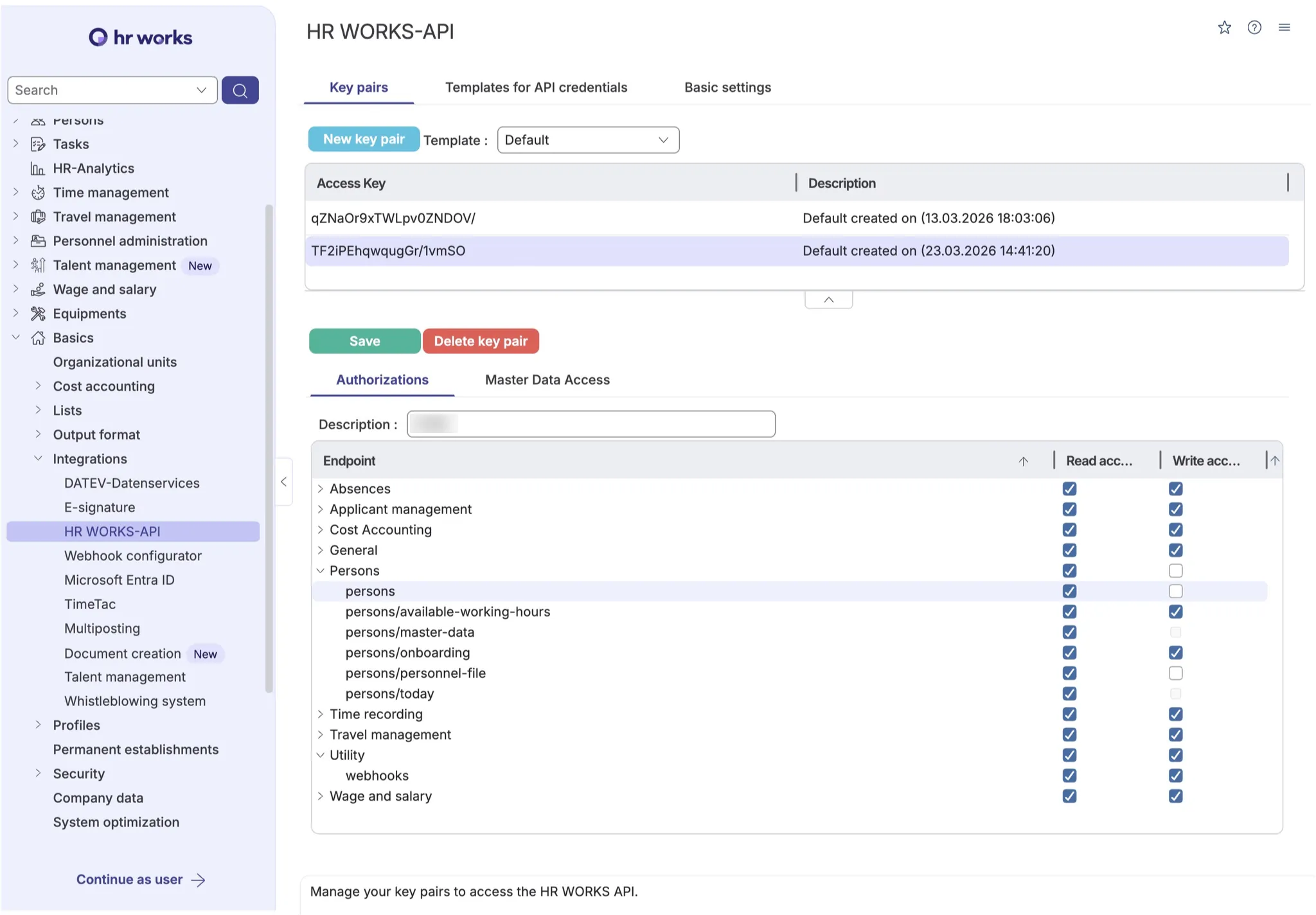
Adjusting permissions on the key pair
If you need to change what the key pair can read after creating it, return to Admin > Basic > Integrations > HRworks-API, click the key pair, and edit its access and permissions.
Troubleshooting
Symptom | Likely cause |
|---|---|
The HRworks-API card is not visible | Your HRworks user lacks API administrator privileges |
Credentials file was lost or never downloaded | The file is one-time only. Delete the existing key pair, create a new one, and update the credentials in Bindbee |
Connection succeeds but some data is missing | The key pair's permissions are narrower than expected |