Quickbooks
This guide walks you through connecting your QuickBooks account to Bindbee.
Before you begin
Before starting the connection, make sure you have:
- Access to the Bindbee Magic Link provided to you.
- Admin access to the QuickBooks company you want to connect.
- A QuickBooks account with sufficient permissions to authorize third-party applications.
- Confirmed whether you want to connect your Sandbox or Production QuickBooks environment.
Connect your QuickBooks account
Step 1: Open the Bindbee Magic Link
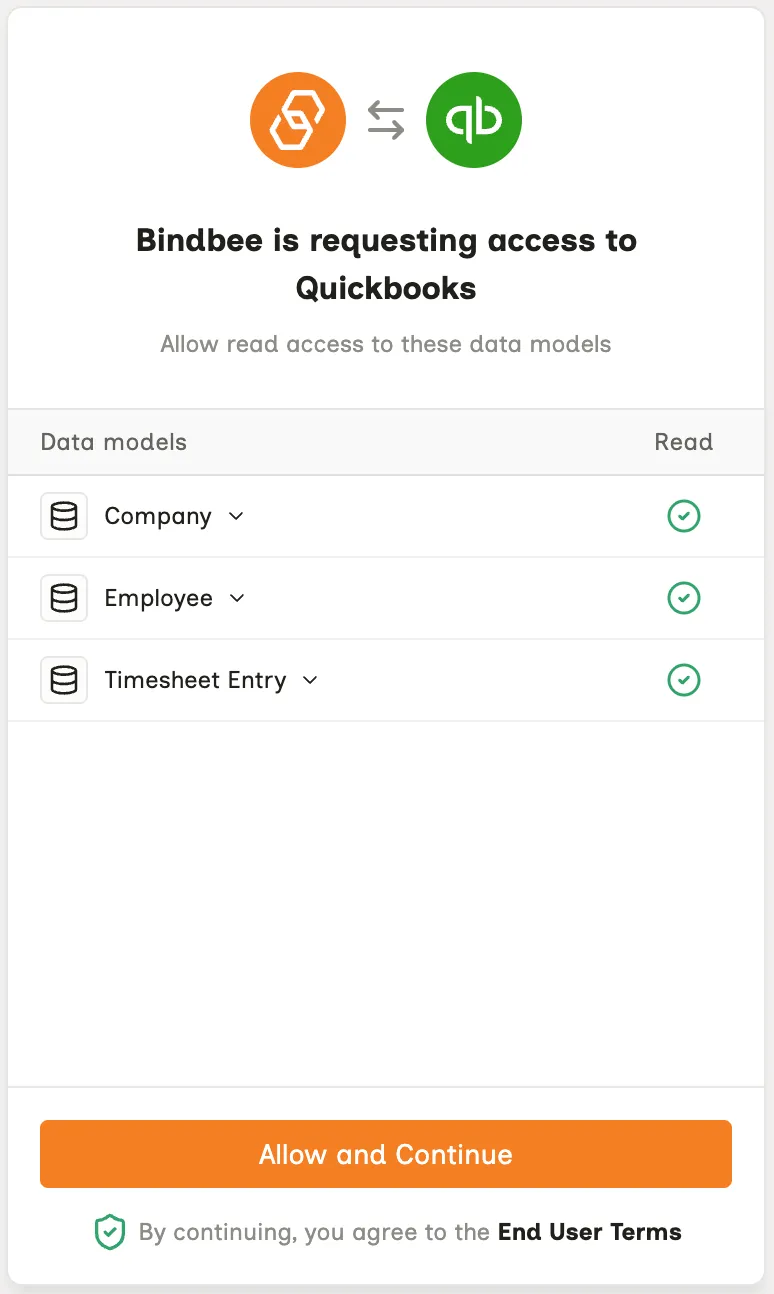
Open the Magic Link provided to you to begin setting up the QuickBooks integration and click Allow and Continue.
Step 2: Select your QuickBooks domain
Choose the QuickBooks environment you want to connect:
- sandbox-quickbooks.api.intuit.com - Select this if you are connecting a QuickBooks sandbox account.
- quickbooks.api.intuit.com - Select this if you are connecting your live QuickBooks account.
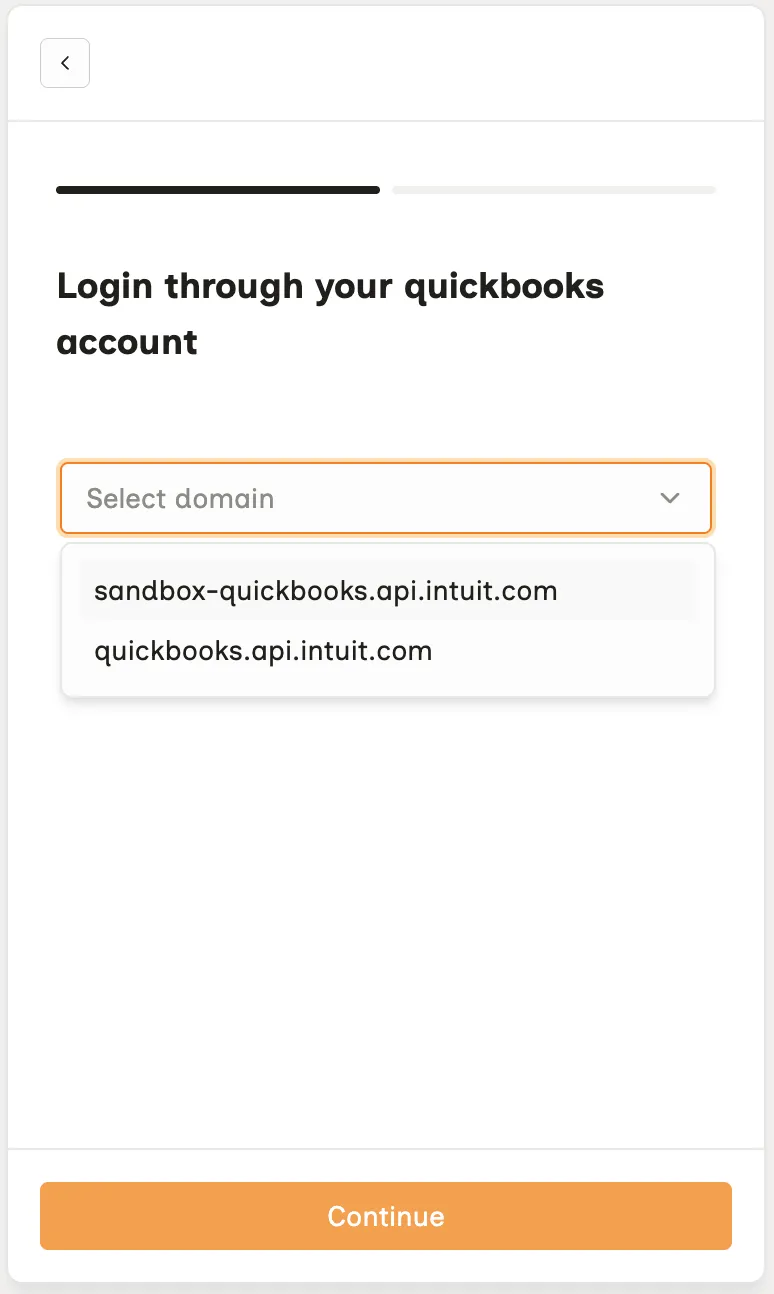
After selecting the appropriate domain, click Continue.
Step 3: Sign in to QuickBooks
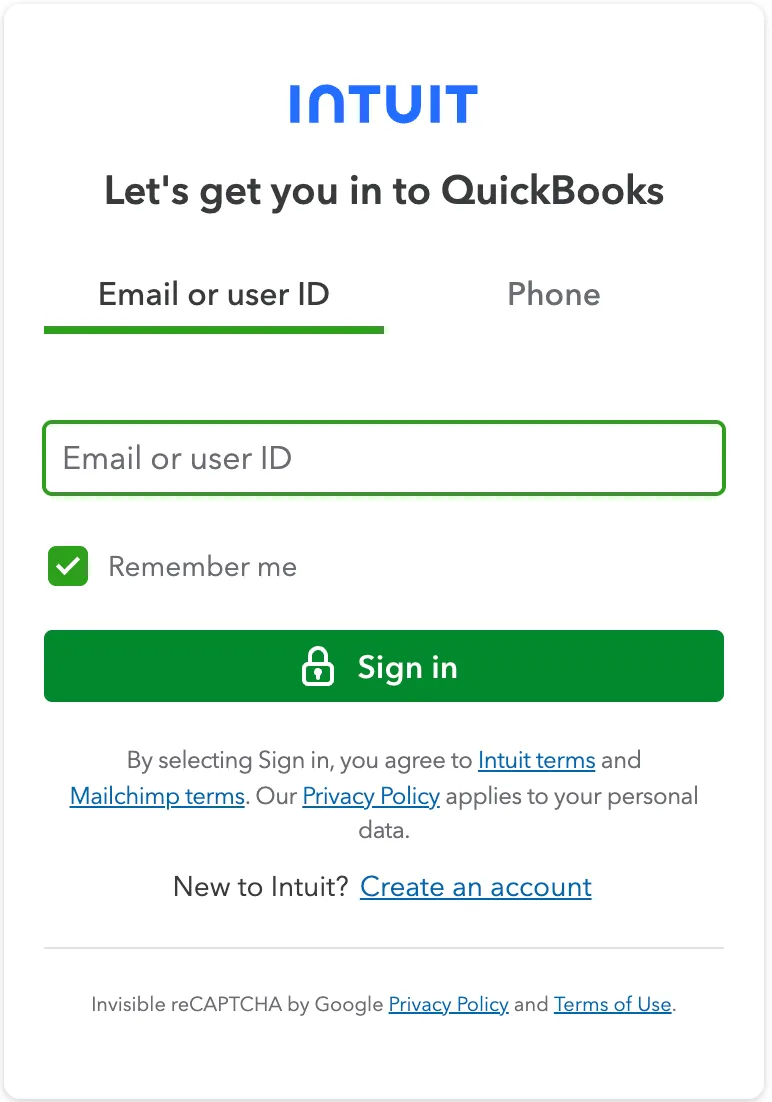
You will be redirected to the QuickBooks authorization page.
Sign in using the QuickBooks admin account that has access to the company you want to connect.
Step 4: Authorize the connection
Approve the connection and QuickBooks will then redirect you back to the Bindbee Magic Link.
Step 5: Confirm the connection
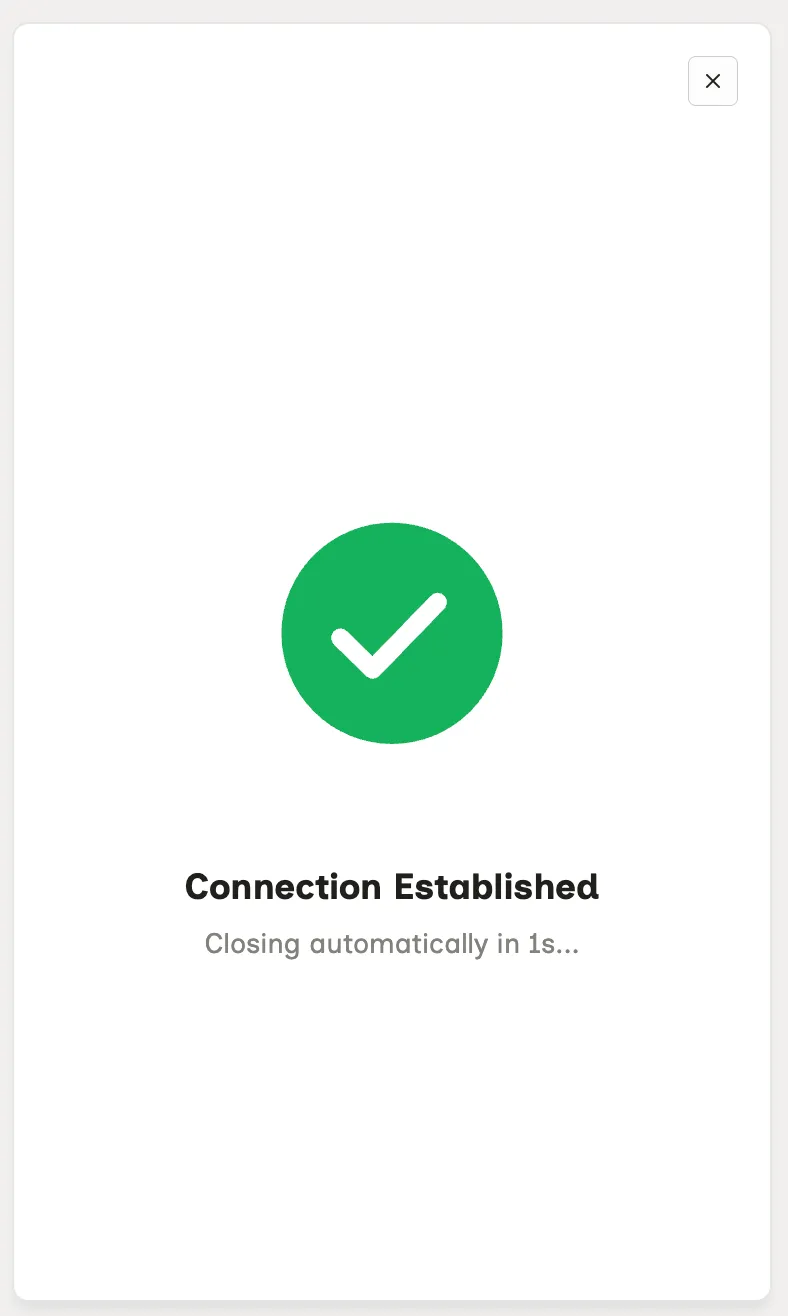
Once the authorization is completed successfully, Bindbee will automatically establish the connection with your QuickBooks account and the data will start syncing.