Xero
This guide walks you through finding your Xero organisation name and entering it into Bindbee provided magic link for setting up the connection.
Before you begin
You need a Xero login with access to the organisation you want to sync. If your login has access to more than one organisation, the organisation name is what tells Bindbee which one to pull data from, so it needs to be exact.
Finding your organisation name
Step 1: Sign in to your Xero account.
Step 2: On the top-left of the navigation bar, click your organisation name.
Step 3: A dropdown appears listing the organisations you have access to. Find the one whose data you want to sync and copy its name.
Step 4: Paste the organisation name into the Bindbee prompt and click on Continue.
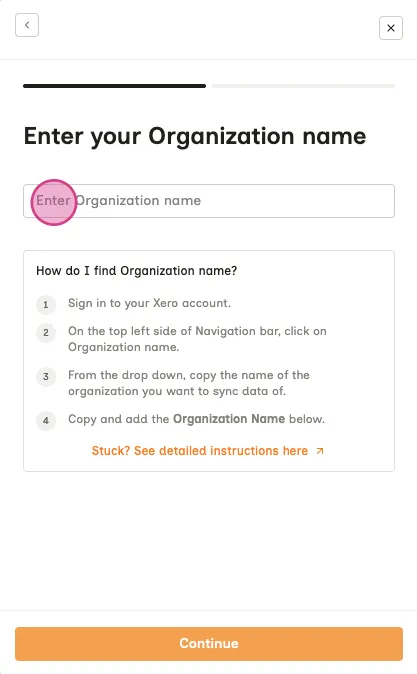
Step 5: You'll be redirected to Xero's authorization page. Once you authorize the connection, you'll be redirected back to the magic link, where the successful connection will be confirmed.
Getting the name exactly right
Bindbee matches the organisation by name, so copy it rather than retyping it. The most common causes of a failed match are:
- Trailing spaces picked up when copying.
- Punctuation differences, since `Acme Ltd.` is not the same as `Acme Ltd`.
- Using your trading name or a nickname instead of the name Xero displays.
- Using the organisation's legal name from Settings > Organisation details when it differs from the display name in the dropdown.
If the name in the dropdown differs from what you expected, use the dropdown version.
Troubleshooting
Symptom | Likely Cause |
|---|---|
The wrong organization's data is syncing | Another organisation on the same login has a similar name. Confirm the exact name in the dropdown and re-authorize |
The organisation is not in the dropdown | Your Xero user has not been invited to that organisation. Ask a Xero admin to grant you access first |
Authorization succeeds but no data returns | Your Xero user has access to the organisation but not to the modules being synced |