

Leapsome rejects a secret that is missing or incorrect. Check that you copied the whole secret, that it still exists in Leapsome, and that it's the API secret, not the SCIM token. If in doubt, create a new secret and try again.
Leapsome – How do I connect my account?
Updated today
Connect Leapsome to Bindbee by creating an API secret in Leapsome, assigning the Super Admin access role to it, and pasting it into Bindbee when prompted. You need a Leapsome admin account with access to Settings > Integrations and imports.
Bindbee connects through Leapsome's Content API and only reads data. It never creates or changes anything in Leapsome.
Use the API secret from the API access page. Leapsome's SCIM token is a separate credential for user provisioning and will not work with Bindbee.
Generate your Leapsome API secret
Log in to Leapsome as an admin.
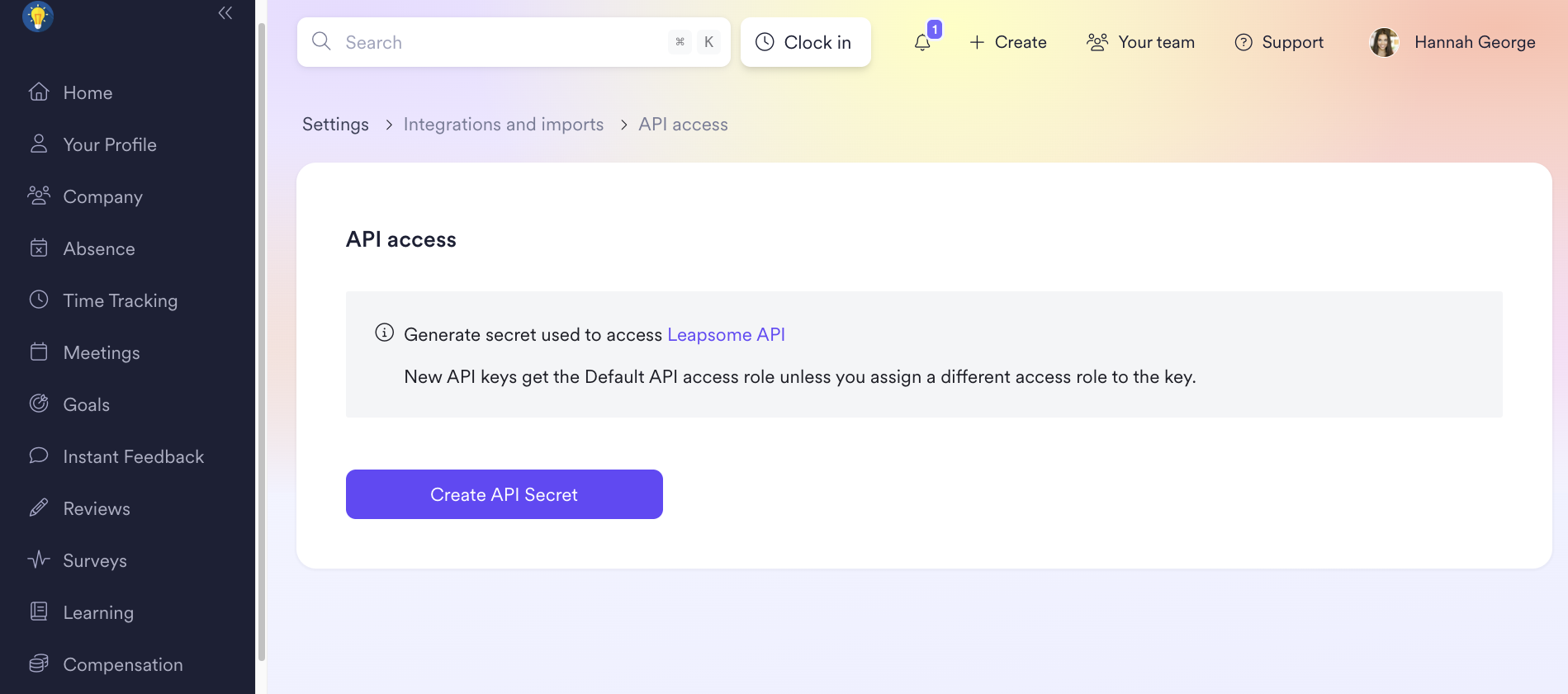
Go to Settings > Integrations and imports > API access.
Click Create API Secret. The secret appears above the button.
Copy the secret and store it somewhere secure.
Paste the secret into Bindbee when prompted and submit.
Assign an access role to the API key
What Bindbee can read depends on the access role assigned to the API key. Assign the Super Admin access role to the key.
If you use a custom role instead, it needs these permissions for the matching data. You manage roles under Settings > Employees > Access roles.
Time off: admin access to absence management
Timesheets: permission to manage time tracking policies
Payroll runs: permission to manage payroll policies
Troubleshooting
Bindbee doesn't accept the API secret
Time off, timesheets or payroll show a permission issue
The API key's access role is missing the permission for that data. Assign the Super Admin role to the key, or add the permission listed above to its custom role. The next sync picks up the change.
I can't see the API access page
Only Leapsome admins can create API secrets. Ask a Leapsome admin to create the secret.
Was this helpful?
Was this helpful?