Sap Successfactors
In this article, you'll learn how to connect SAP SuccessFactors to Bindbee. By the end, you'll have a seamless connection set up to integrate your data efficiently.
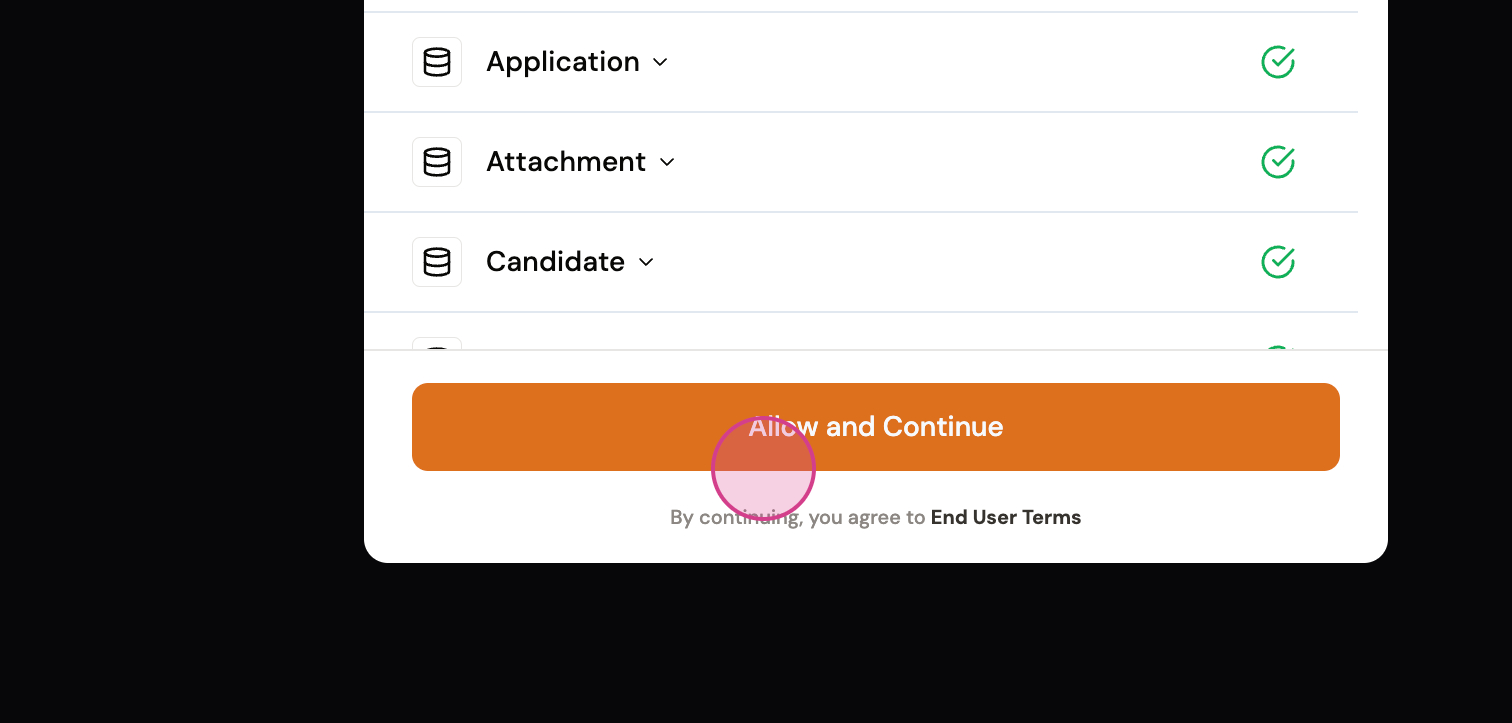
Step 1: Navigate to the Magic link and click Allow.
Step 2: Input your API server. To find it, visit the link and locate the relevant API server.
For example, if your domain is https://salesdemo2.successfactors.com, search for apisalesdemo2.
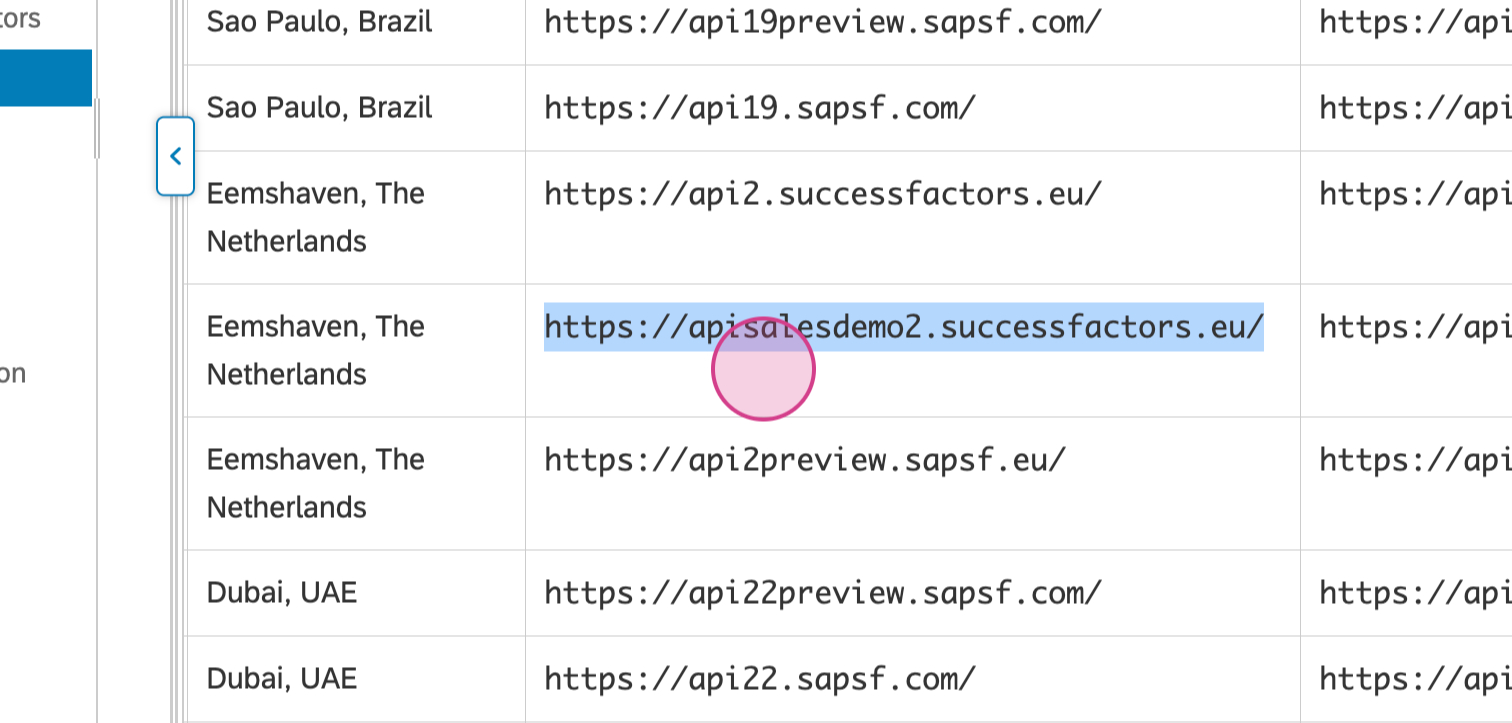
Step 3: Copy the API server.
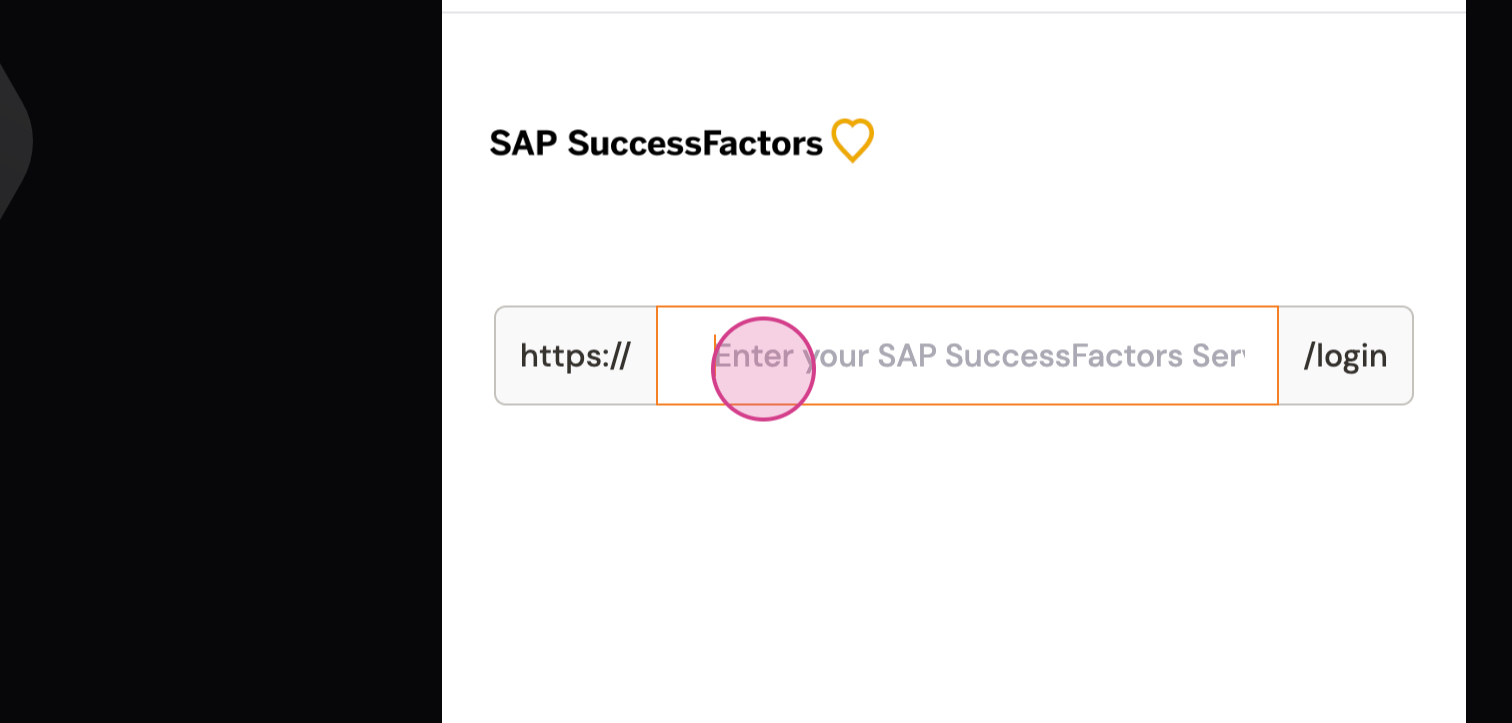
Step 4: Paste the API server into the URL section.
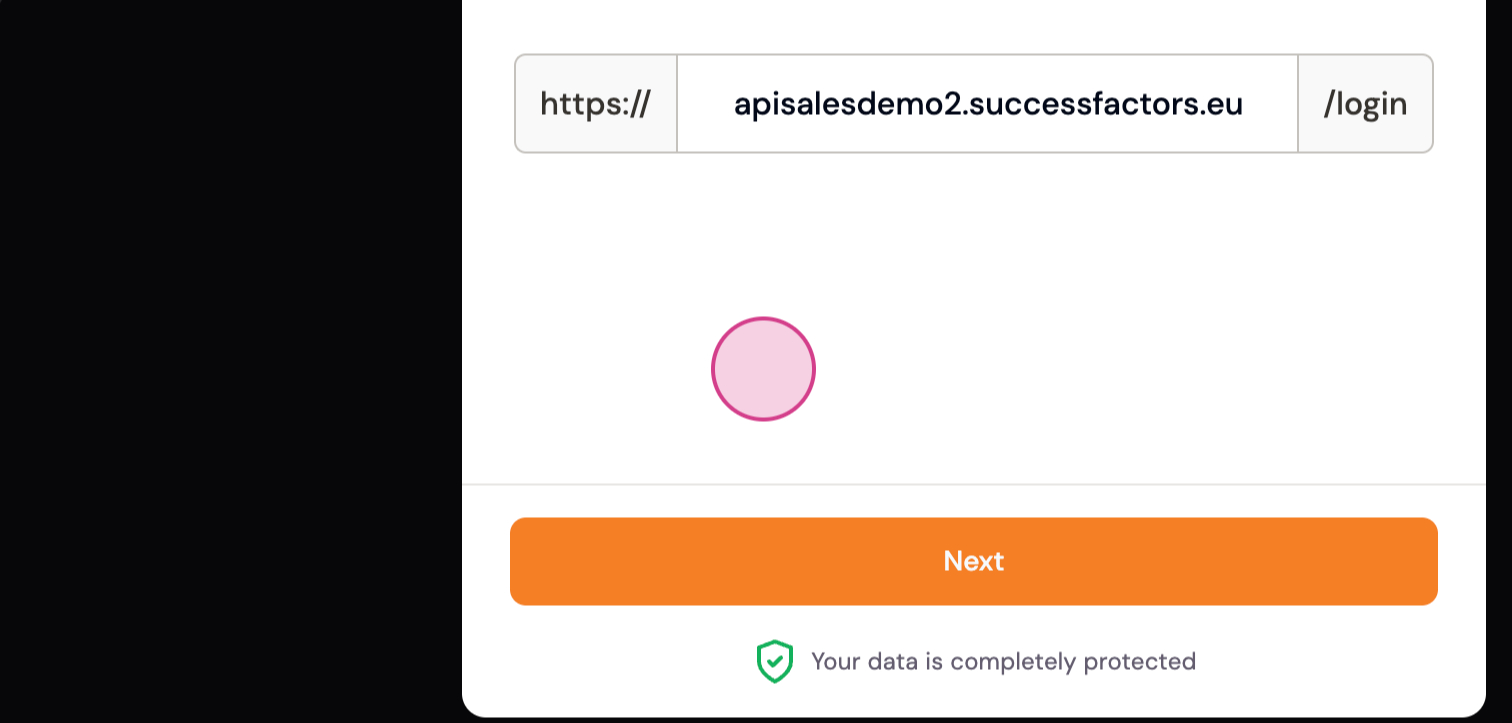
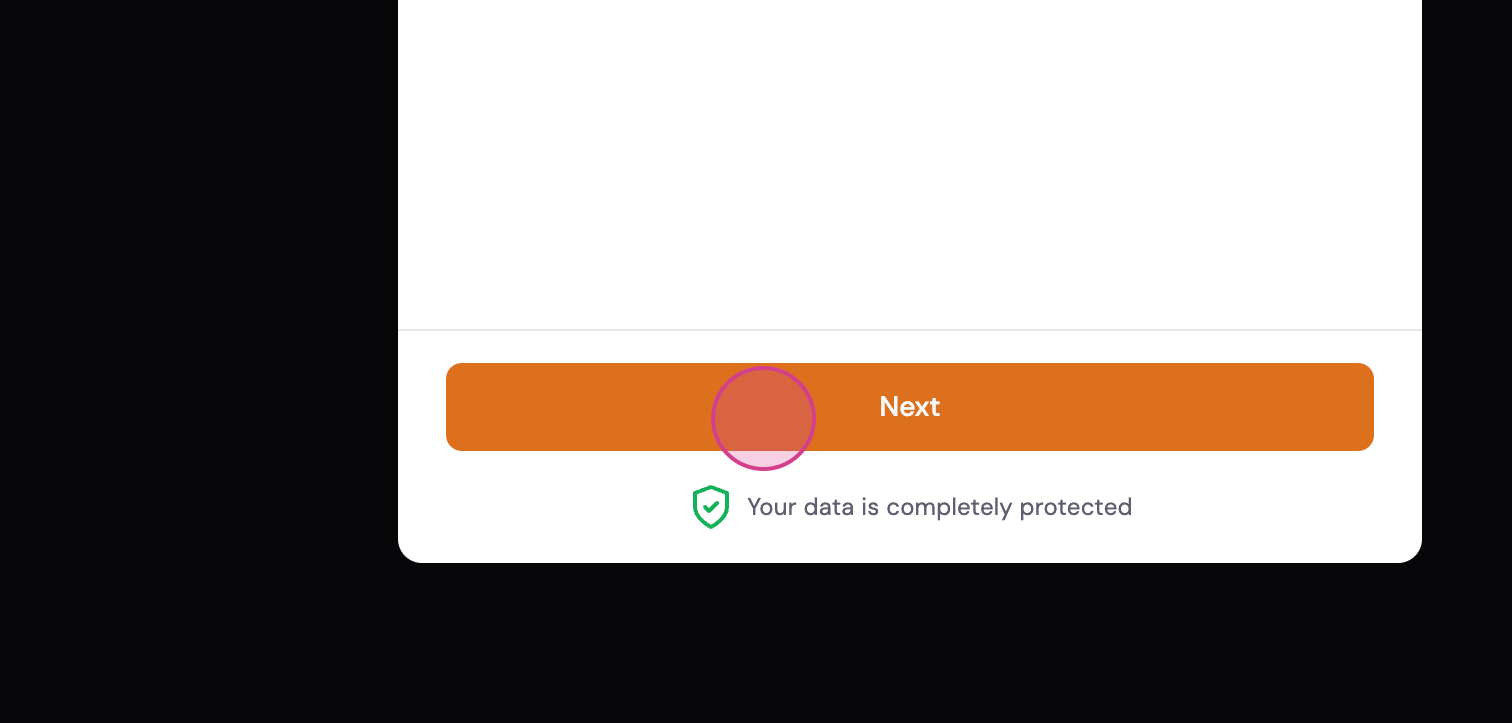
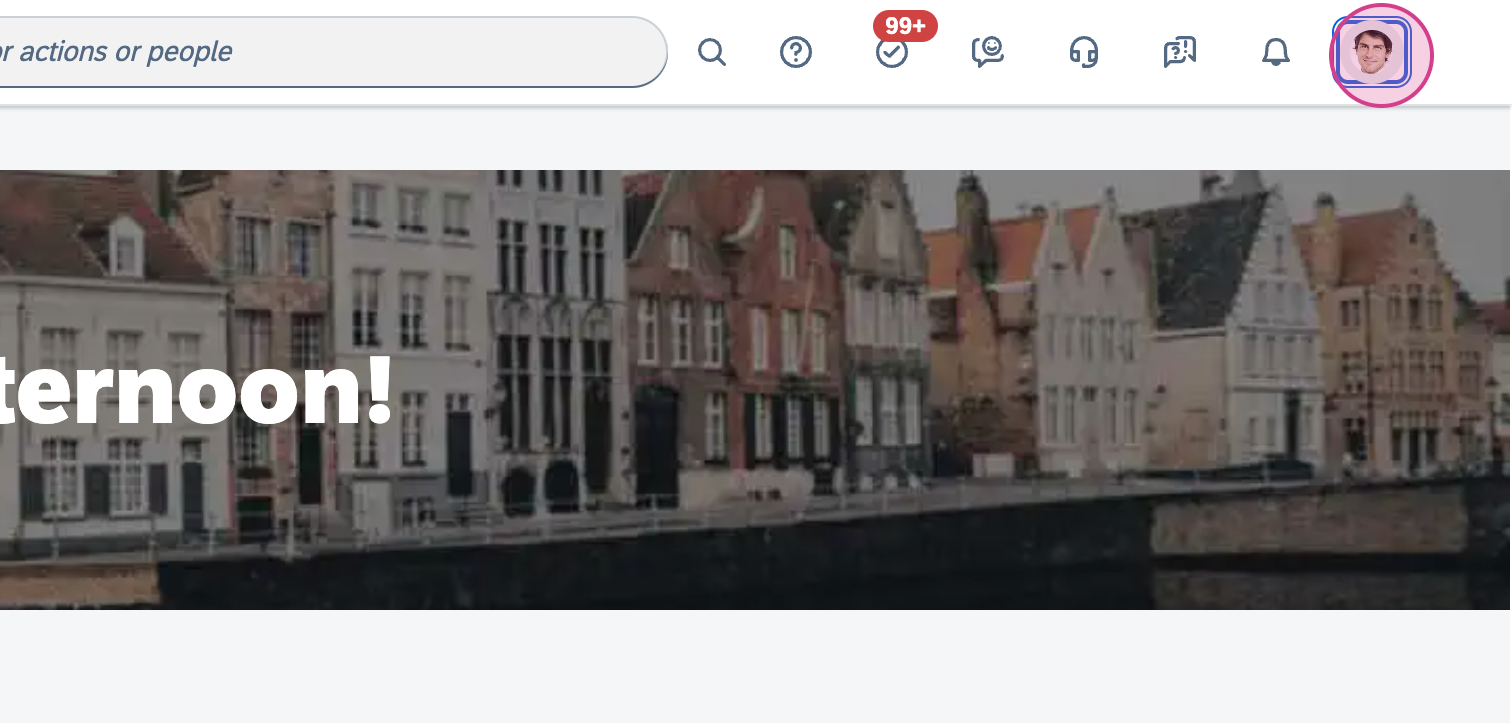
Step 5: Click Next. To find your company ID, log into your SAP SuccessFactors dashboard and click your profile.
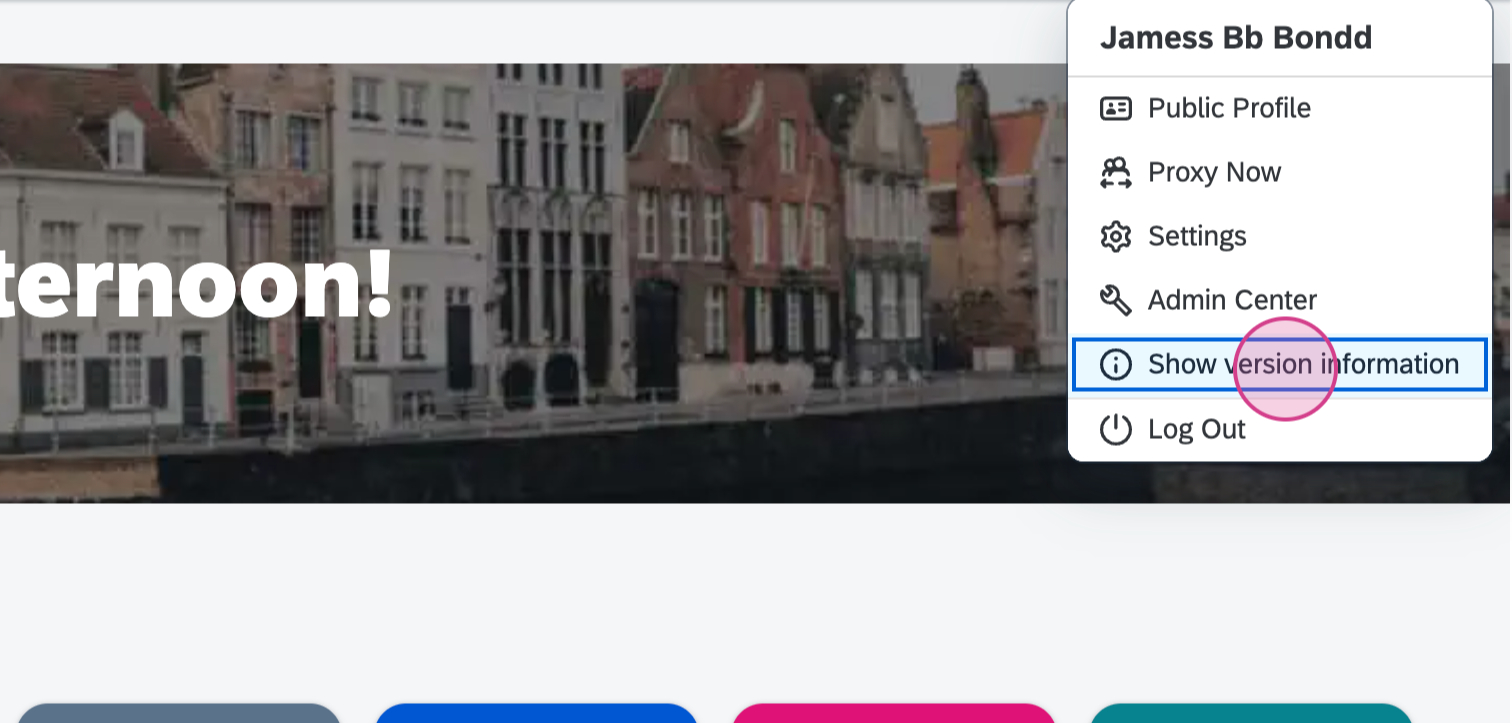
Step 6: Click Show Version Information.
Step 7: Locate your company ID.
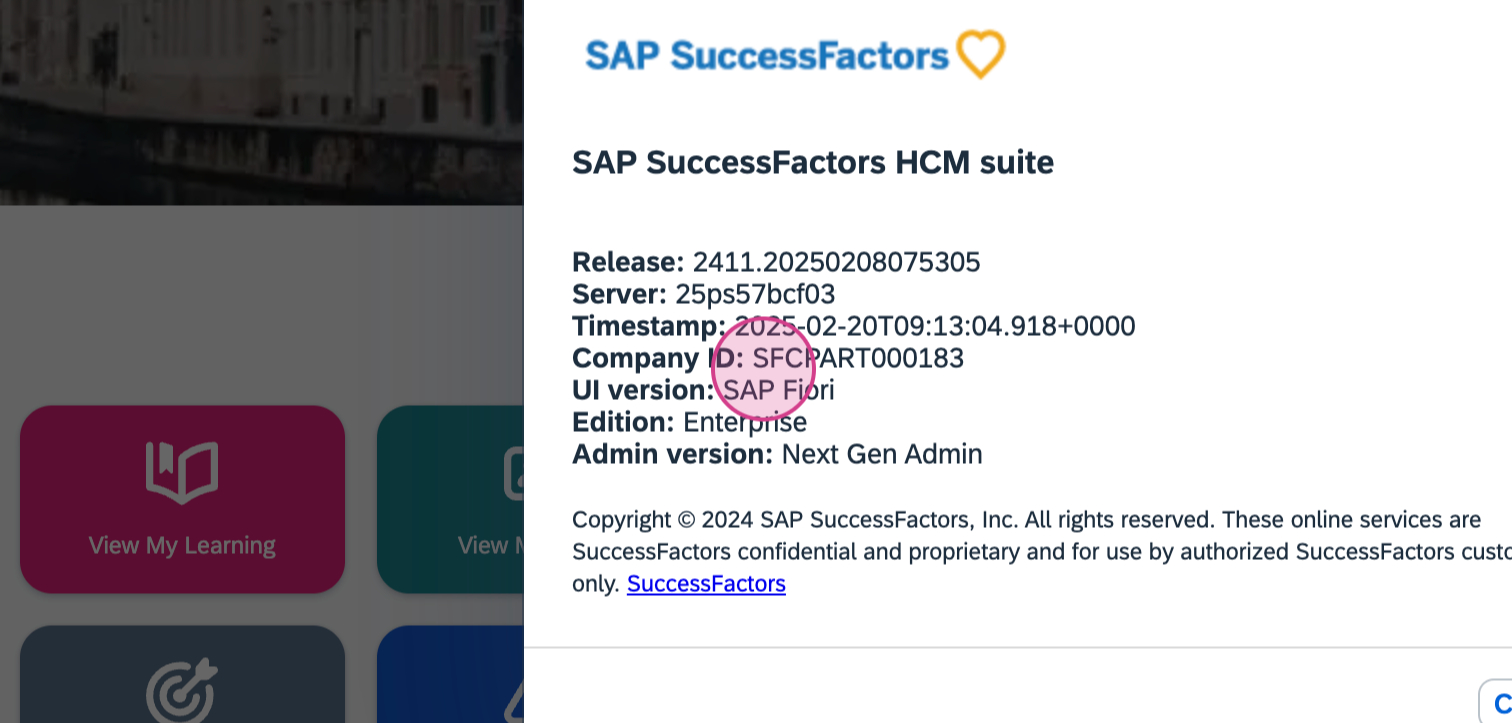
Step 8: Copy and paste your company ID.
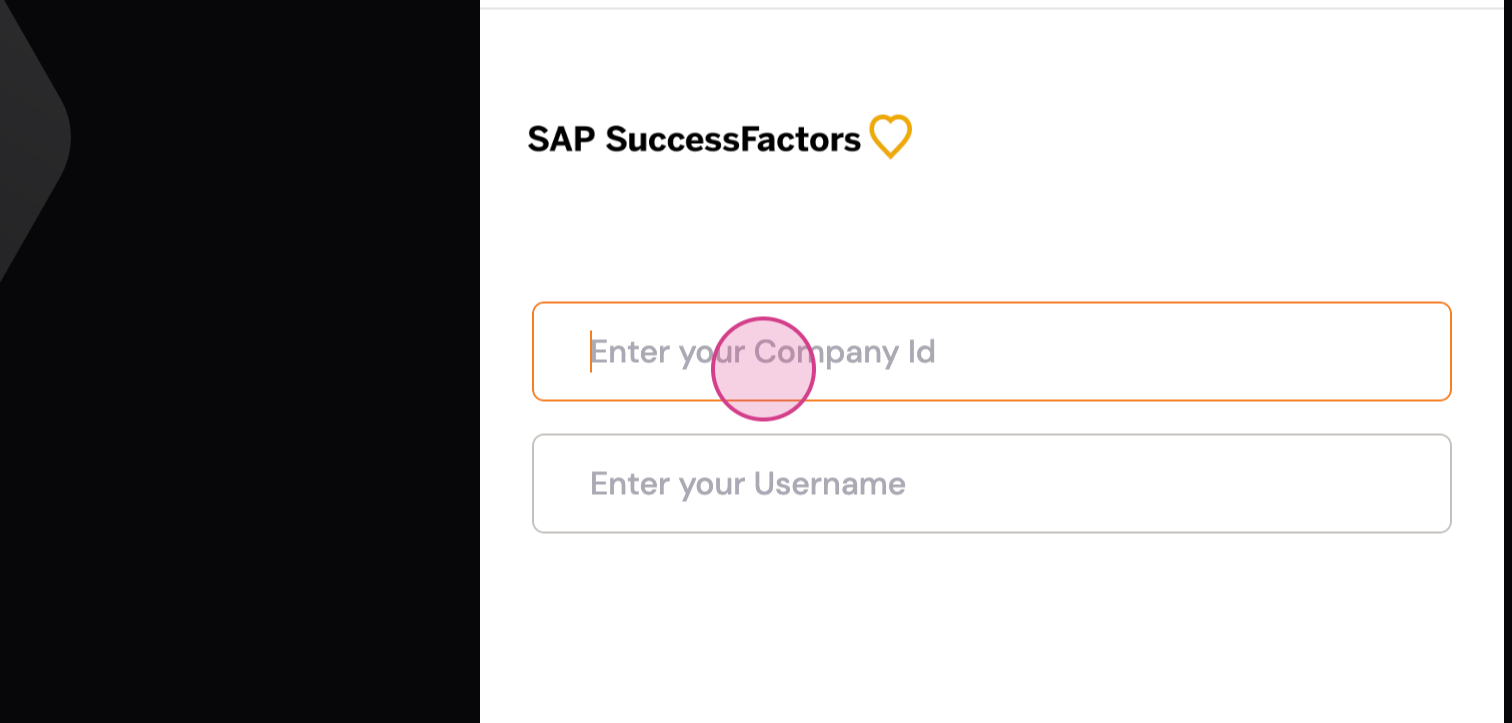
Step 9: In the username field, use the same username you use to log in to your dashboard. Ensure you have the necessary permissions to access the data.
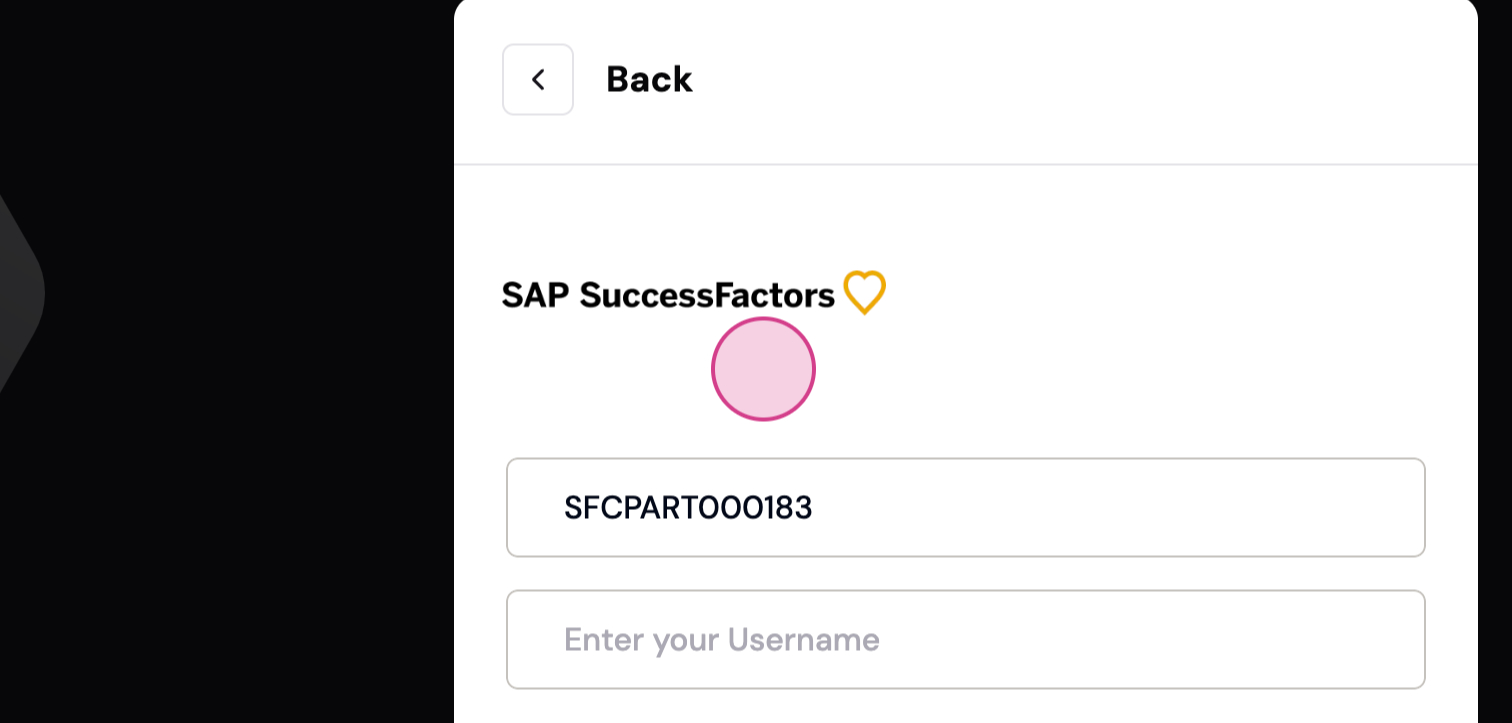
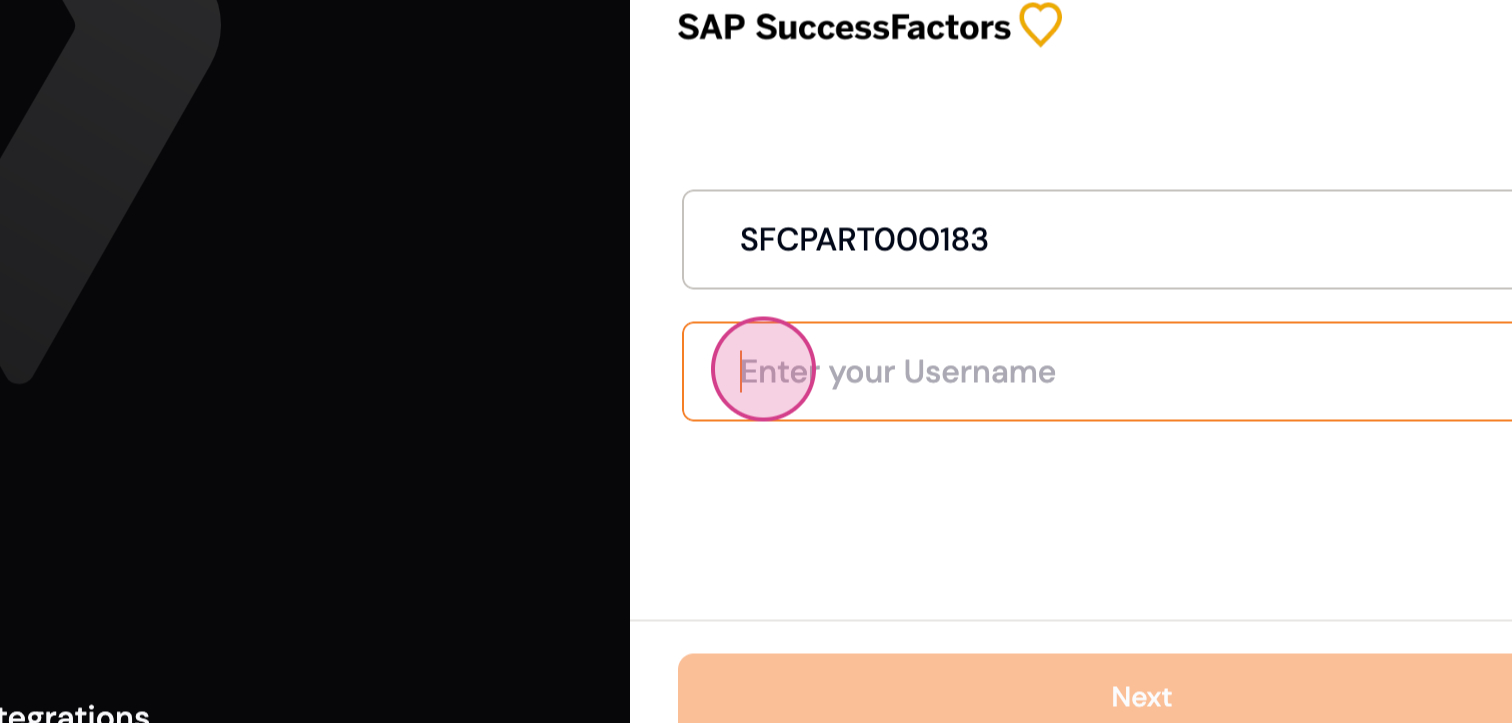
Step 10: Click Next. To get your client ID and client secret, navigate to your dashboard.
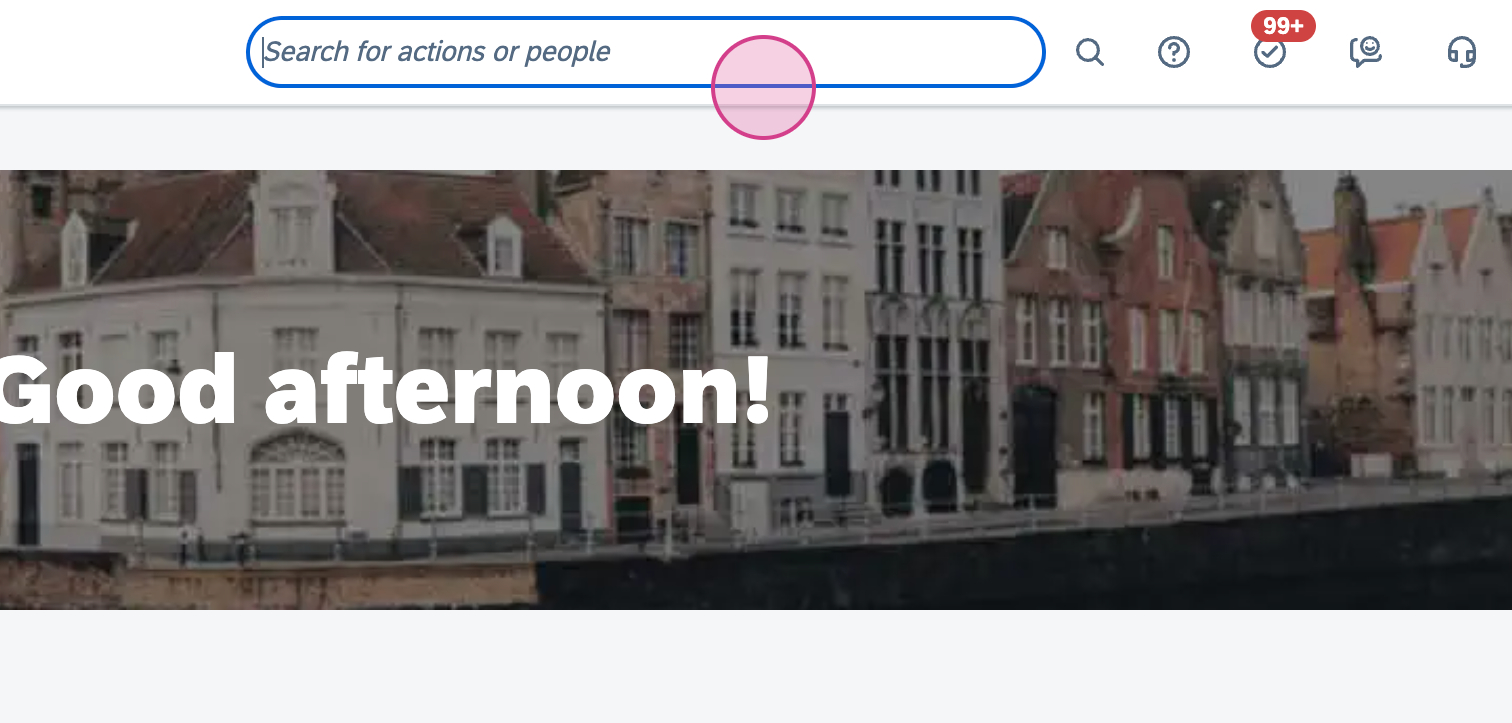
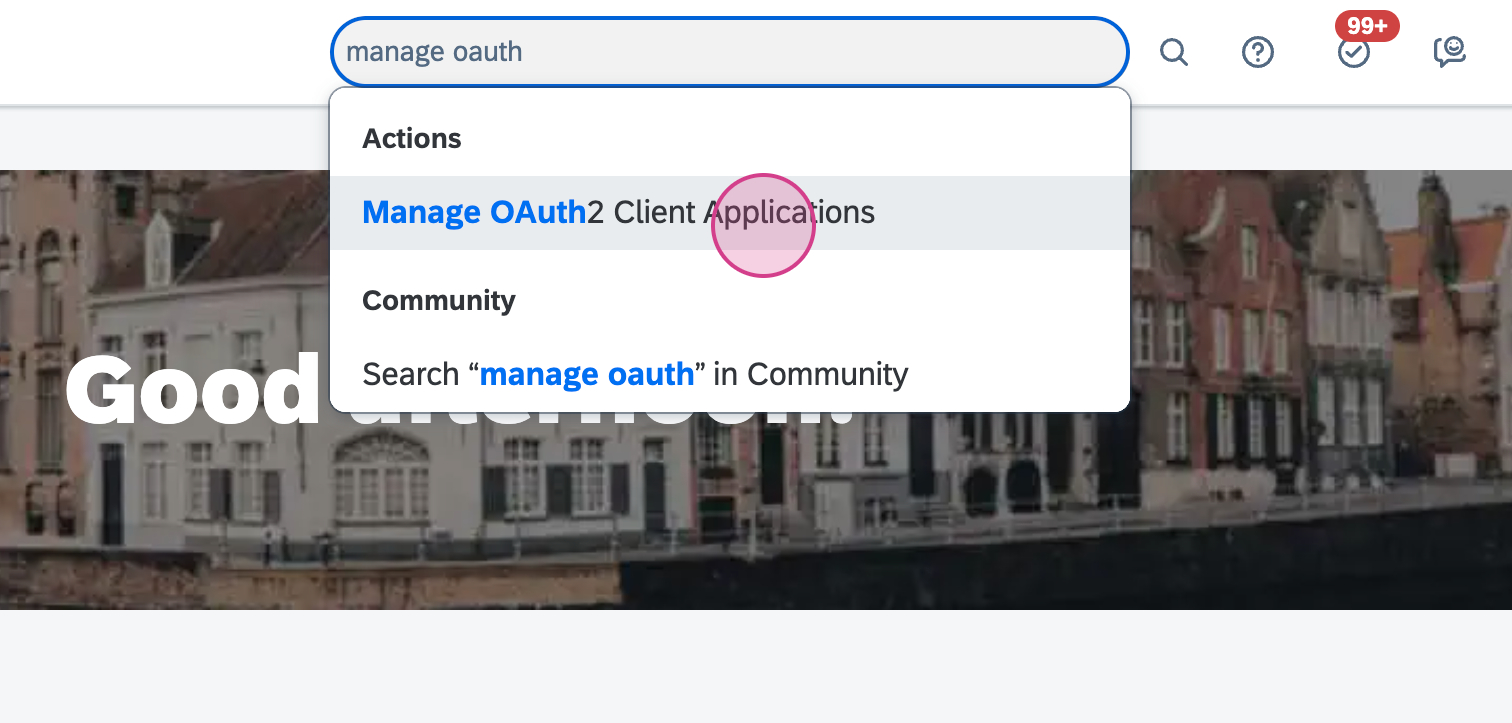
Step 11: Search for Manage OAuth 2 Client Application and click it.
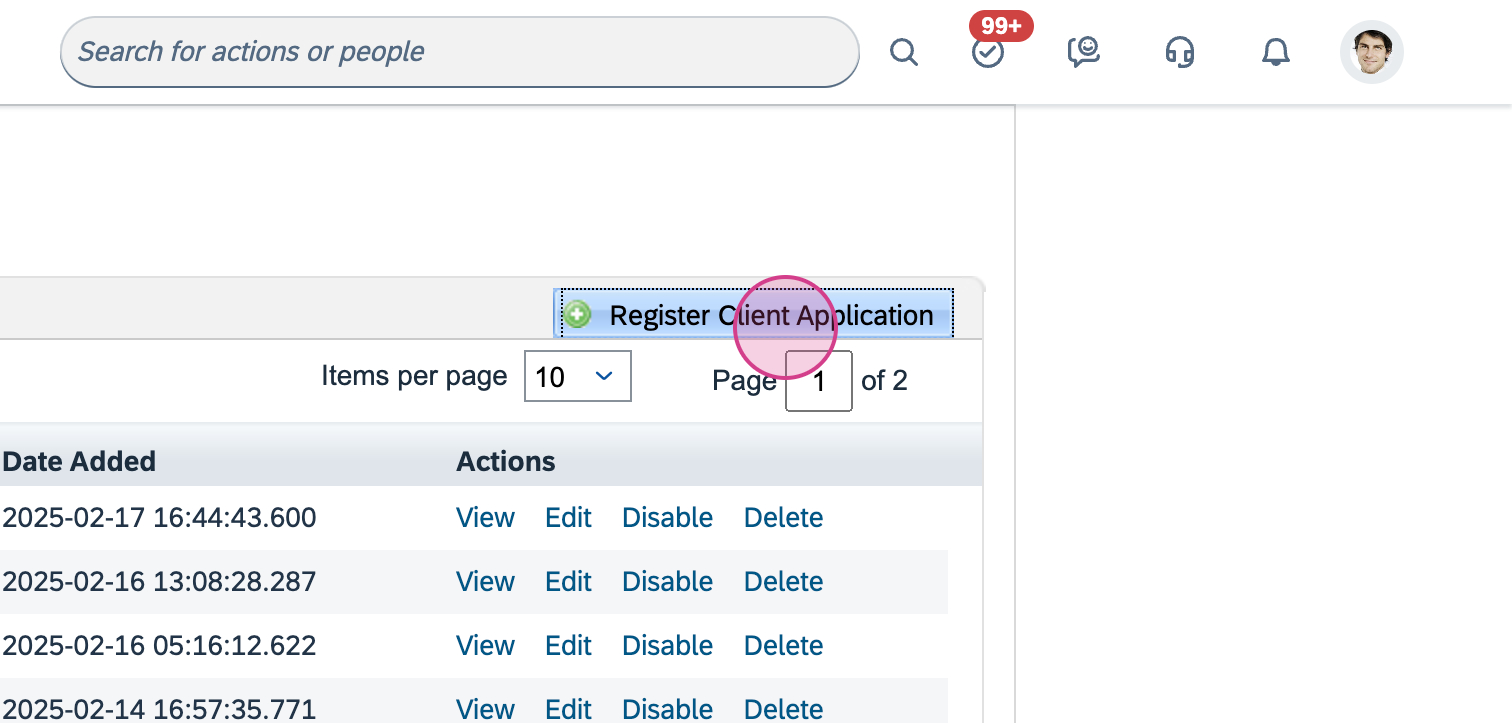
Step 12: Click Register Client Application.
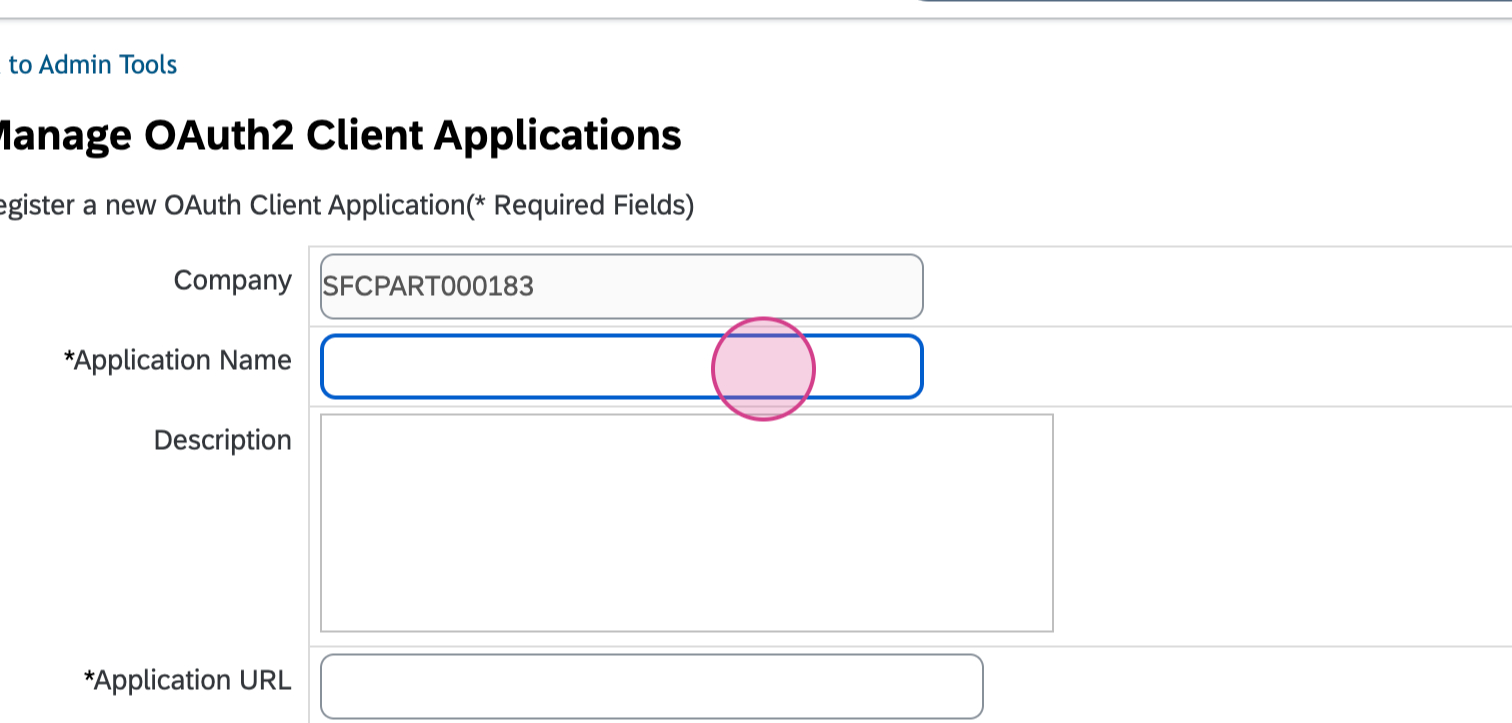
Step 13: Enter a relevant name for your application.
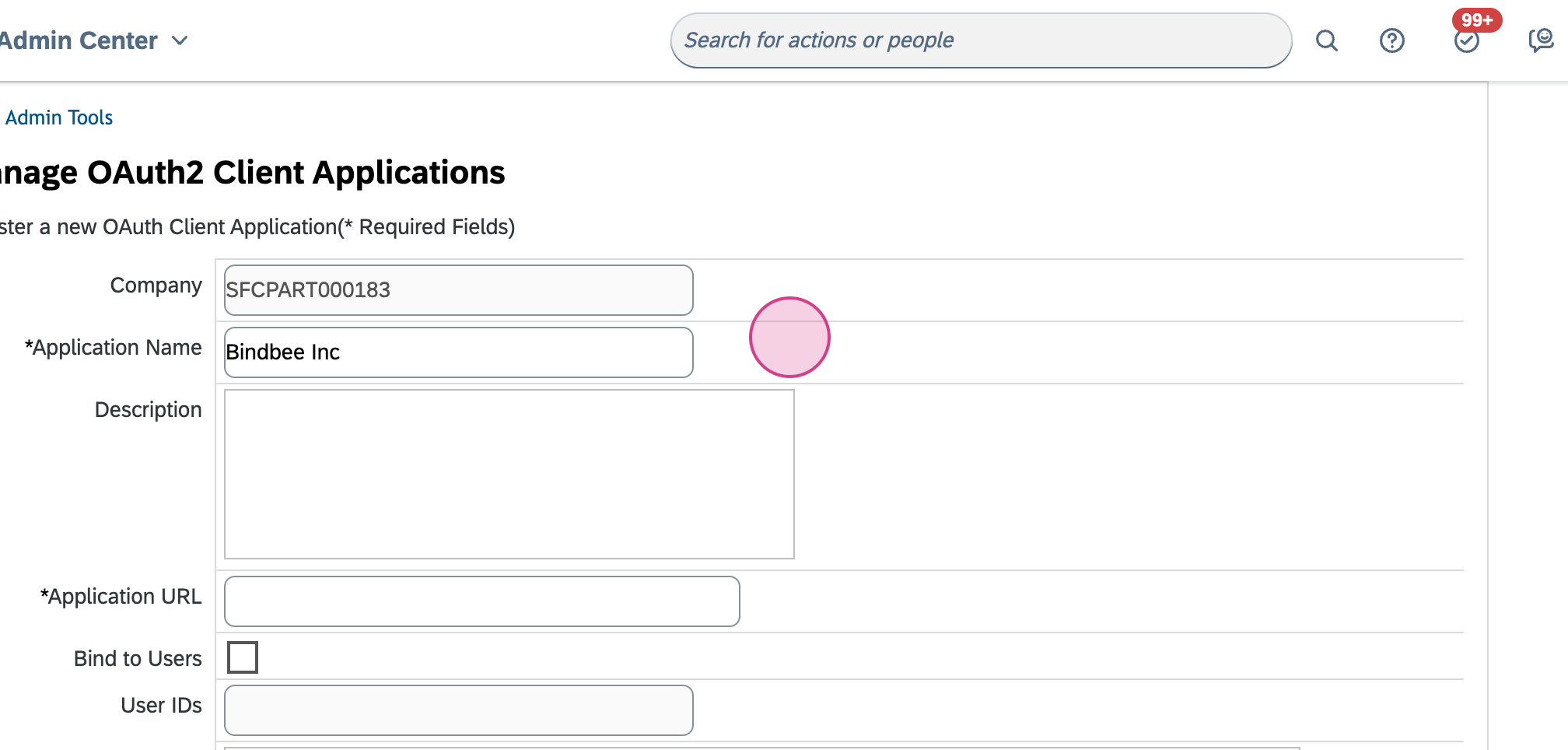
Step 14: Input your application URL.
Step 15: Click Generate Certificate.
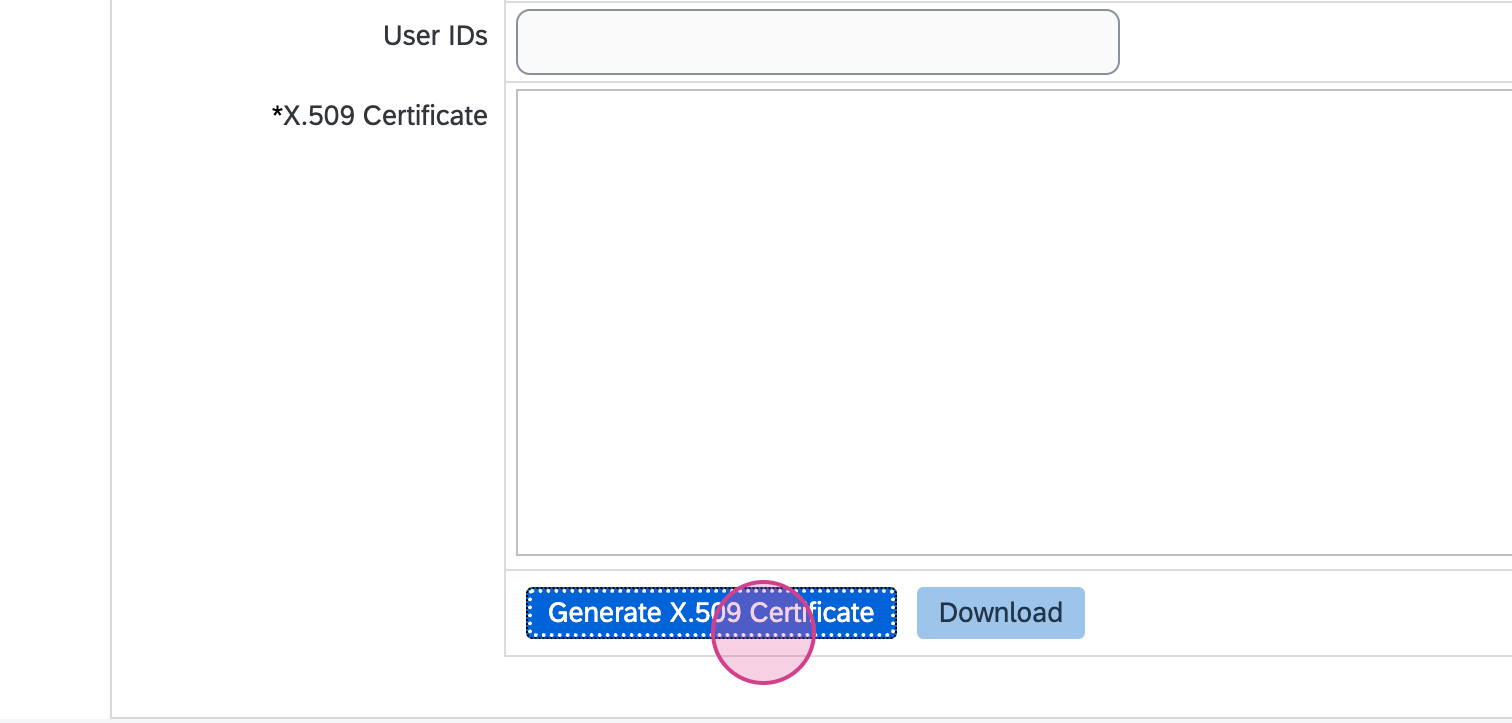
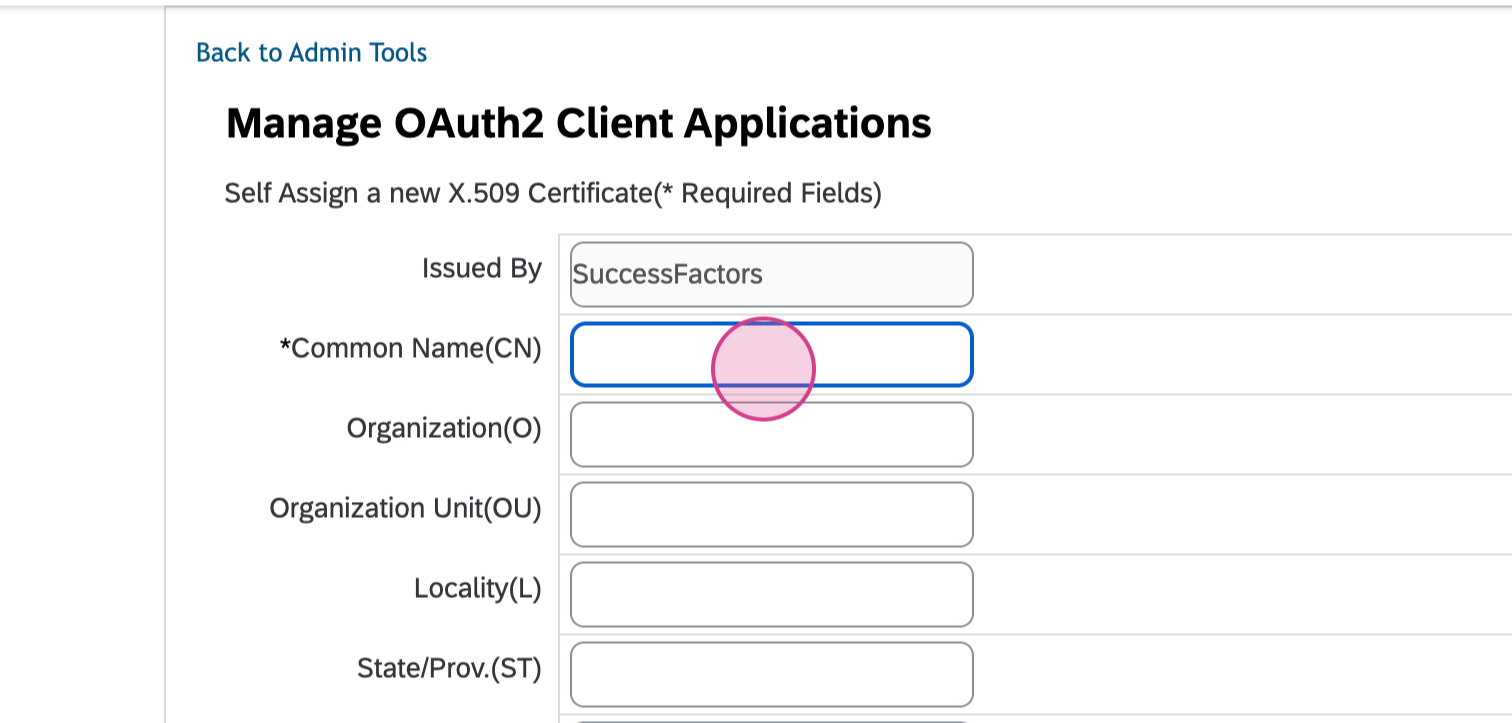
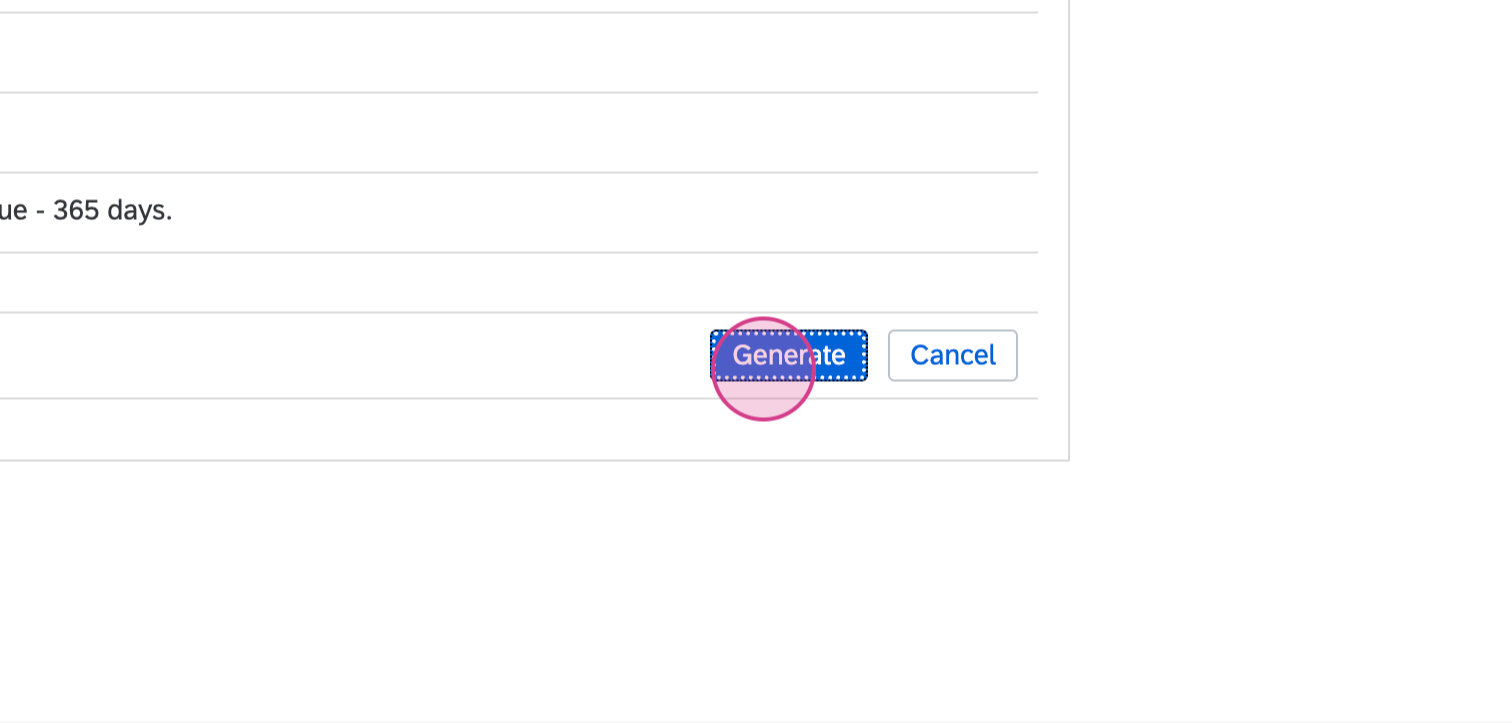
Step 16: Input a common name and click Generate.
Step 17: Download your certificate.
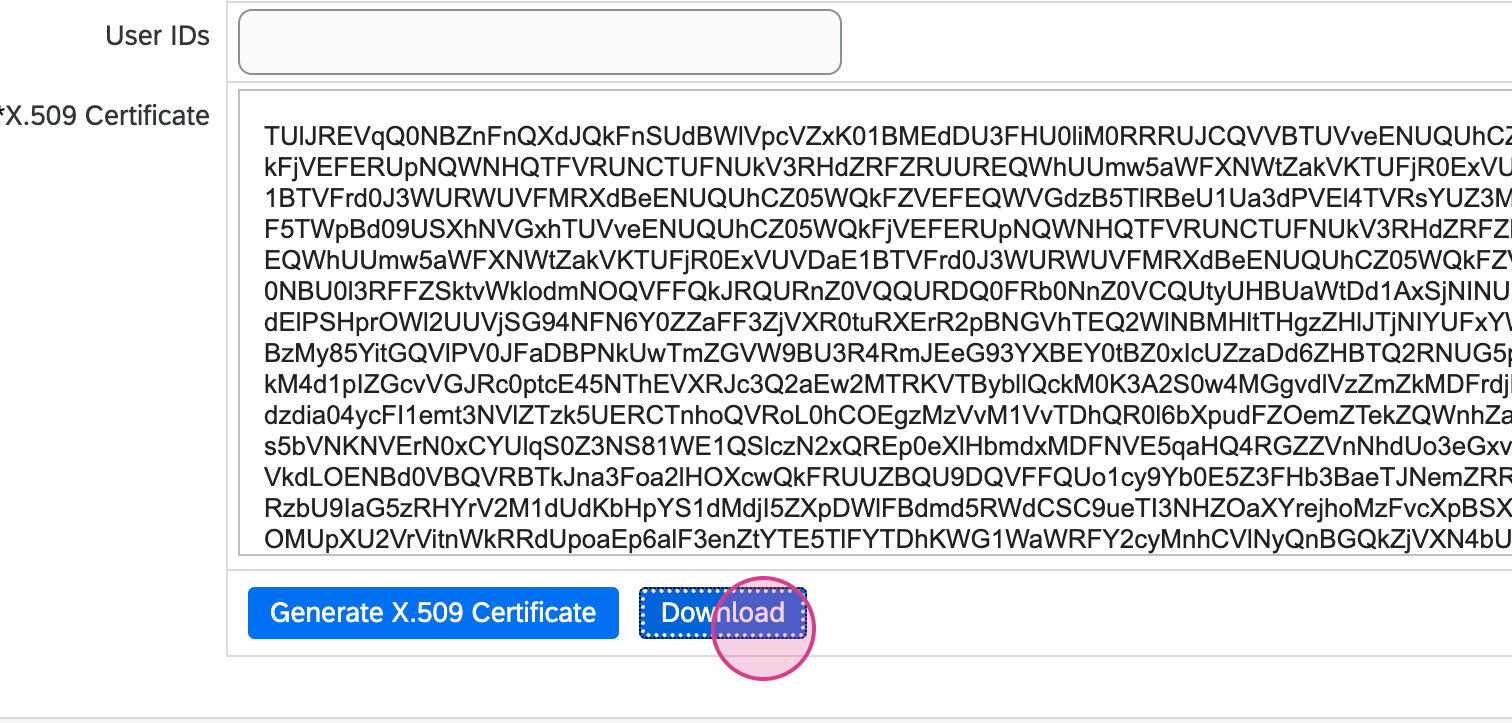
Step 18: After downloading, copy the private key from the certificate file.
NOTE: Copy the value between the lines and do not include the following:
-----BEGIN ENCRYPTED PRIVATE KEY-----
-----END ENCRYPTED PRIVATE KEY-----
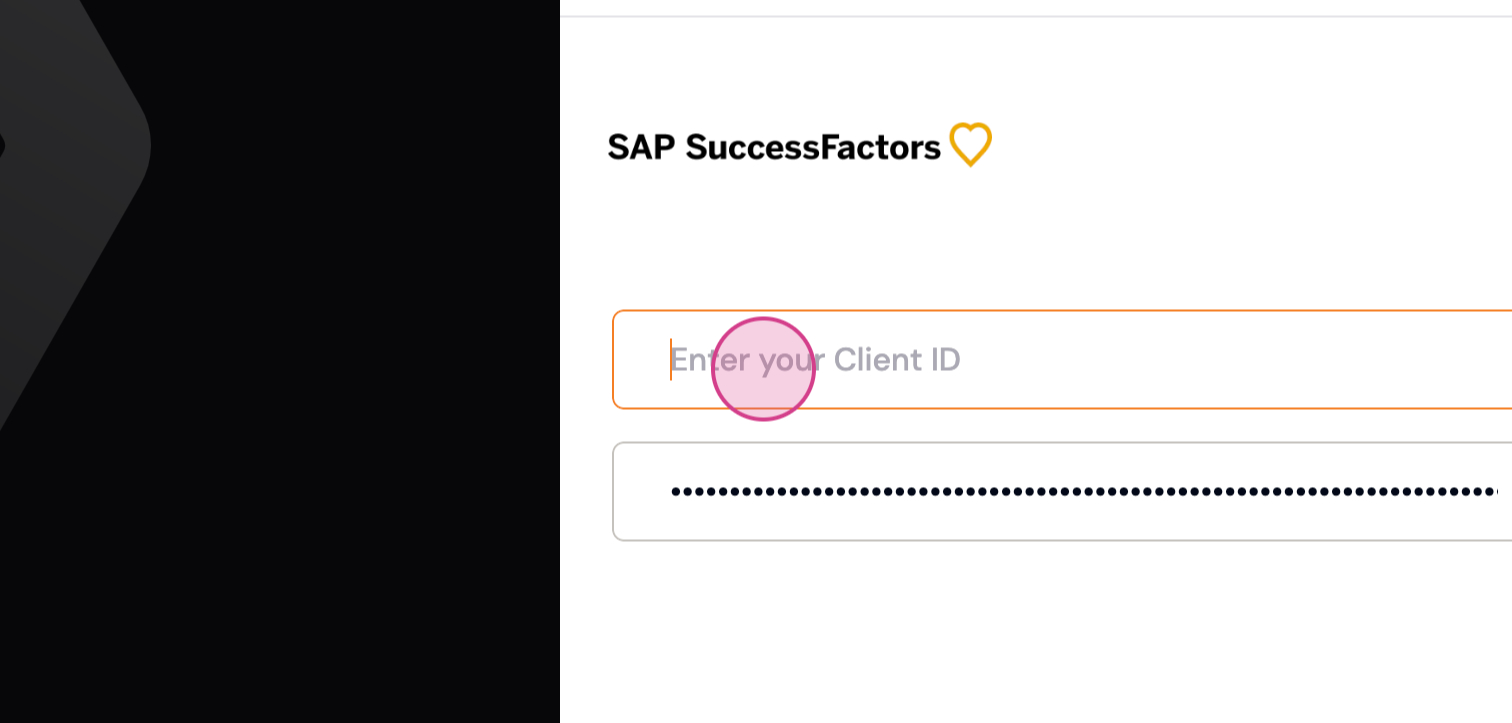
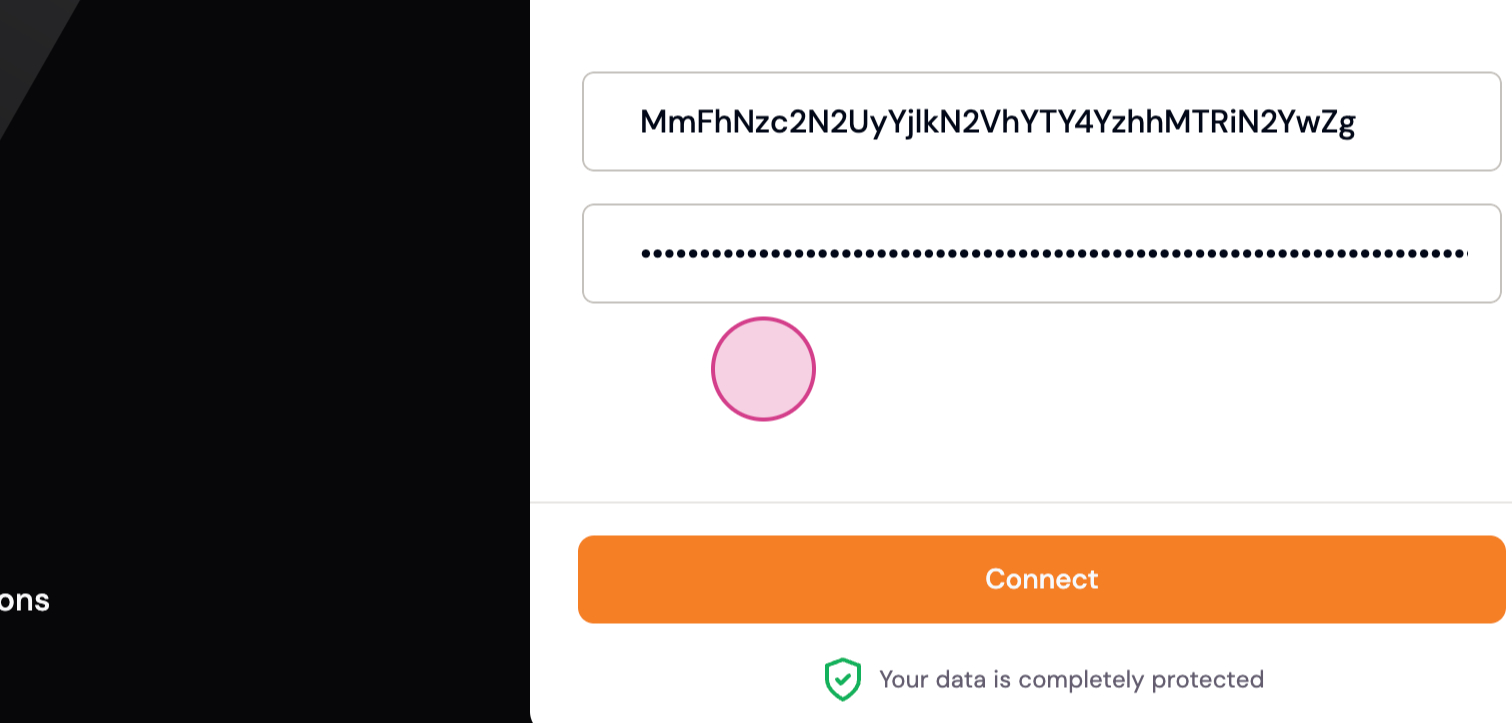
Step 19: Paste the Private Key into the client secret field.
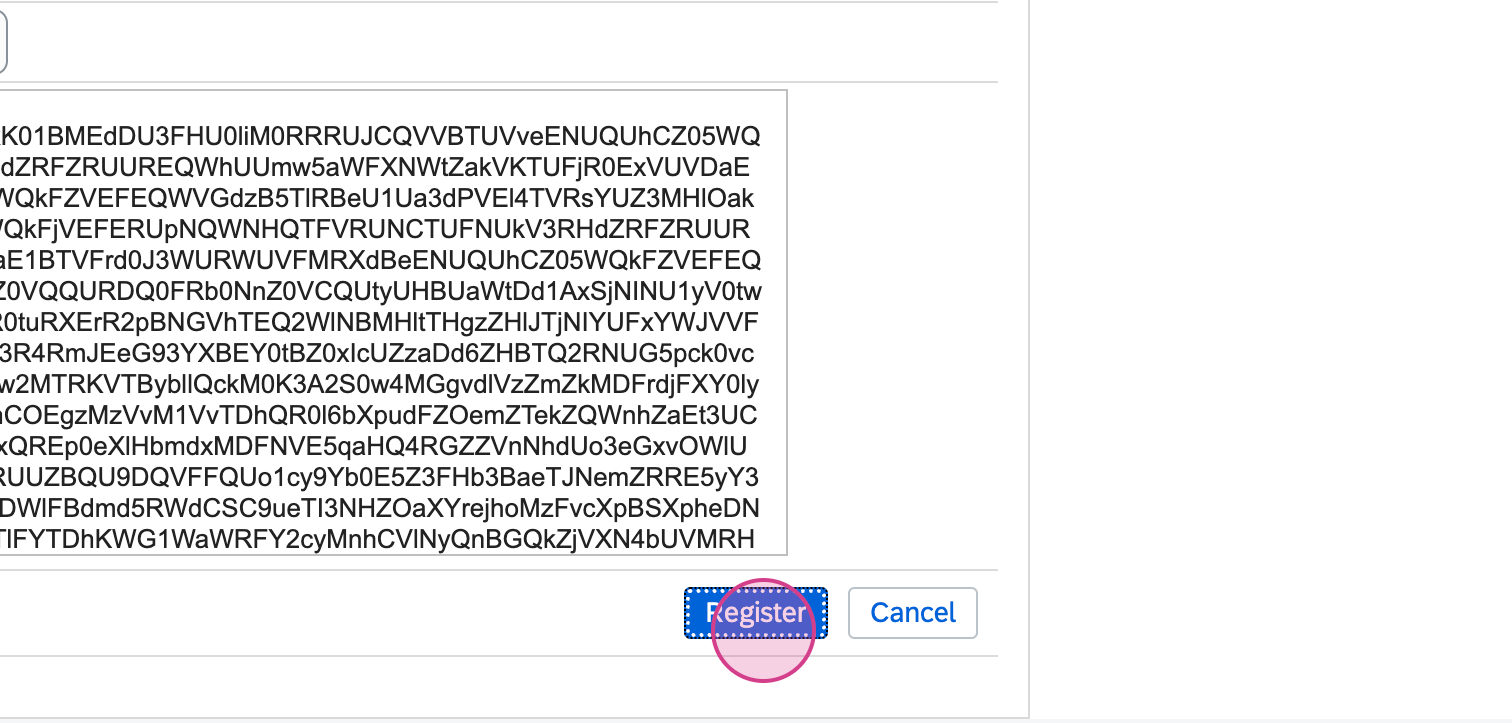
Step 20: Register your application.
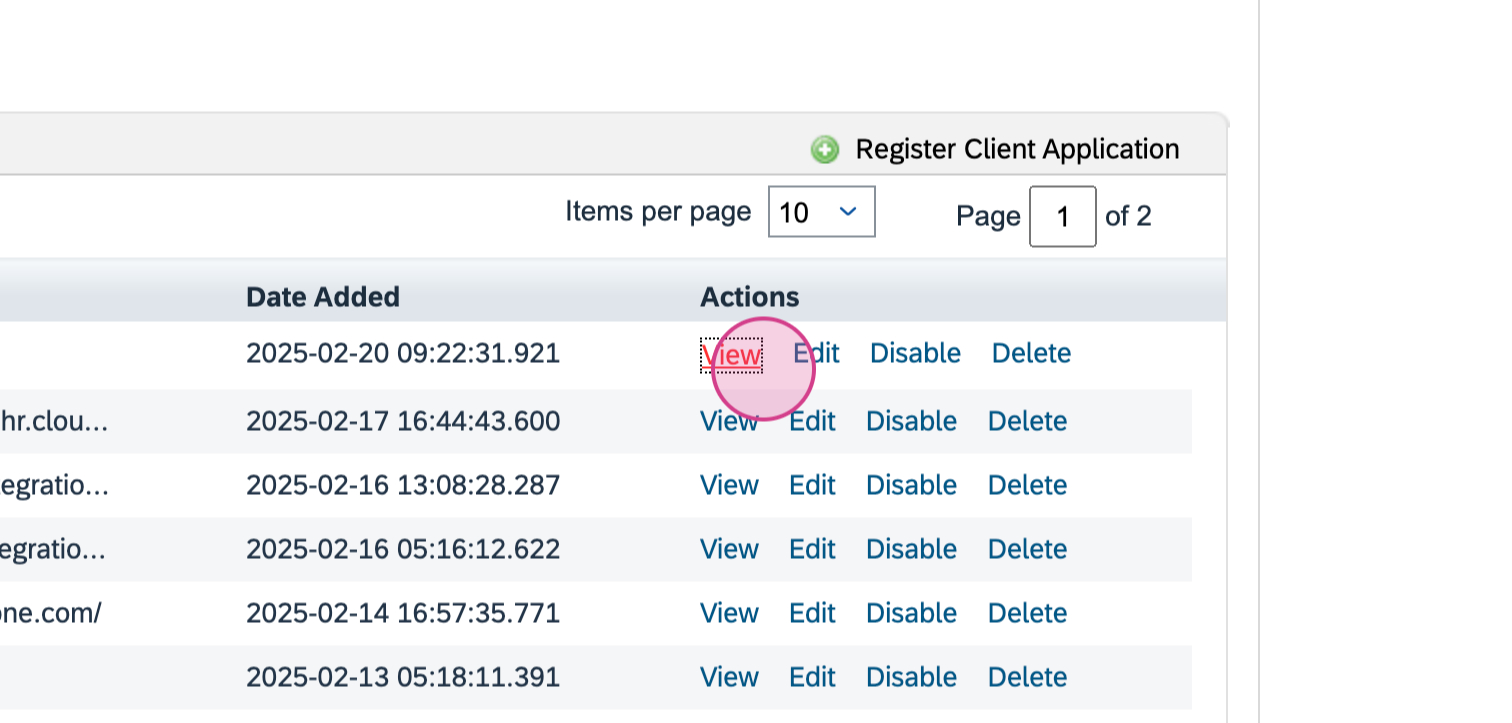
Step 21: Your application is now generated. Click View to get your API key.
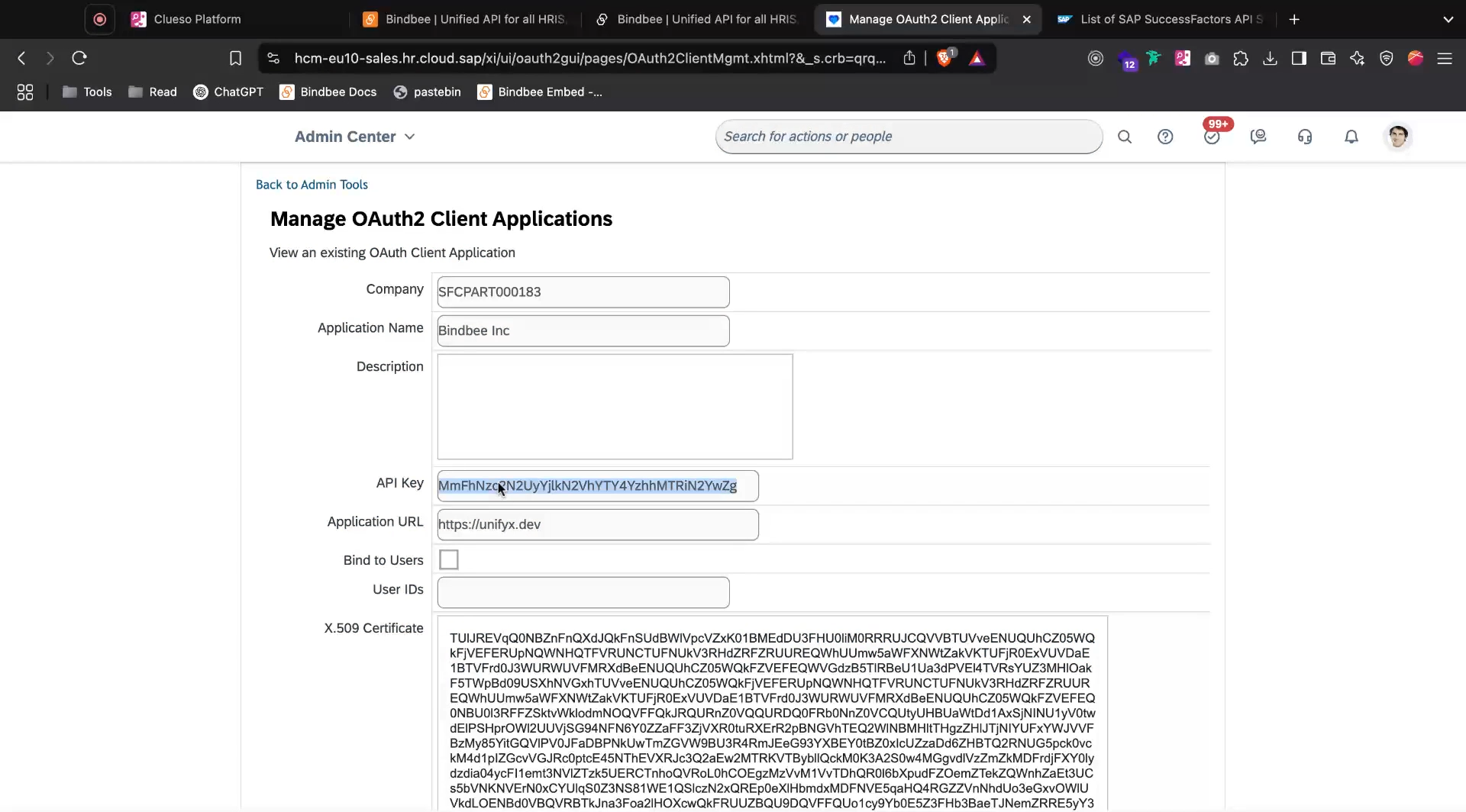
Step 22: Copy and paste the API key into the Client ID field and click Connect.
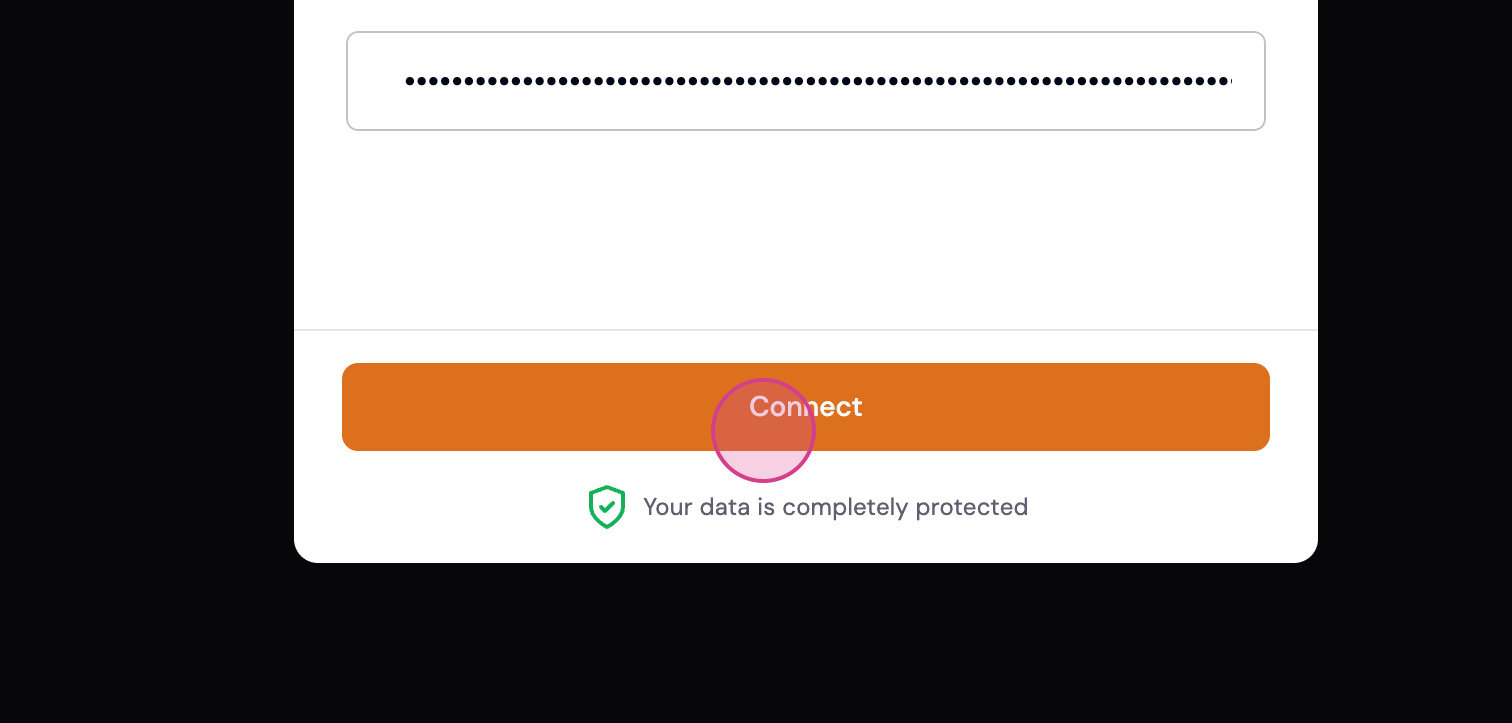
You should now see that the connection is established. Congratulations, you've successfully connected SAP SuccessFactors to Bindbee!