Greenhouse
Connecting to Greenhouse and writing a candidate
Start by opening the Bindbee dashboard.
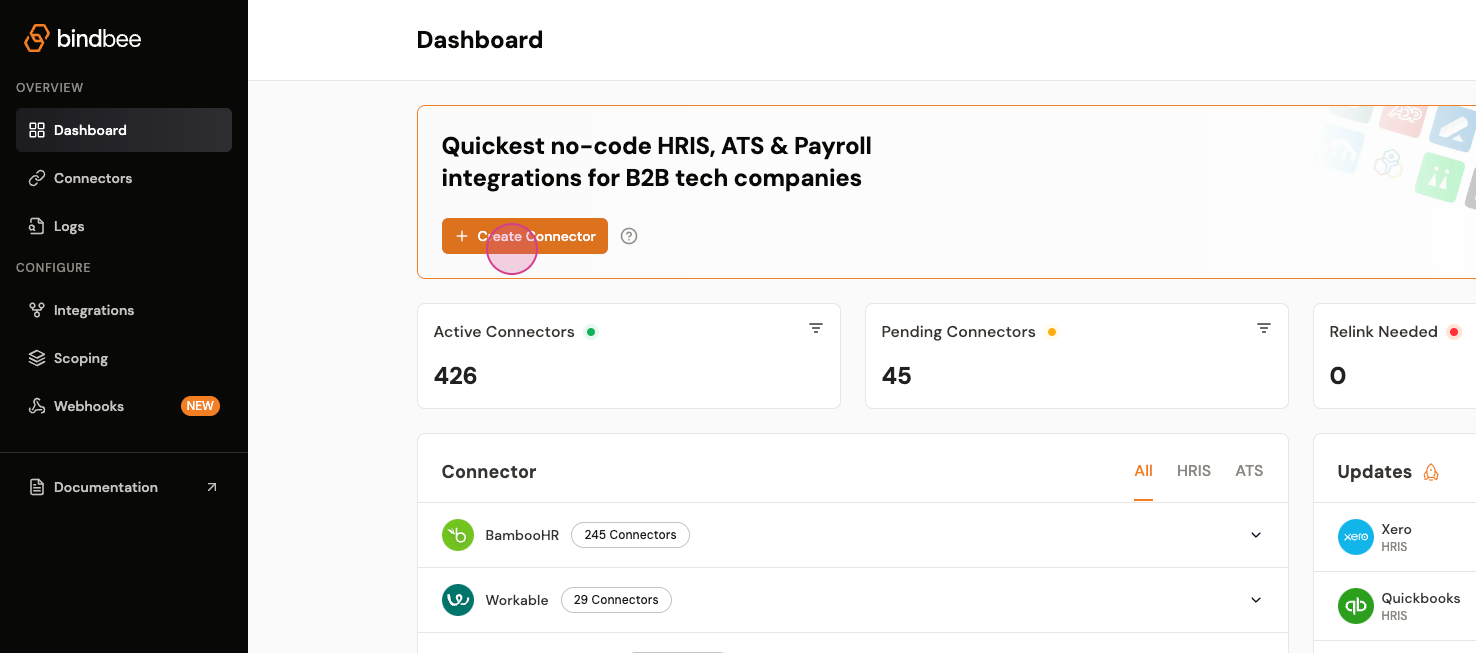
Step 1: Click on Create Connector.
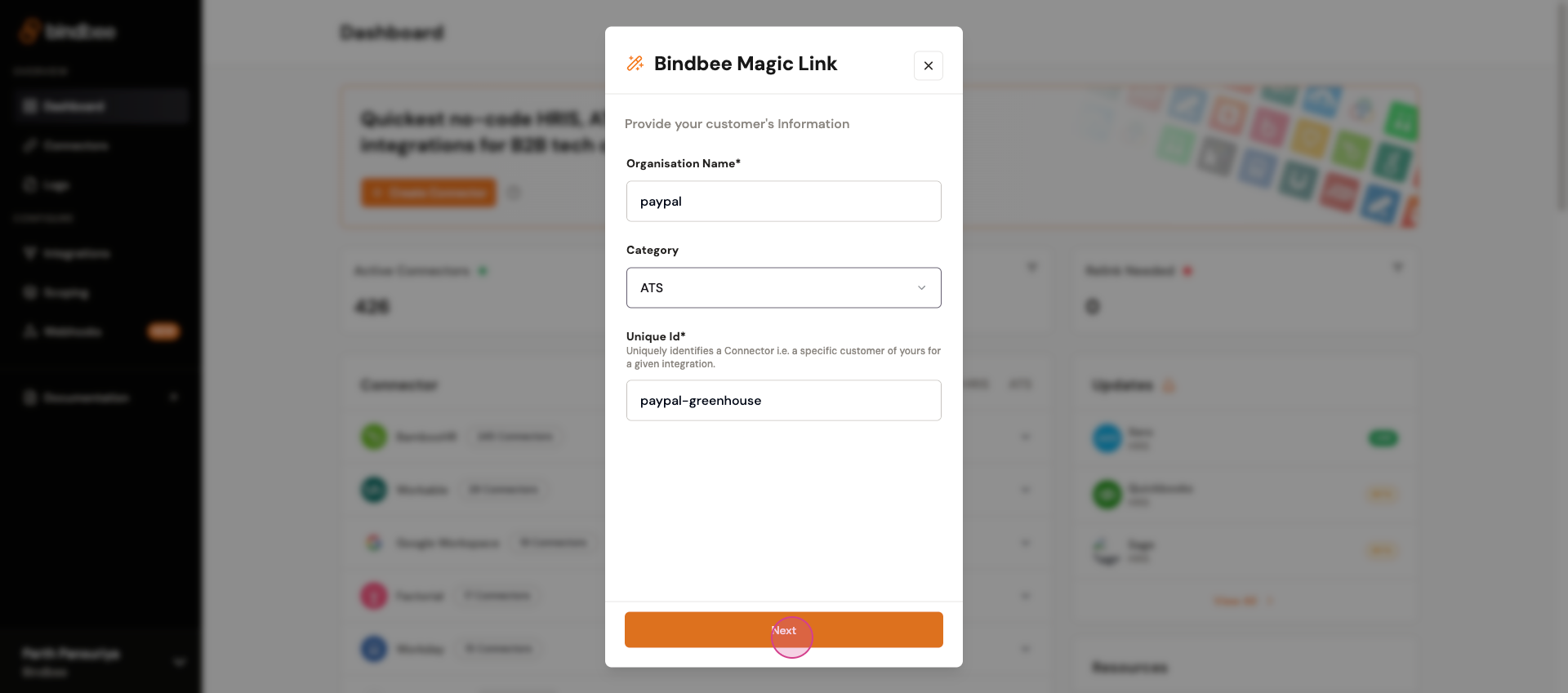
Step 2: Enter an appropriate Organization name, category and unique-id.
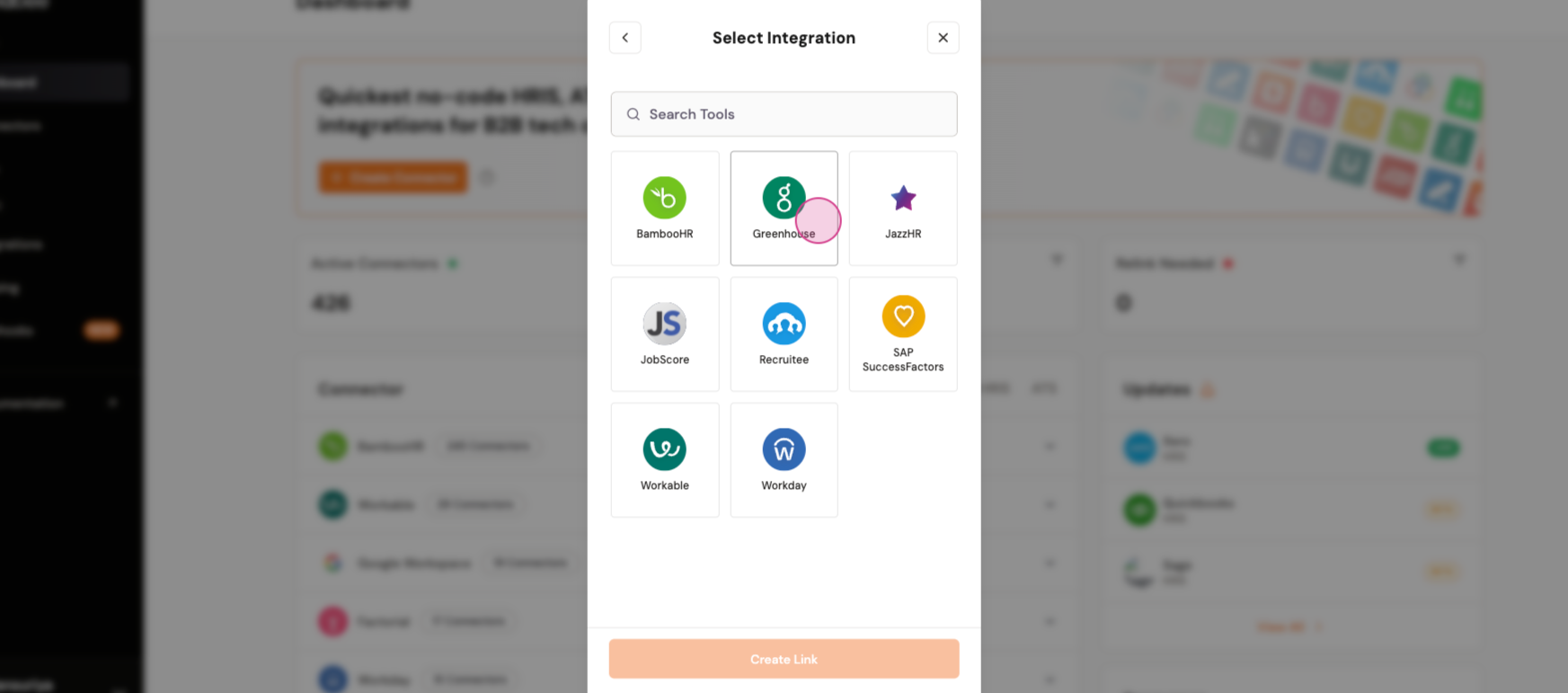
Step 3: Click Next and select Greenhouse.
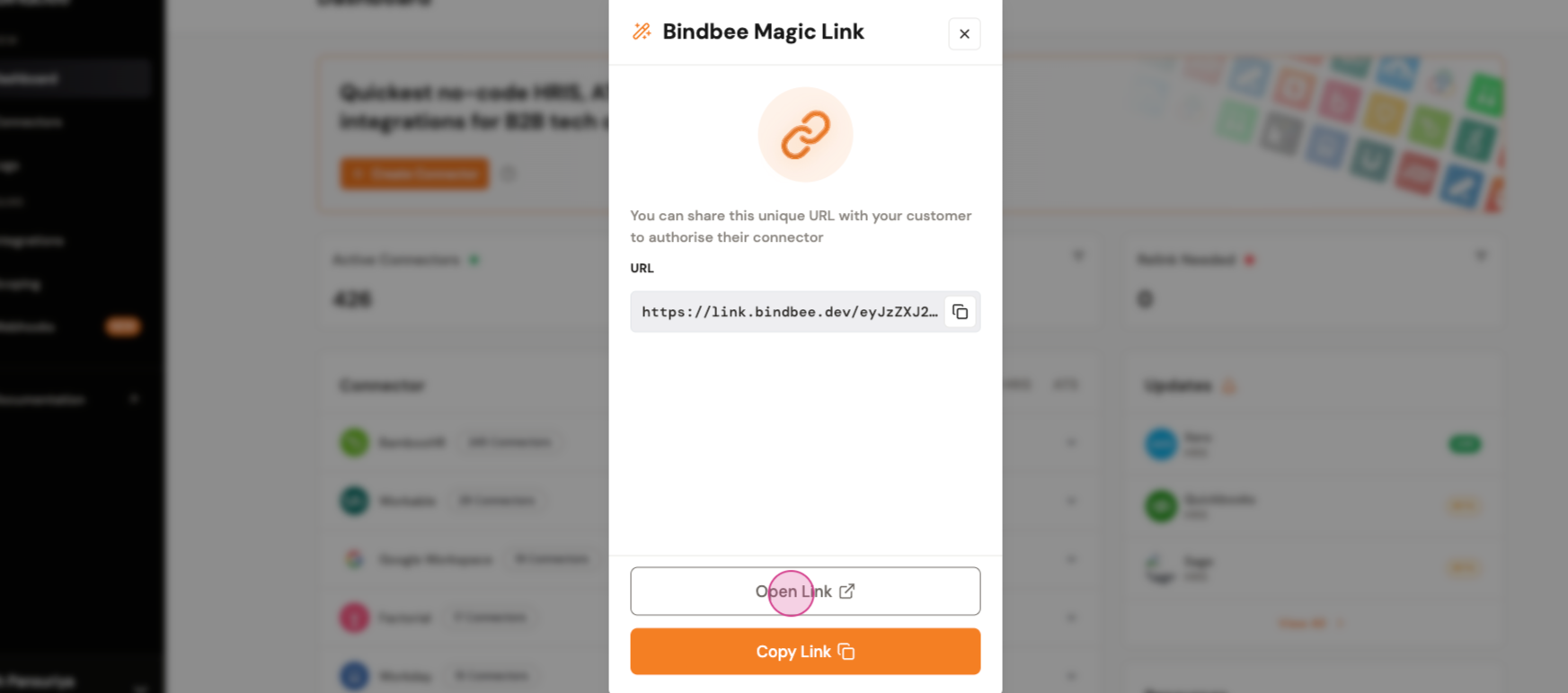
Step 4: Create a magic link and open link to add Greenhouse credentials.
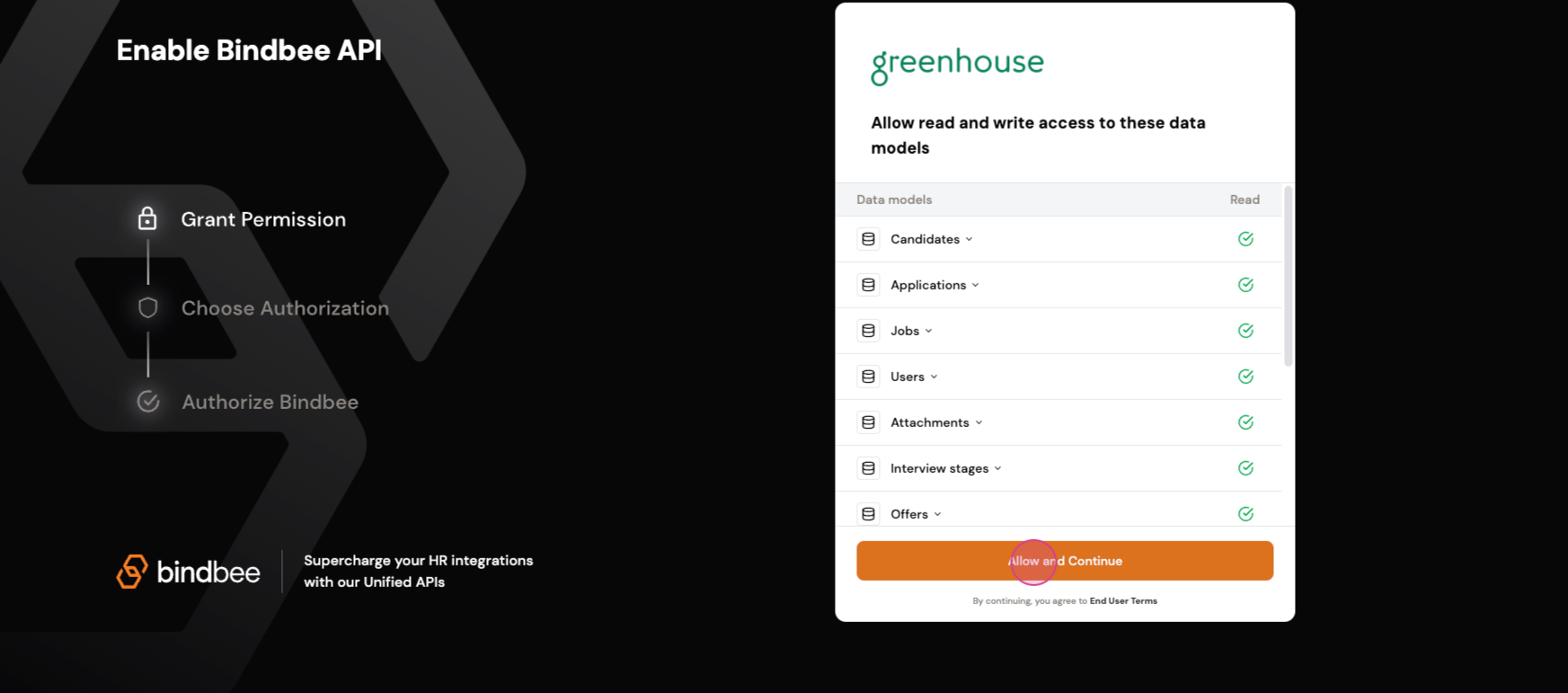
Step 5: Open the magic link. Click on Allow and Continue to proceed. This will prompt for Greenhouse API Key.
Getting the Greenhouse API Key
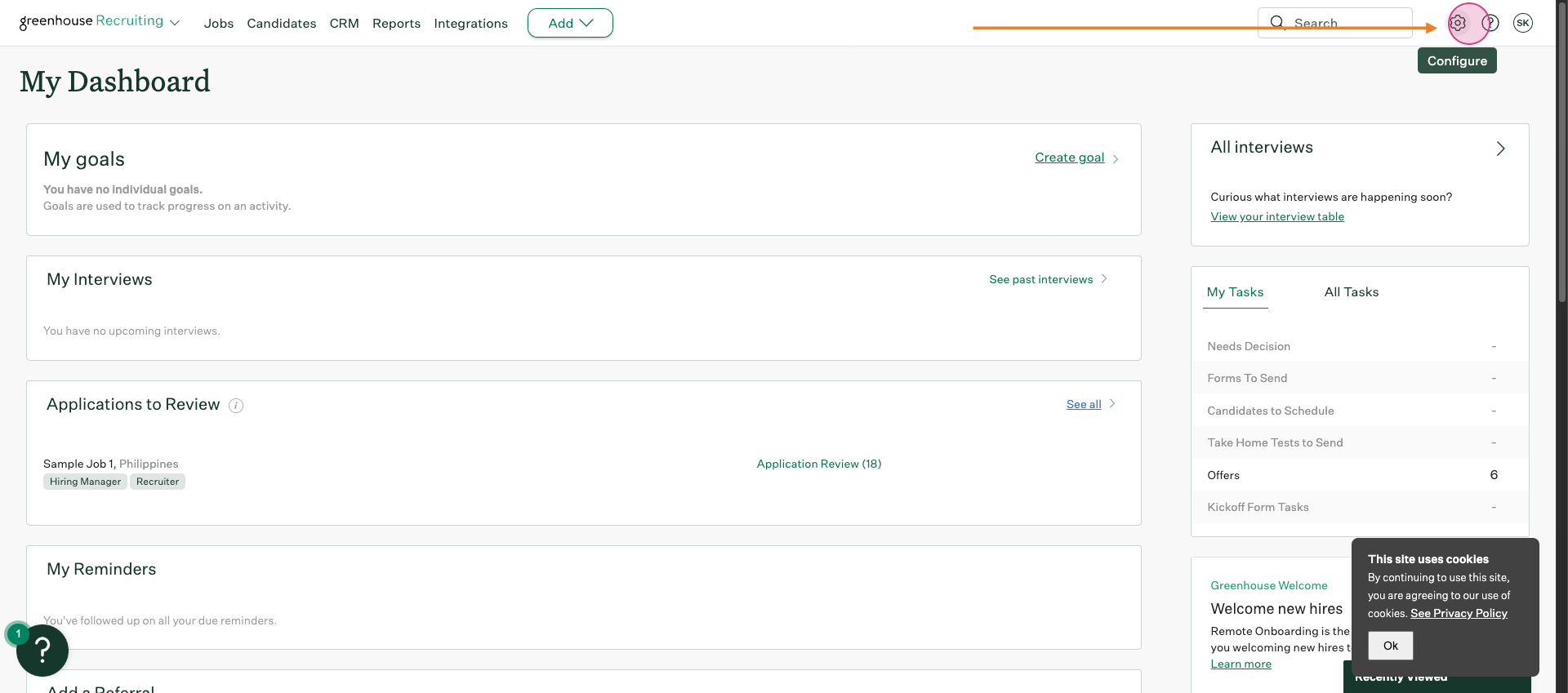
Step 1: In order to get the greenhouse API key, Open the Greenhouse dashboard and open Configure.
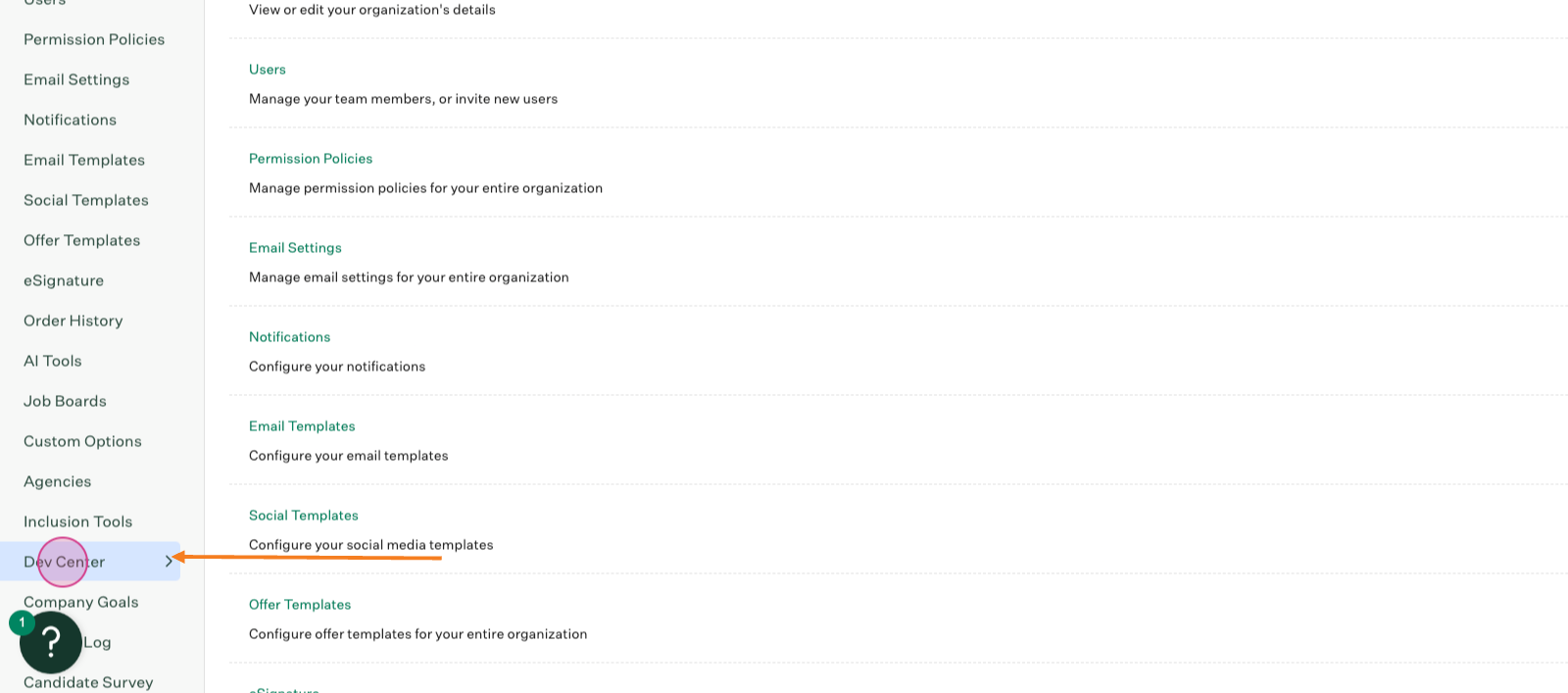
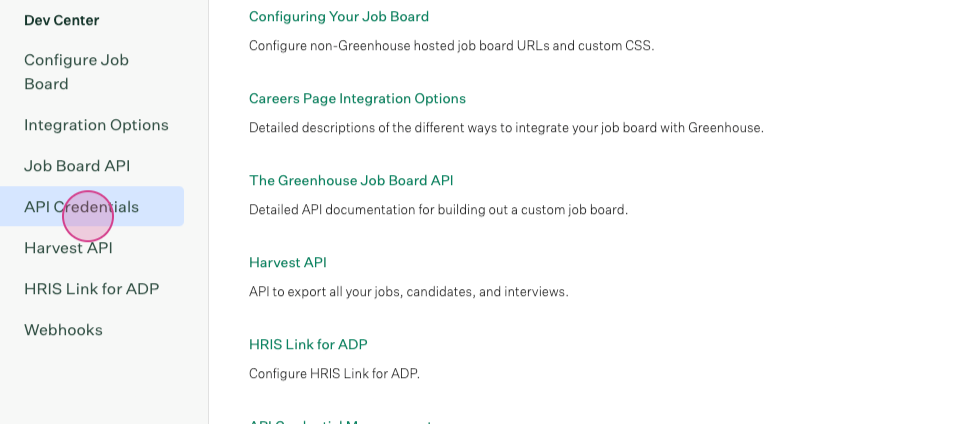
Step 2: Open Dev Center
Step 3: Scroll down to the API Credentials
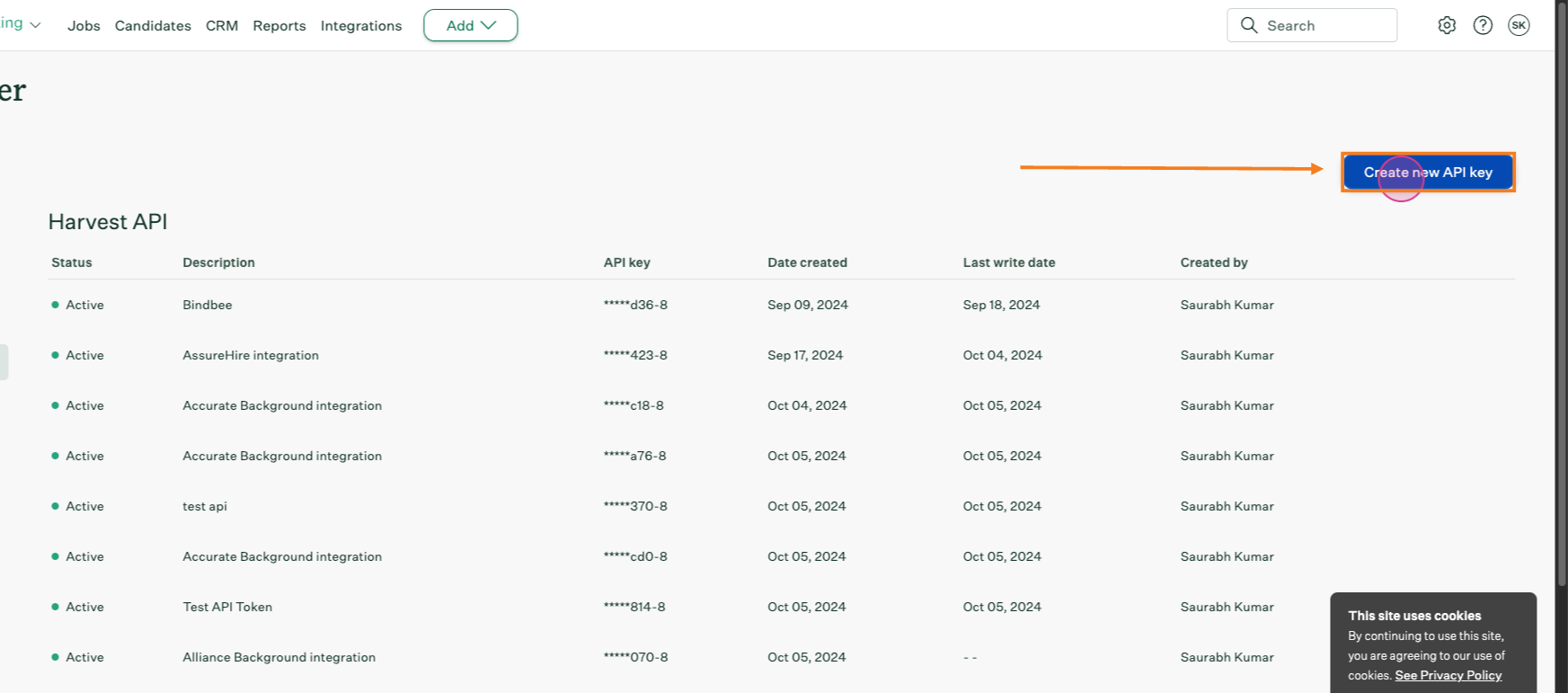
Step 4: Create a new API key.
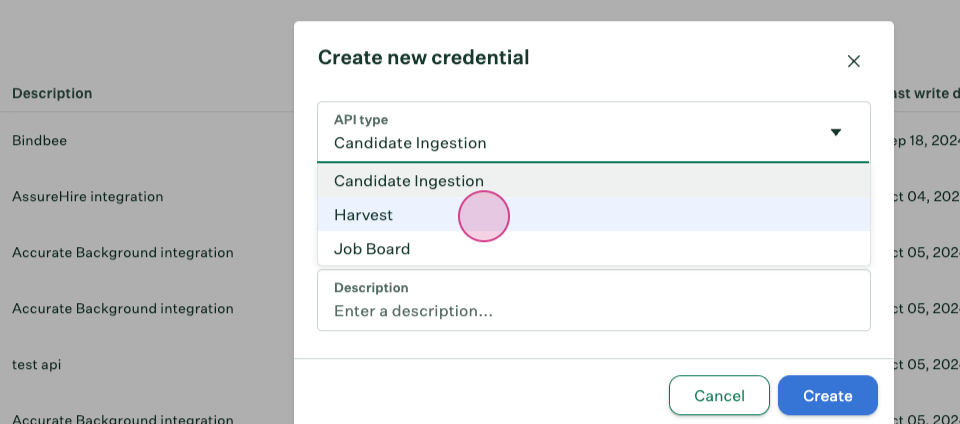
Step 5: Select Harvest as the API type.
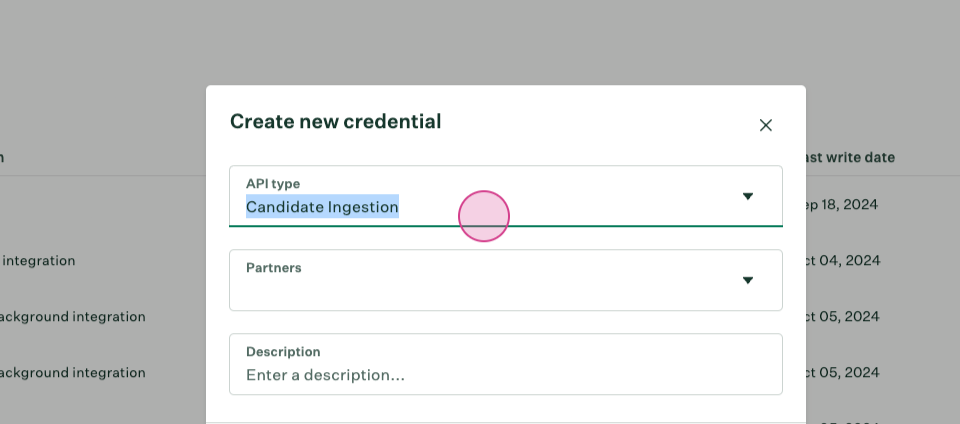
Step 6: Select appropriate partner.
Step 7: Provide an appropriate description.
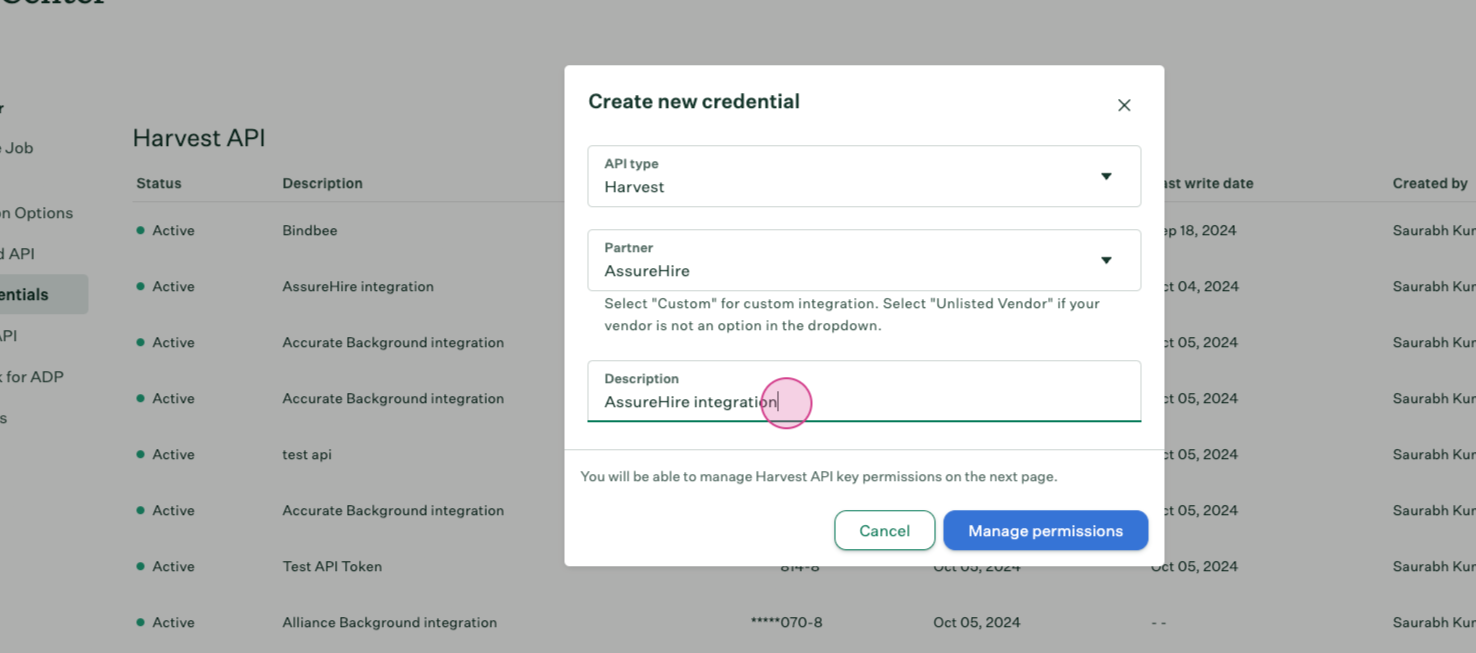
Step 8: Click on Manage Permissions.
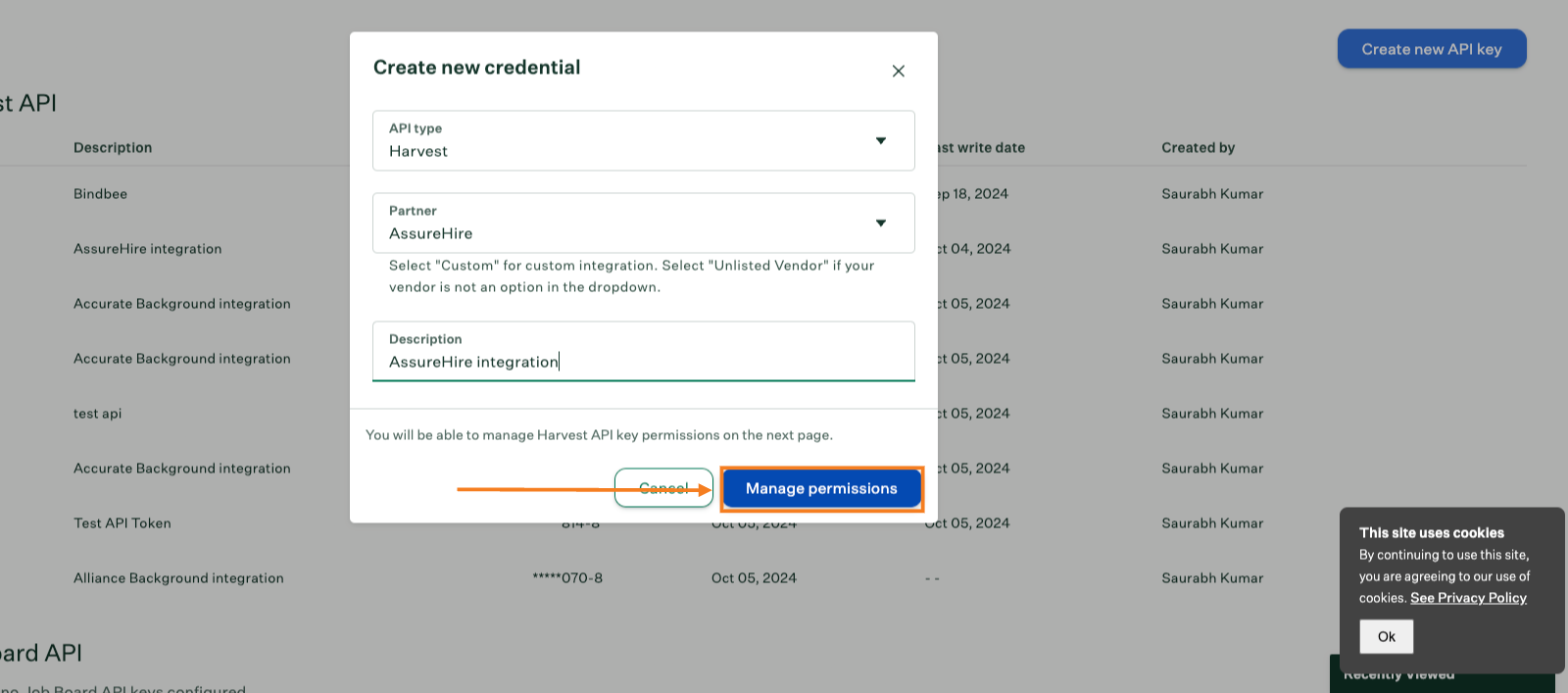
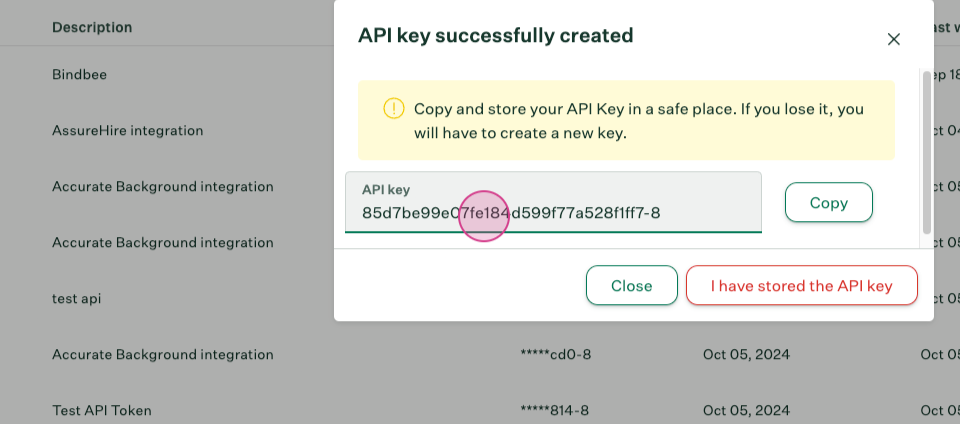
Step 9: Copy and save the API key for future use.
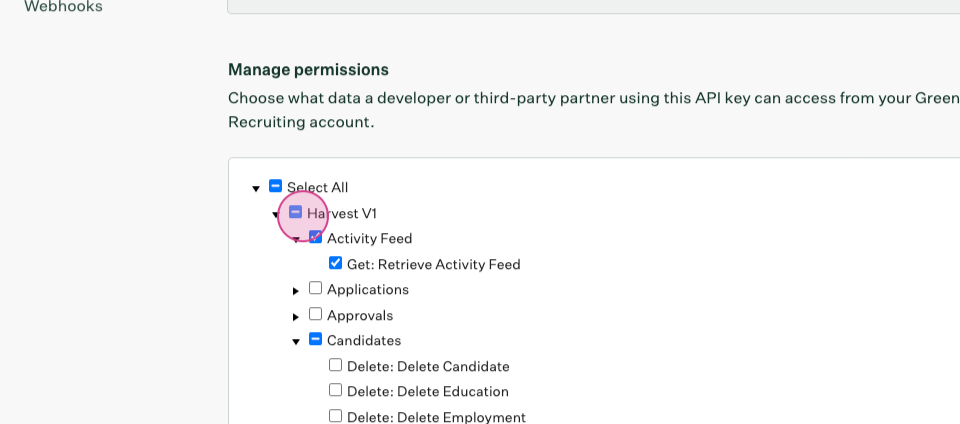
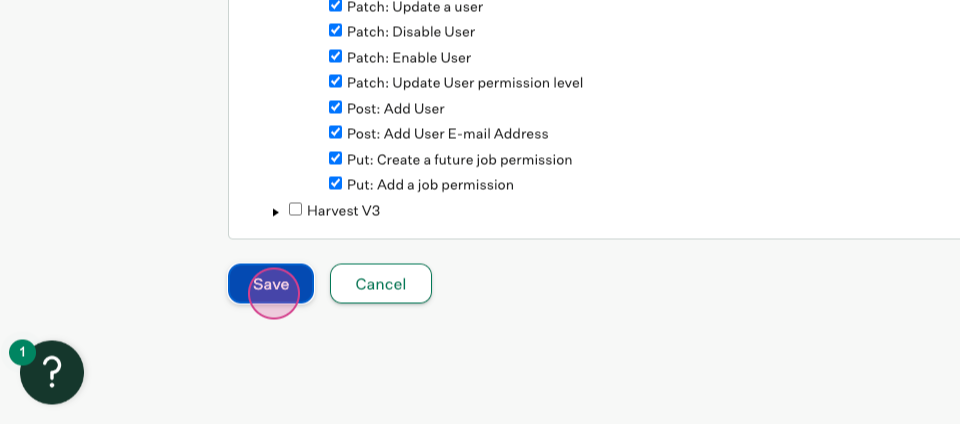
Step 10: Select all permissions under Harvest V1 and select All.
Step 11: Scroll down and click Save.
Step 12: Go to the Bindbee API linking page and enter the new API key.
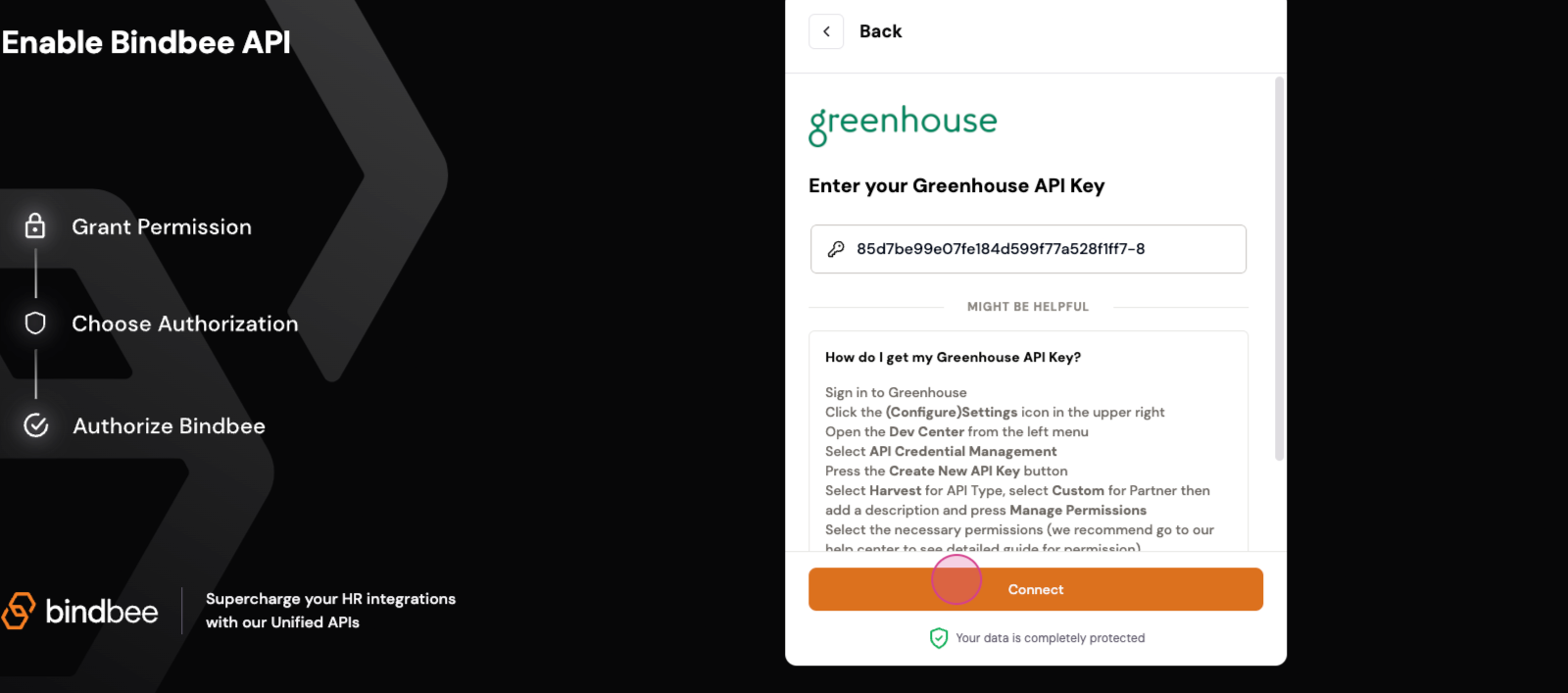
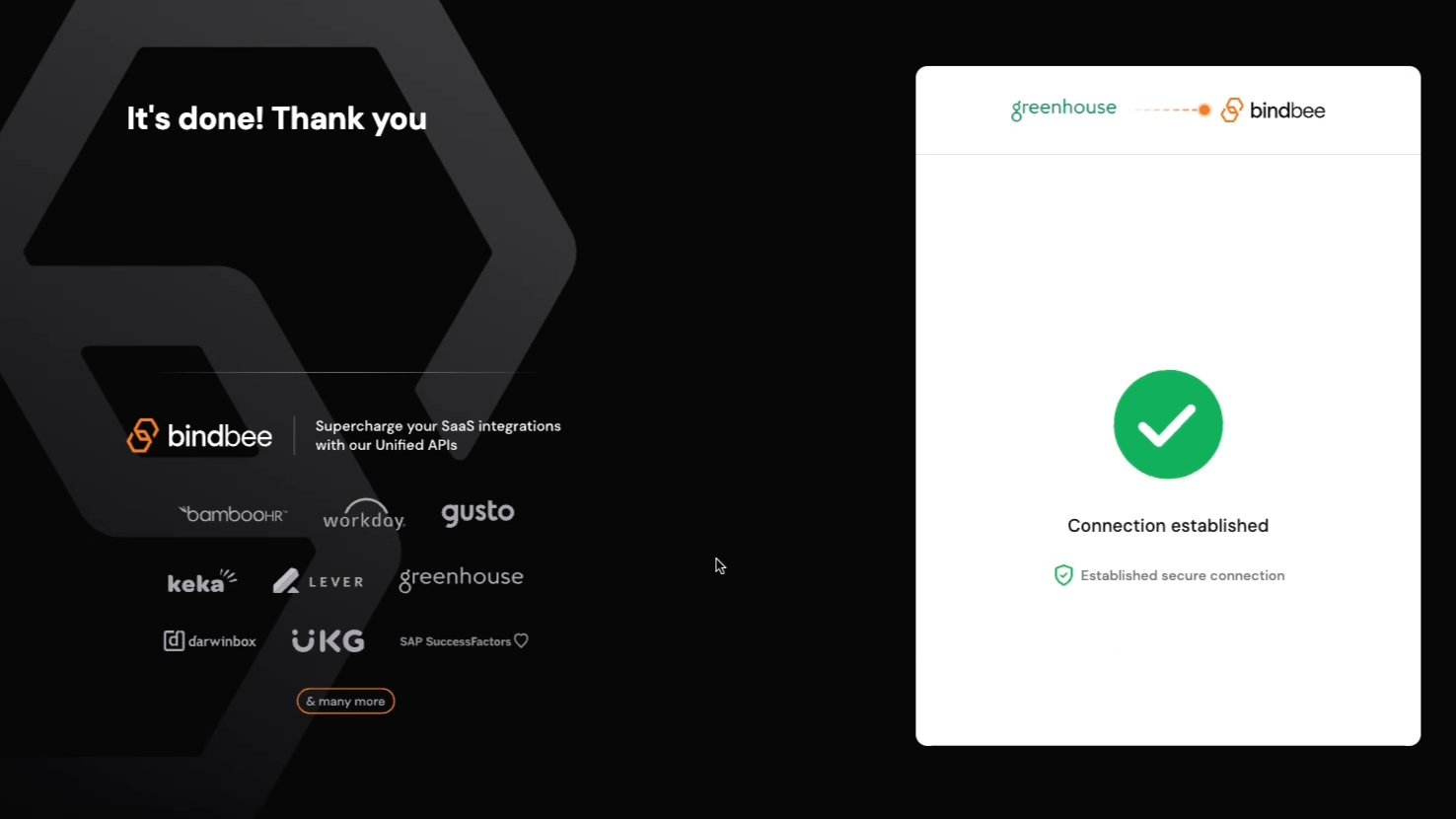
Step 13: Click Connect. The connection will be successfully established.
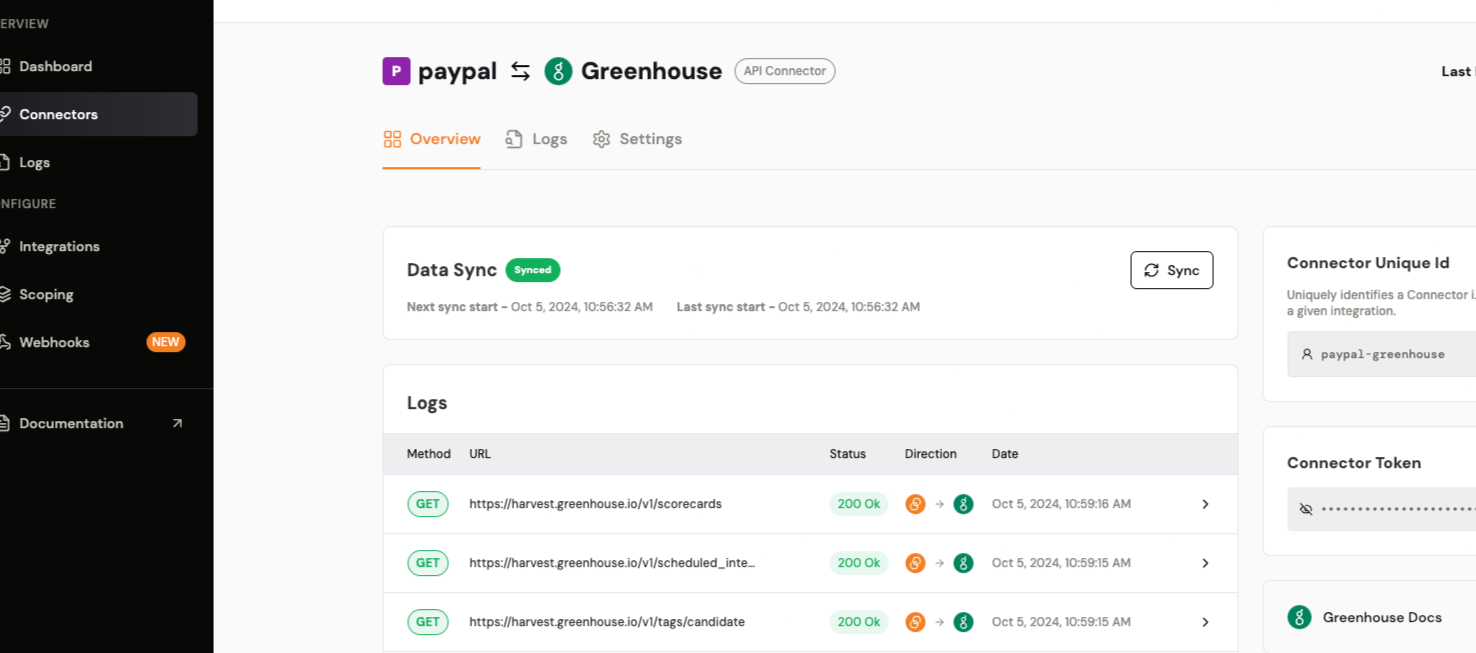
Step 14: Check the connector's dashboard to confirm the connector has been created and the status is syncing. Wait for the data to sync.
Calling the API for Create Candidate
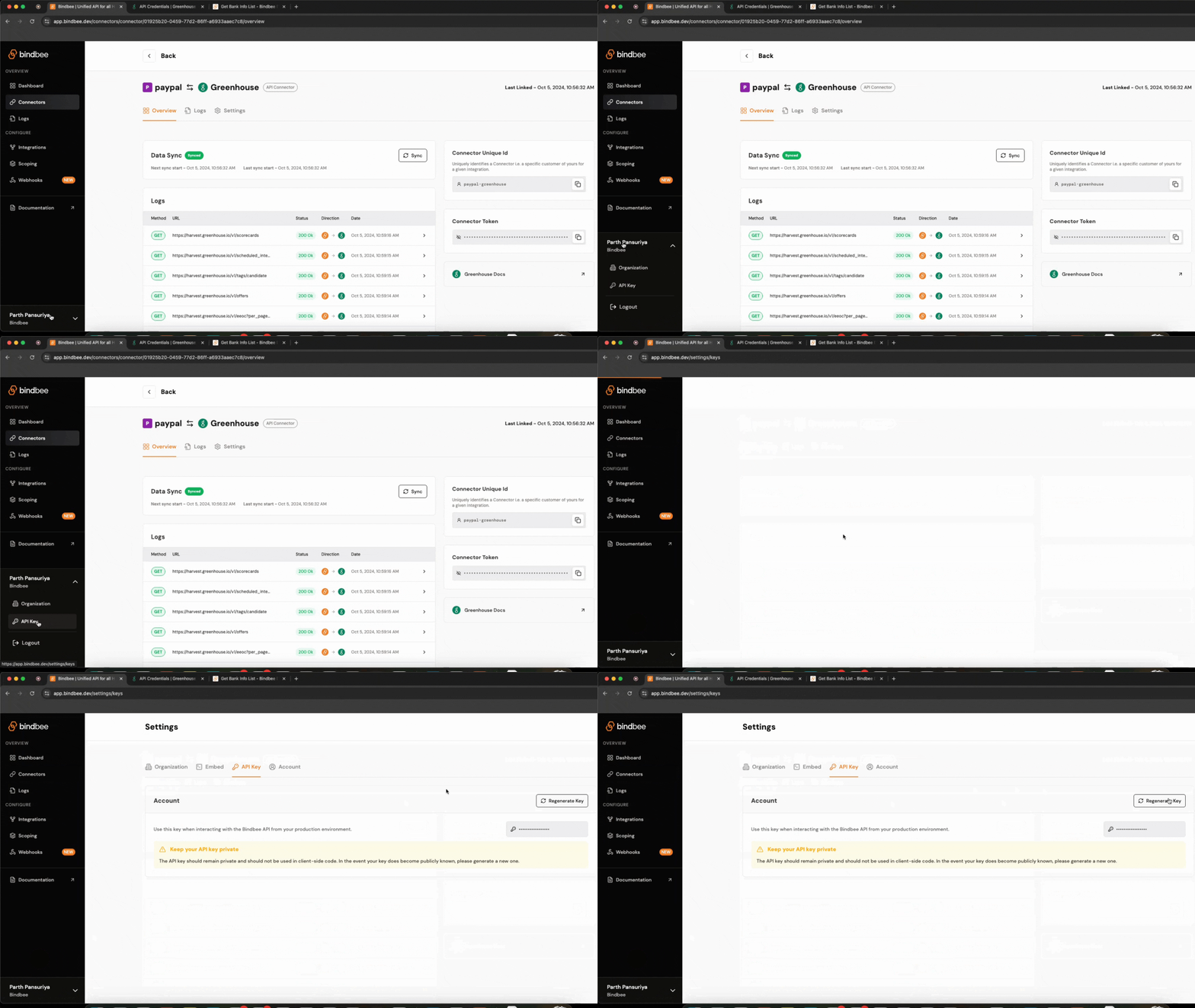
Step 1: Retrieve the Bindbee API token from the settings and get the API Key.
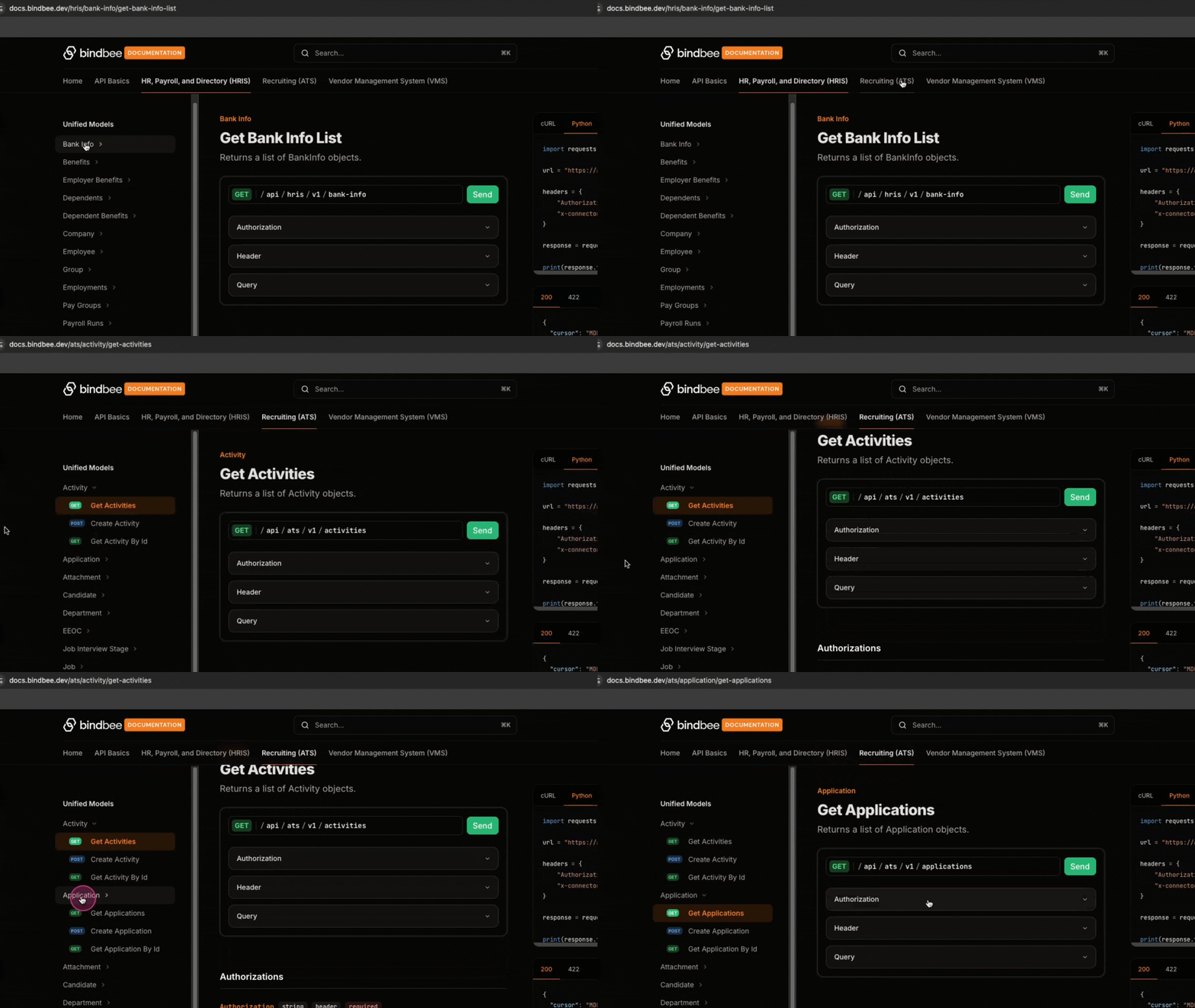
Step 4: Go to the documentation at Bindbee docs : https://docs.bindbee.dev. Navigate to the ATS section and then the Applications section.
{
  "data": {
    "first_name": "Jignesh",
    "last_name": "Patel",
    "company": "Google",
    "title": "SOFTWARE ENGINEER",
    "is_private": true,
    "can_email": true,
    "locations": ["44548 Trisha Summit, 61529 Wileyberg, UK"],
    "email_addresses": ["[email protected]"],
    "urls": [],
    "tags": ["good coder"],
    "applications": ["018b4bfb-5ece-70b1-ad5e-862a9433aa65"],
    "attachments": [],
    "avatar": "https://www.example.com/avatar.jpg",
    "job_id": "01932c4d-655e-708a-bfb4-1ec3765c2026"
  },
  "remote_user_id": "01932c4d-59f9-7433-967e-f813f38c24b0"
}
Step 5: You will need Application Id and remote user id to create a candidate. So first we need to fetch the Application Id and then we will fetch the remote user id.
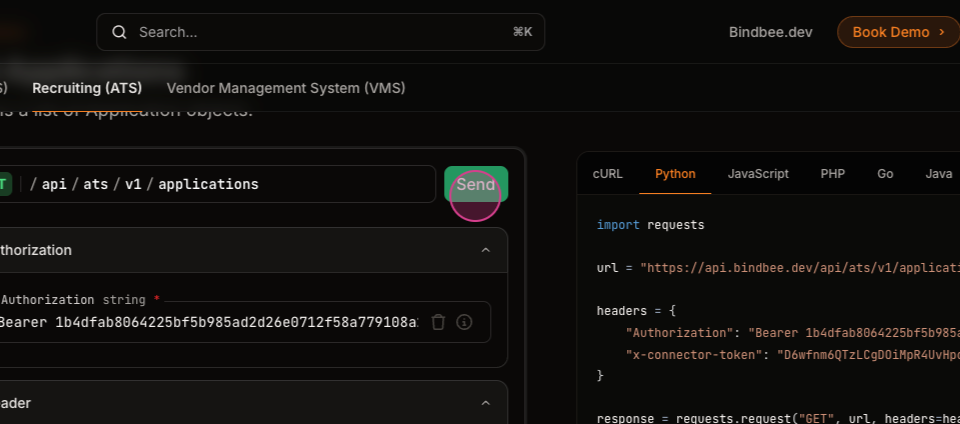
Step 6: Click on Get Applications.
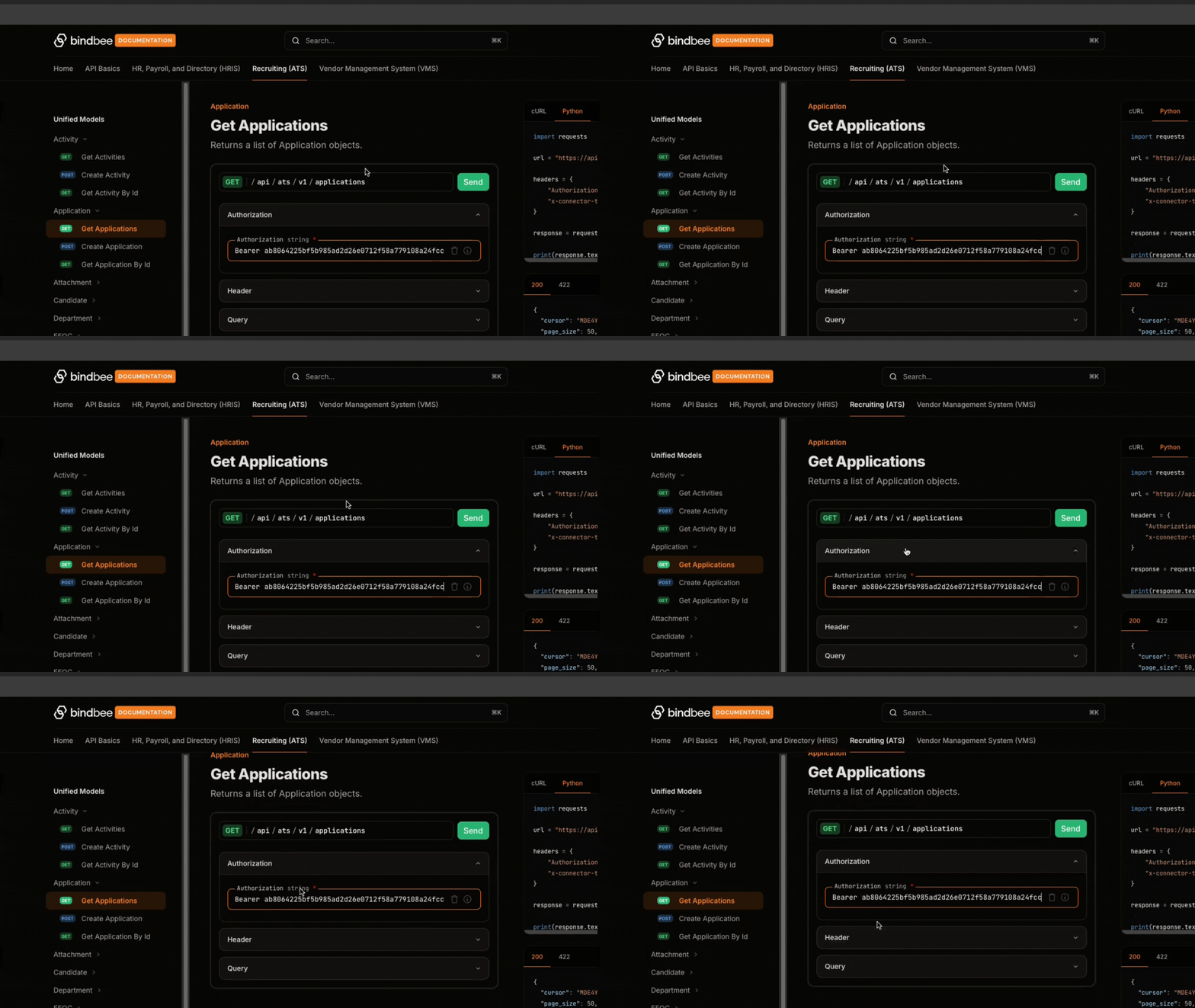
Step 7: Add the API key to the Authorization field.
Step 8: Add the x connector token from the connector linking page.
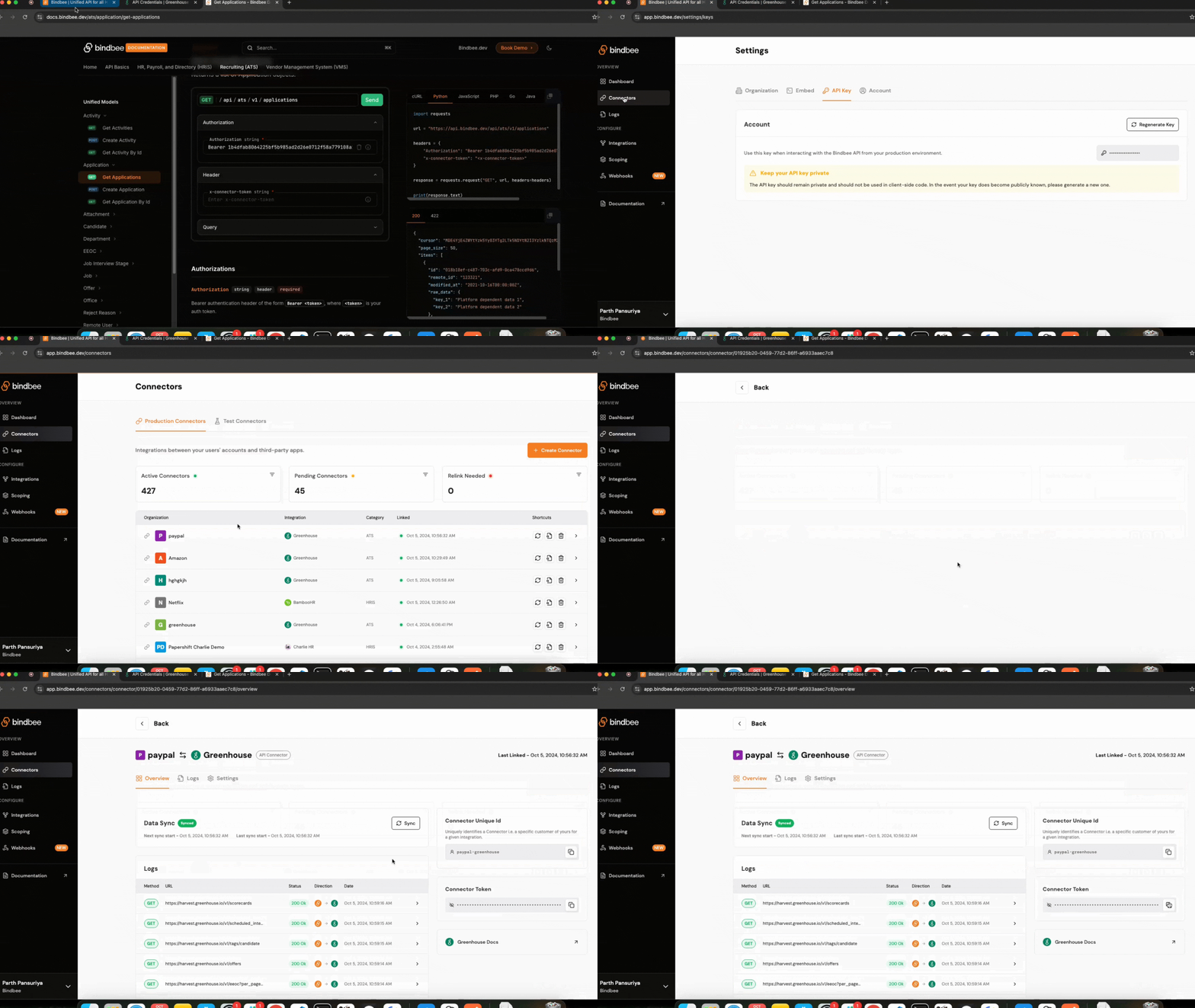
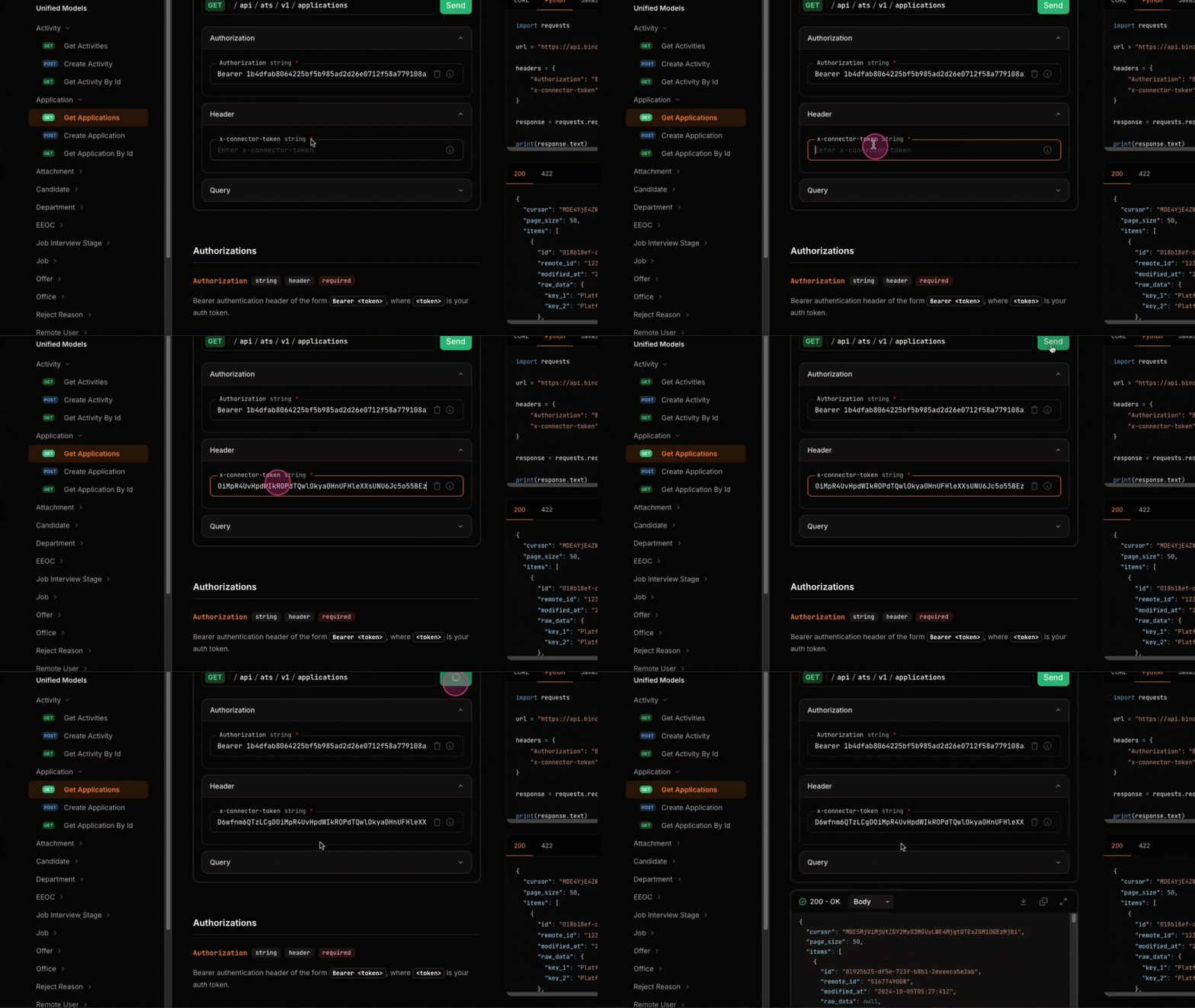
Step 9: Click Send. Save the ID for the application.
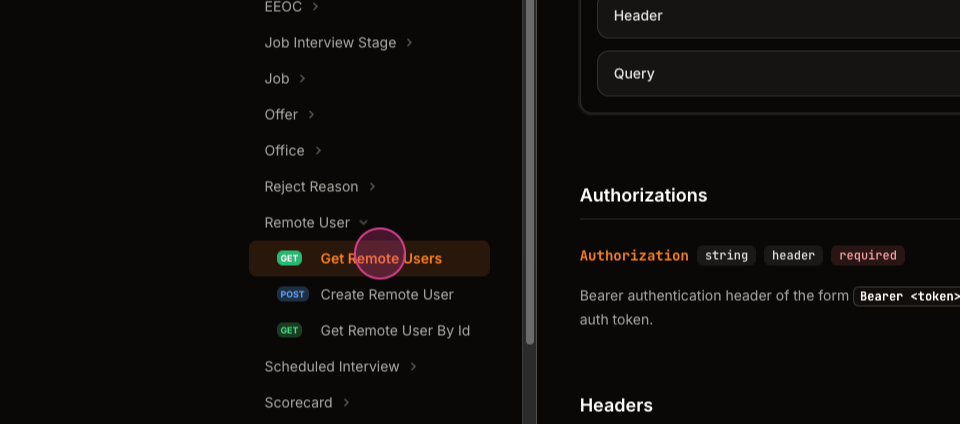
Step 10: Go to the Remote User and click on Get Remote Users.
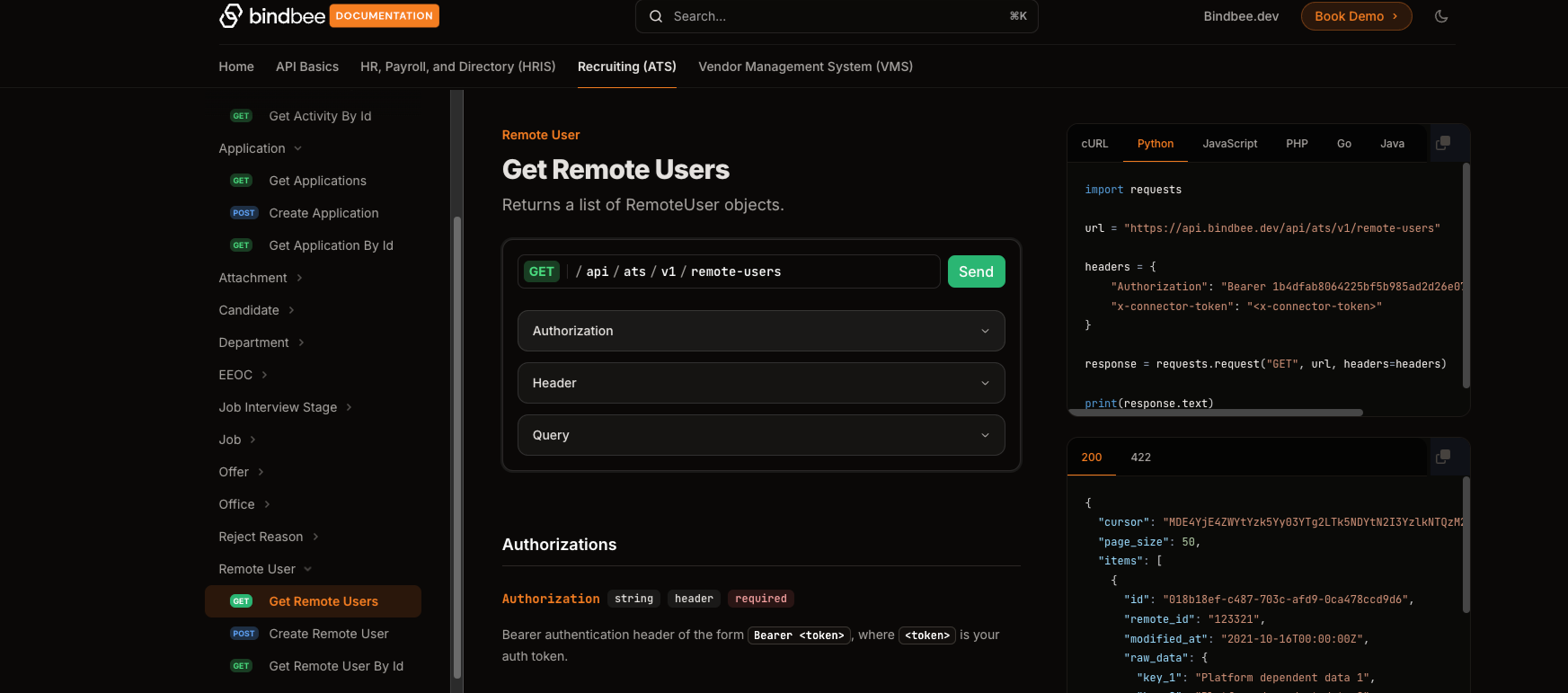
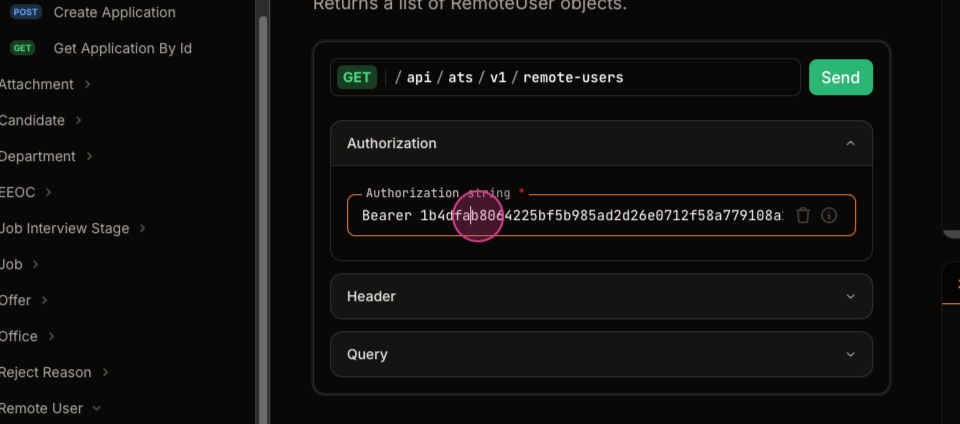
Step 11: Add the API key and x-connector-token as added in Application API to authenticate. Hit send to get the data.
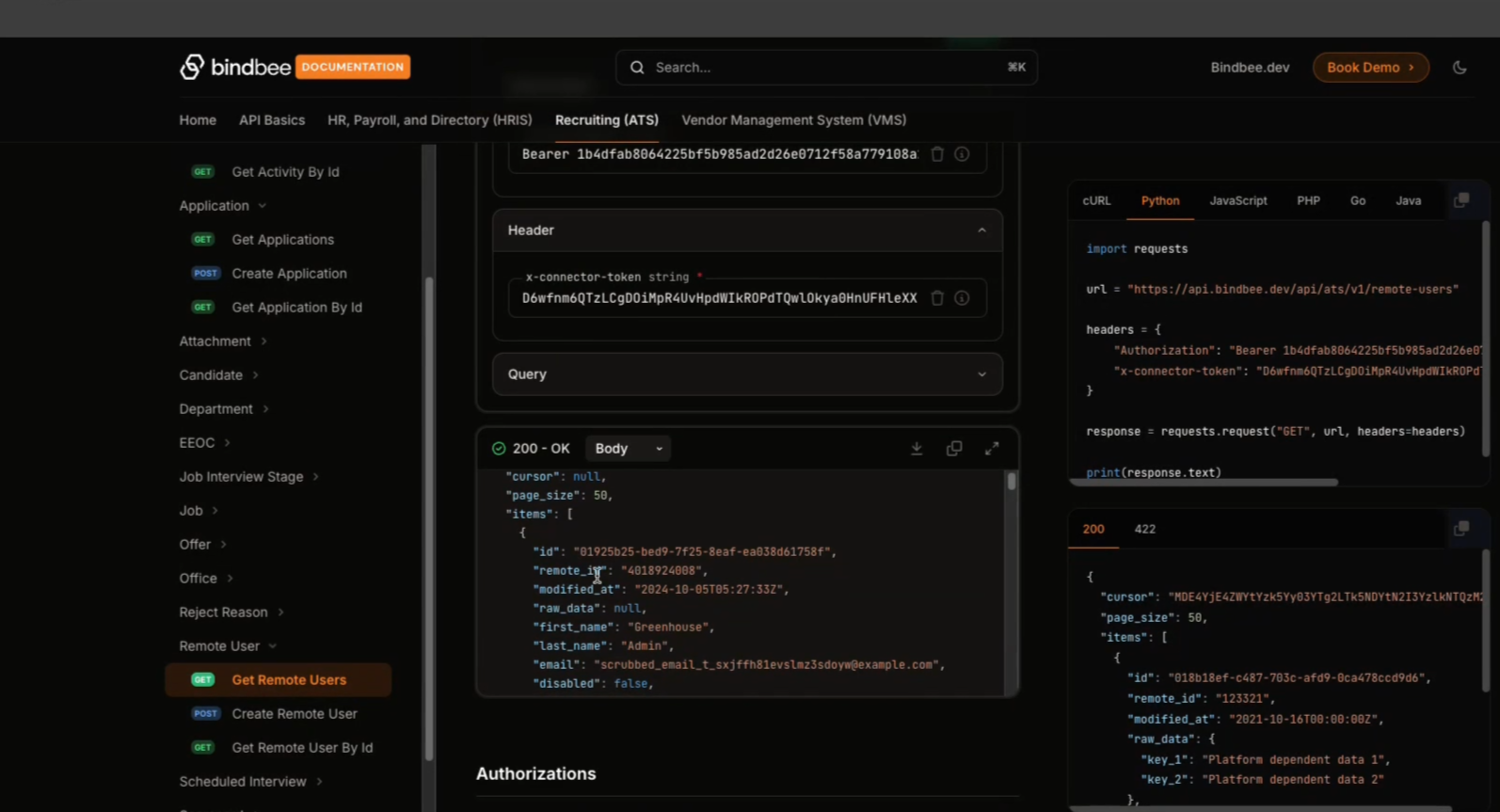
Step 12: Select the user with which you want the API to be called to the Greenhouse. Save the user's ID.
Step 13: Now, to create a candidate, get the create remote create candidate URL.
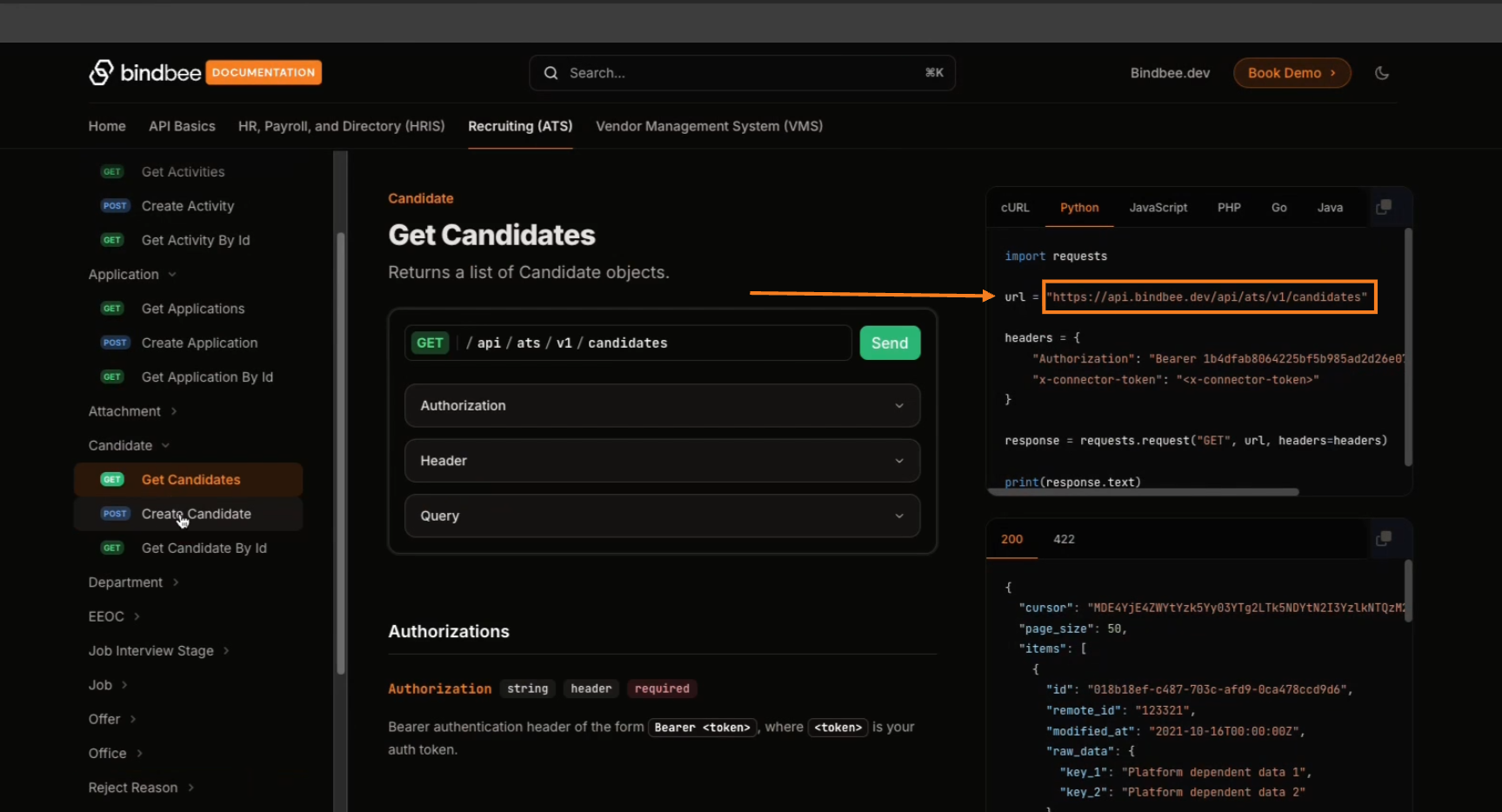
Step 16: Paste the URL into Postman.
Step 17: Set the credentials accordingly for the request body and add appropriate credentials.
Step 18: Copy the application ID and paste it into the Applications field.
Step 19: Copy the remote user and paste it into the appropriate field.
Step 20: Add an appropriate name and company.
Step 21: Click Send.
Step 22: If there's an error, ensure the correct user ID and x connector token are used.
Step 23: Click Send again. The candidate should now be successfully created.
Step 24: Check the Greenhouse dashboard to confirm the candidate has been successfully created.