

How do I connect by uploading files over SFTP?
Updated 3 days ago
In this article, you'll learn how to set up an SFTP connection and upload your census file to Bindbee's SFTP Portal.
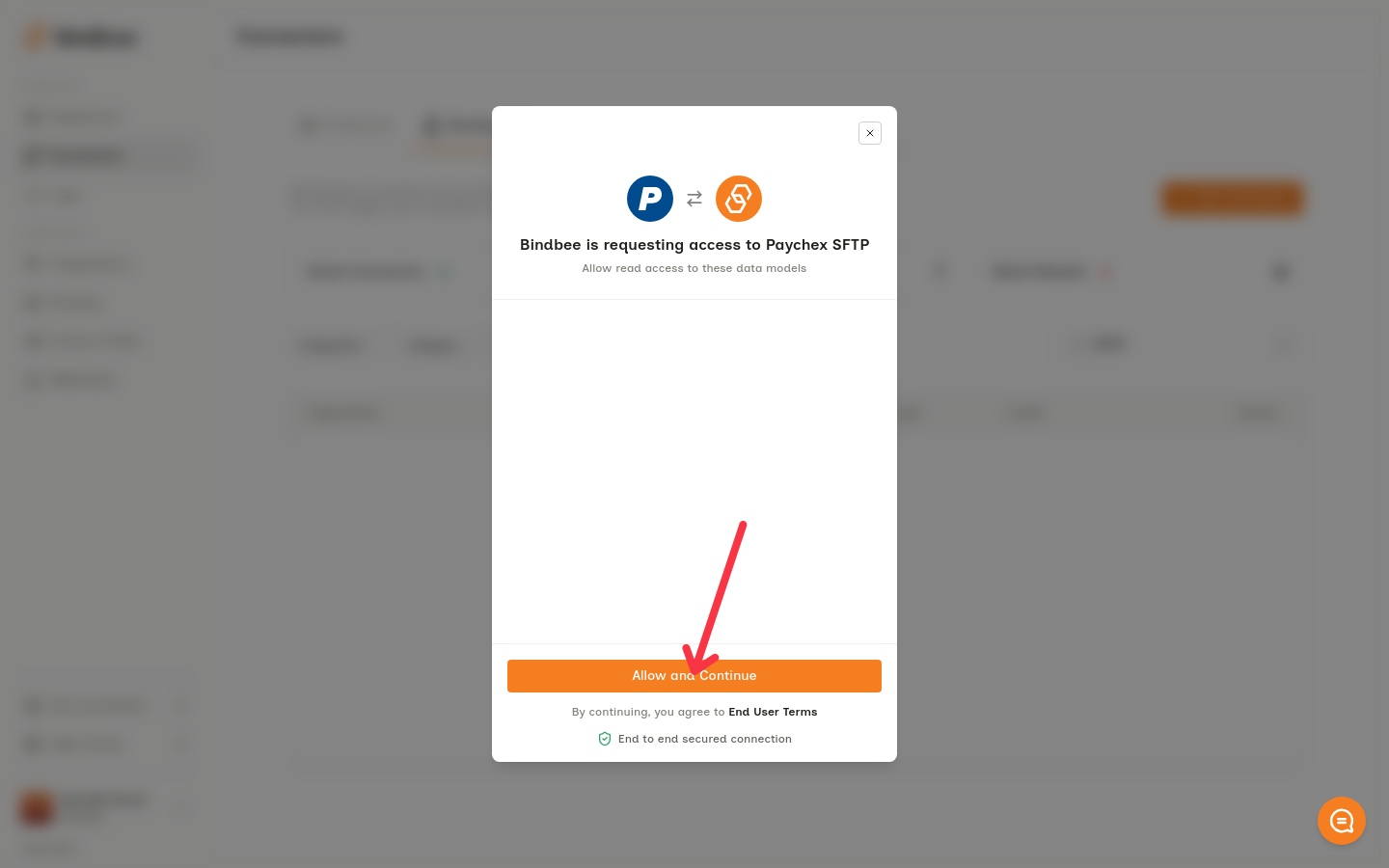
Step 1: Open the magic link provided to you for integration. Click "Allow and Continue".
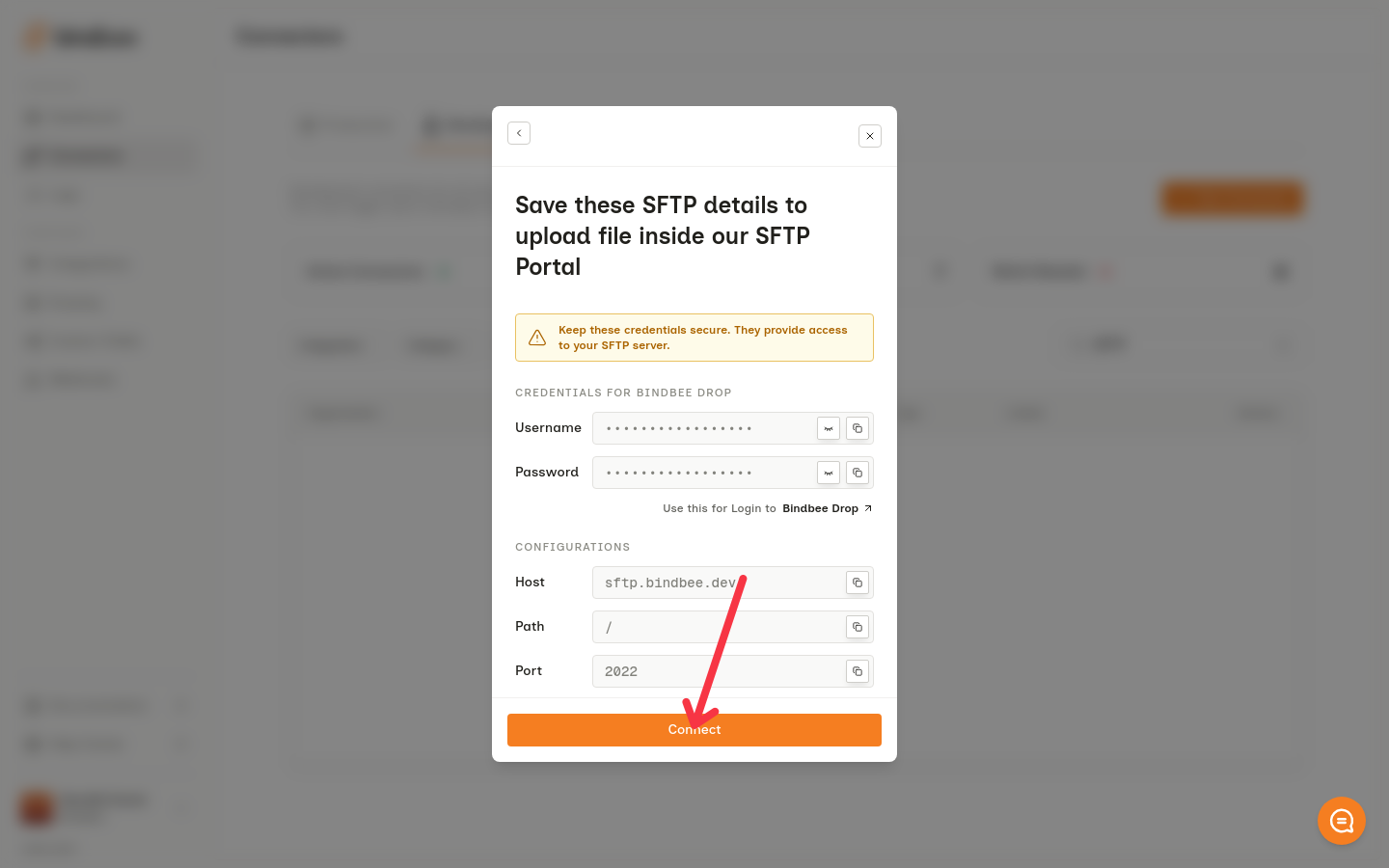
Step 2: Next you'll see the screen displaying your SFTP portal details. Carefully copy and securely save this information for future use. Press "Connect" button, once you save the details.
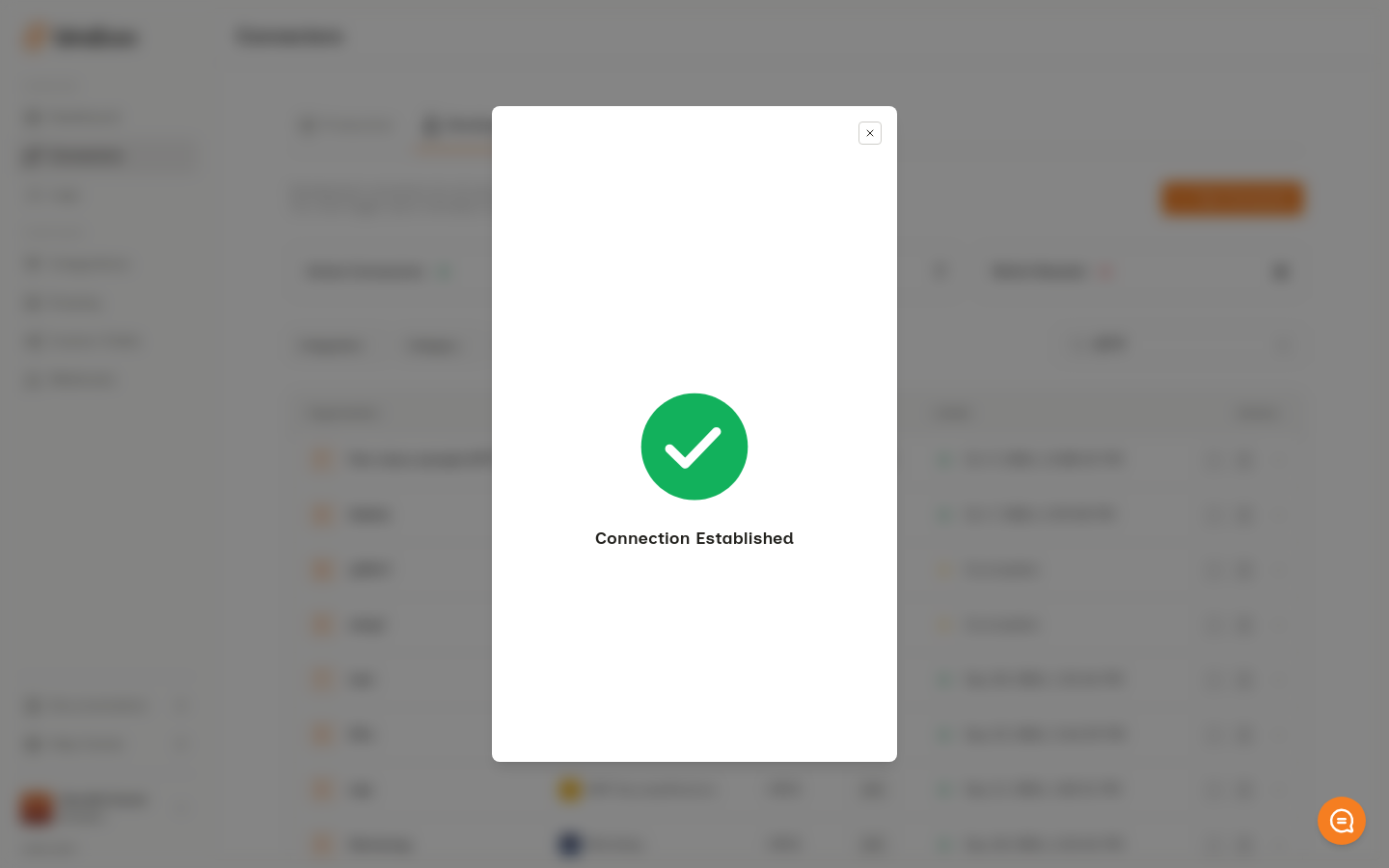
Step 3: Ensure the connection is successfully established.
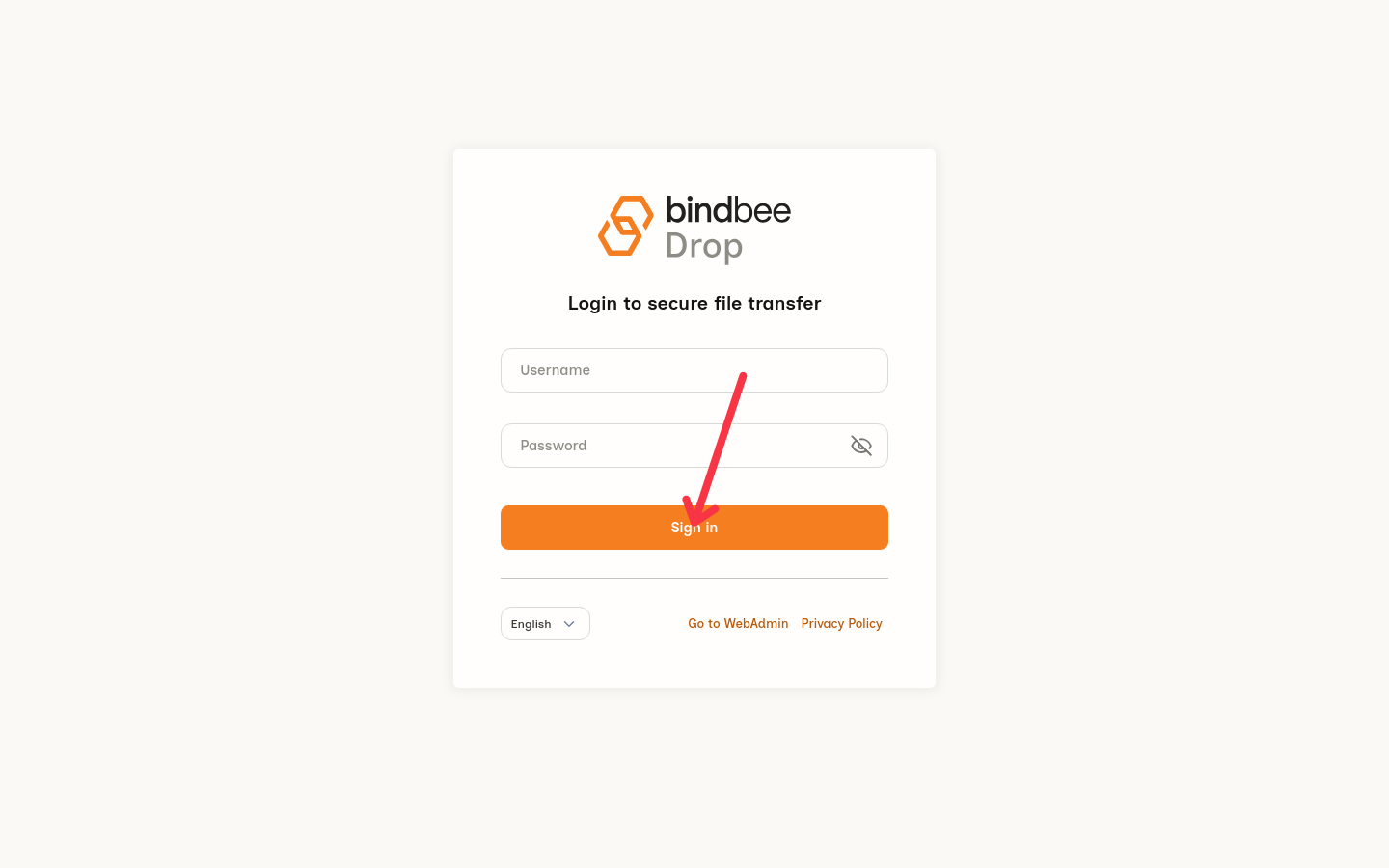
Step 4: Now, visit https://sftp.bindbee.dev and enter the credentials you just saved in Step 3 to login.
Step 5: After login, you can now upload the required CSV files.
Employee Census File
Please ensure that the file name starts with Employee_Census
Example: Employee_Census_xyz.csv
Additional Benefits File (Rippling)
For Rippling integration, you may also upload an additional benefits file.
Please ensure that the file name starts with Additional_Benefit
Example: Additional_Benefit_xyz.csv
Supported SFTP Integrations
Please find the standard CSV file templates for our supported SFTP integrations below:
Guidelines
Please keep the following in mind:
Ensure that the column names in your uploaded file exactly match those in the standard template
Any mismatch in column names or structure may lead to data sync issues
The data will be synced using the latest uploaded file
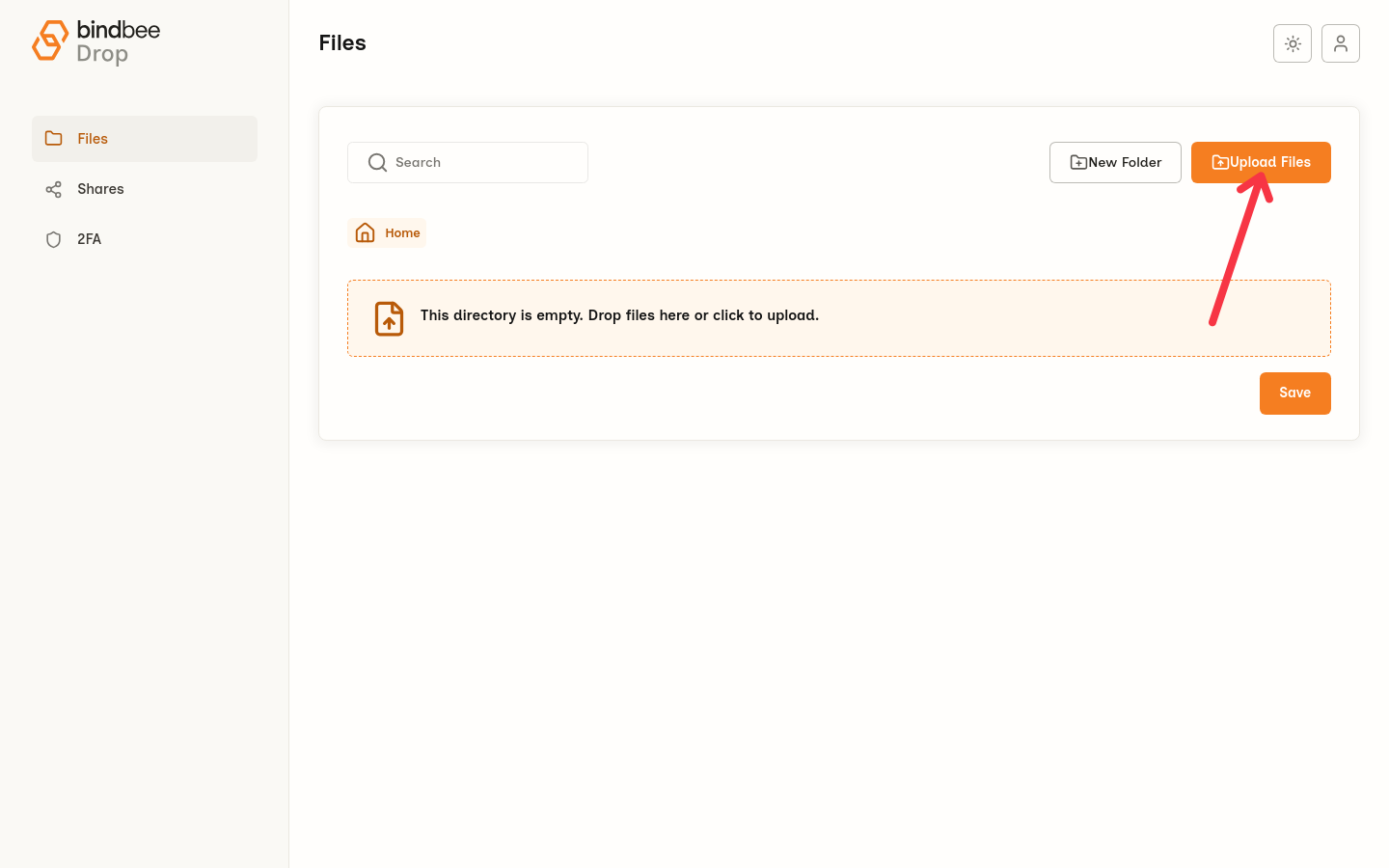
Step 6: After uploading, make sure to save the file as prompted.
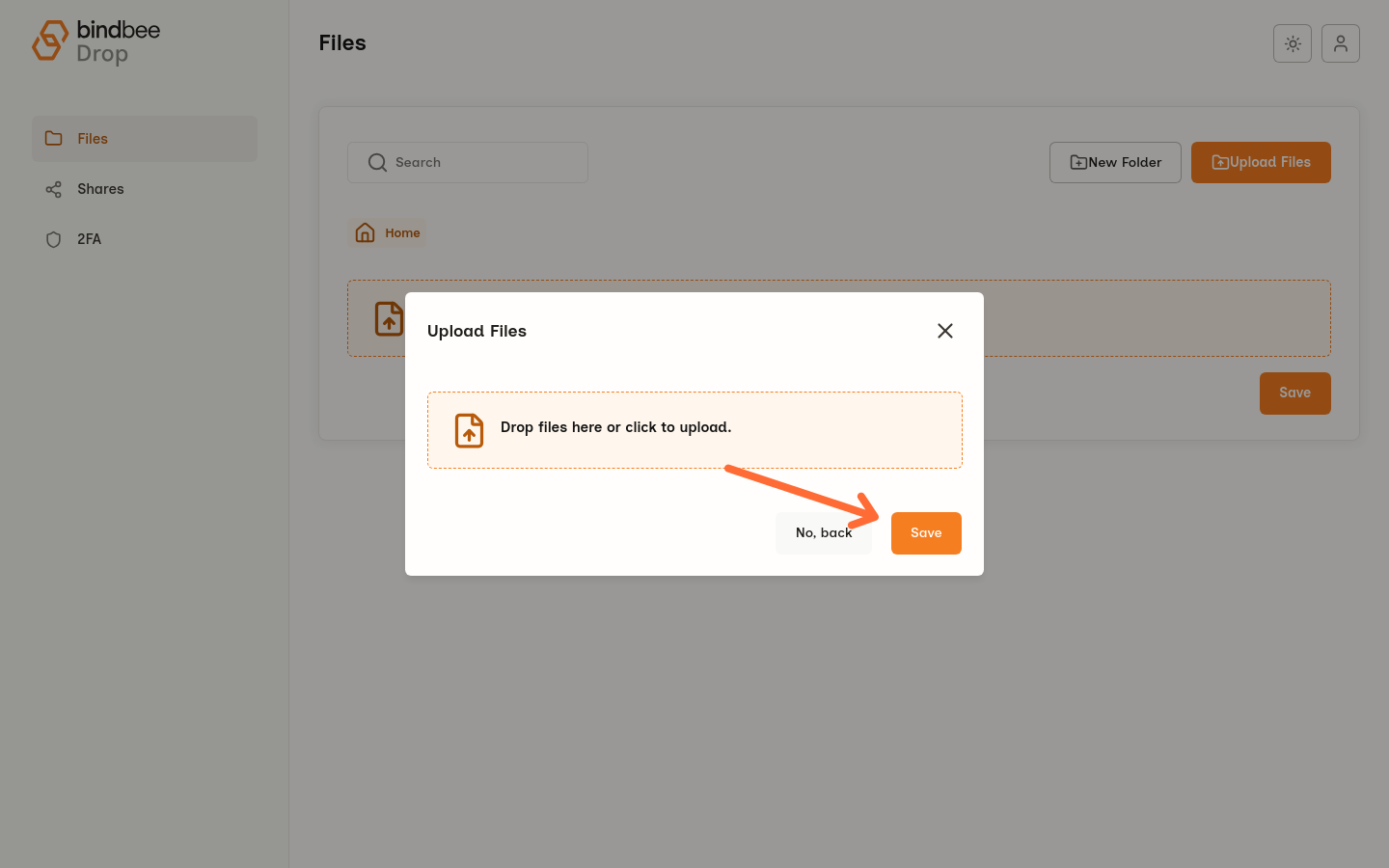
That's it! Once the files are saved, they will be securely uploaded and integrated with Bindbee's system. For further support, contact us at [email protected]